Sign in
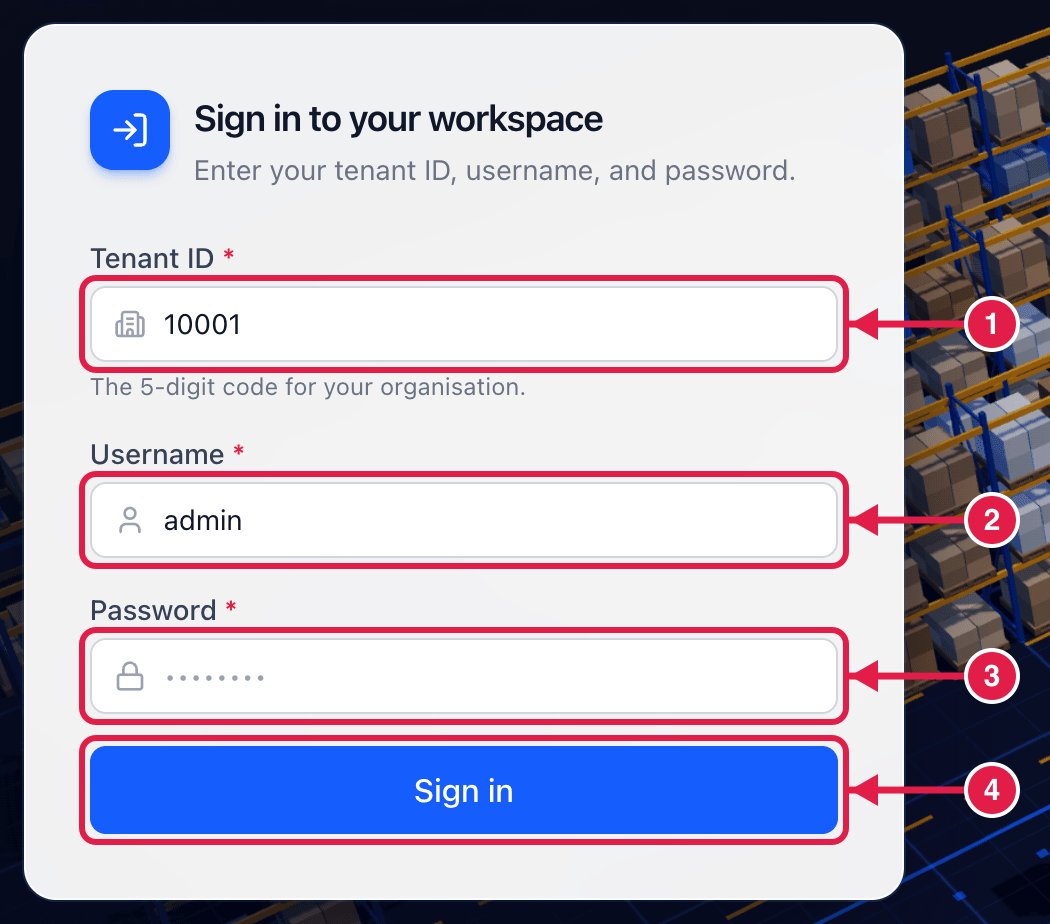
Open PrismaWMS in your web browser and sign in with three things: your company's tenant ID, your username and your password.
Before you start
- Ask your administrator for your tenant ID (5 digits), username and a first password.
- Use a recent Chrome, Edge or Safari. PrismaWMS works on a PC, laptop or tablet.
- The address is https://wms.prismatechnology.com.my (your company may use its own address).
Steps
- Type your company's Tenant ID — the 5-digit code, for example
10001. - Type your Username, for example
admin. - Type your Password.
- Click Sign in.
After signing in you land on the Command Center, the home page with today's numbers.
First sign-in
If your administrator gave you a temporary password, PrismaWMS asks you to choose your own before you can continue. Pick something only you know — at least the length shown on the screen.
If something goes wrong
| What you see | What to do |
|---|---|
| "Invalid tenant ID, username, or password." | Check the tenant ID first — it is the most common mistake. Then check Caps Lock. |
| "Account temporarily locked after too many attempts. Please try again later." | Too many wrong passwords. Wait and try again, or ask your administrator to unlock you in Administration → Users. |
| Asked for a 6-digit code | Your account uses two-factor authentication. Open your authenticator app and type the current code. |
| Signed out by itself | Sessions end after a period without activity. Sign in again — your open work is not lost once saved. |
Keep your password private
Everything you do is recorded under your name in the audit trail. Never share your password — ask the administrator for your own account instead.
Sign out
Click your name at the top right, then Sign out. See Find your way around.