Find your way around
PrismaWMS has a menu on the left, a bar at the top, and your work in the middle. Every screen you open stays open in a tab, so you can switch between jobs without losing what you typed.
The menu (left)
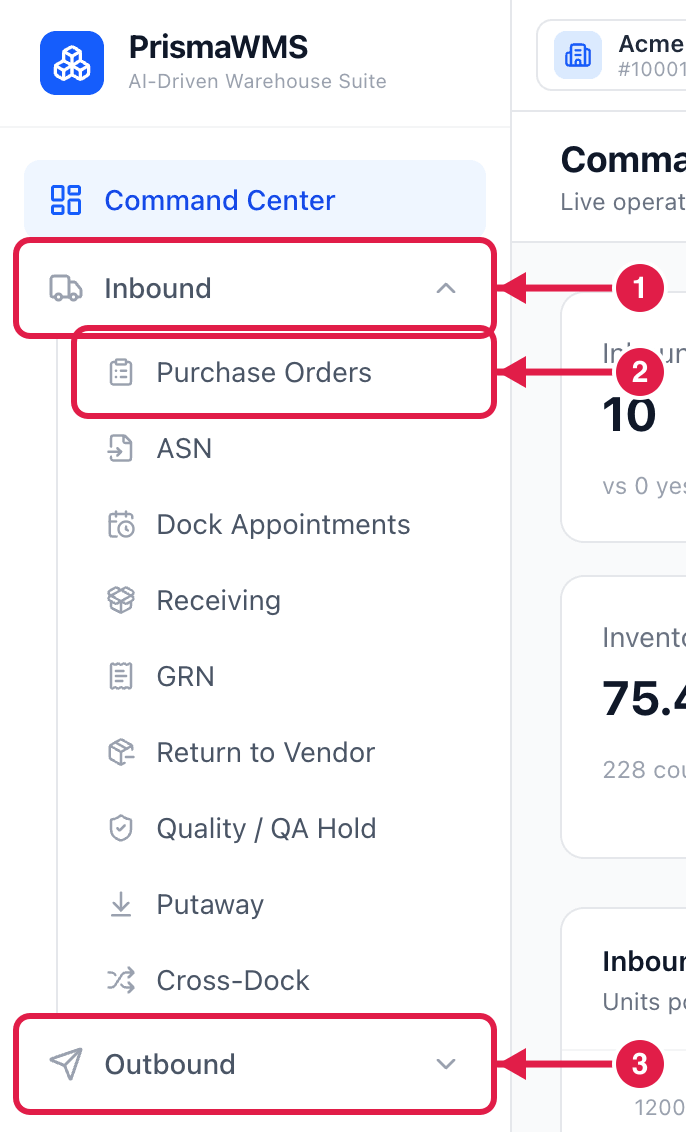
- Click a group (for example Inbound) to open or close it.
- Click a screen inside it (for example Purchase Orders) to open that screen.
- The other groups — Outbound, Inventory, VAS & Production, Master Data, Labels & Documents, Reports & Analytics, AI & Automation, Administration — work the same way.
You only see what you may use
The menu shows the screens your role allows. If a screen your colleague has is missing for you, ask your administrator about your role.
The top bar

- Company — the company (tenant) you are working in. People who work for several companies switch here.
- Search — jump to any screen by typing its name (shortcut ⌘K on Mac, Ctrl+K on Windows).
- Tabs — every screen you open (see below).
- Ask Copilot — ask the AI assistant a question in plain words, e.g. "how many units of SKU X are in KL-DC-01?"
- Notifications — alerts such as approvals waiting for you or failed integrations. The red number is how many are unread.
- Your profile menu — your defaults, password, two-factor authentication and sign out.
Tabs: keep several jobs open
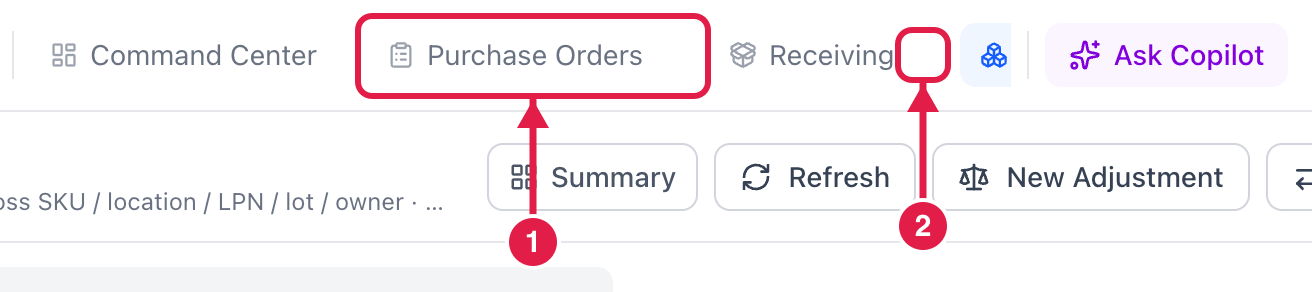
- Click a tab to go back to that screen — exactly as you left it, with any typing and filters kept.
- Click the small × on a tab to close it. (The Command Center tab always stays.)
Why tabs help
You can be in the middle of a receipt, quickly check stock in another tab, and come back to the receipt without losing anything.
Search
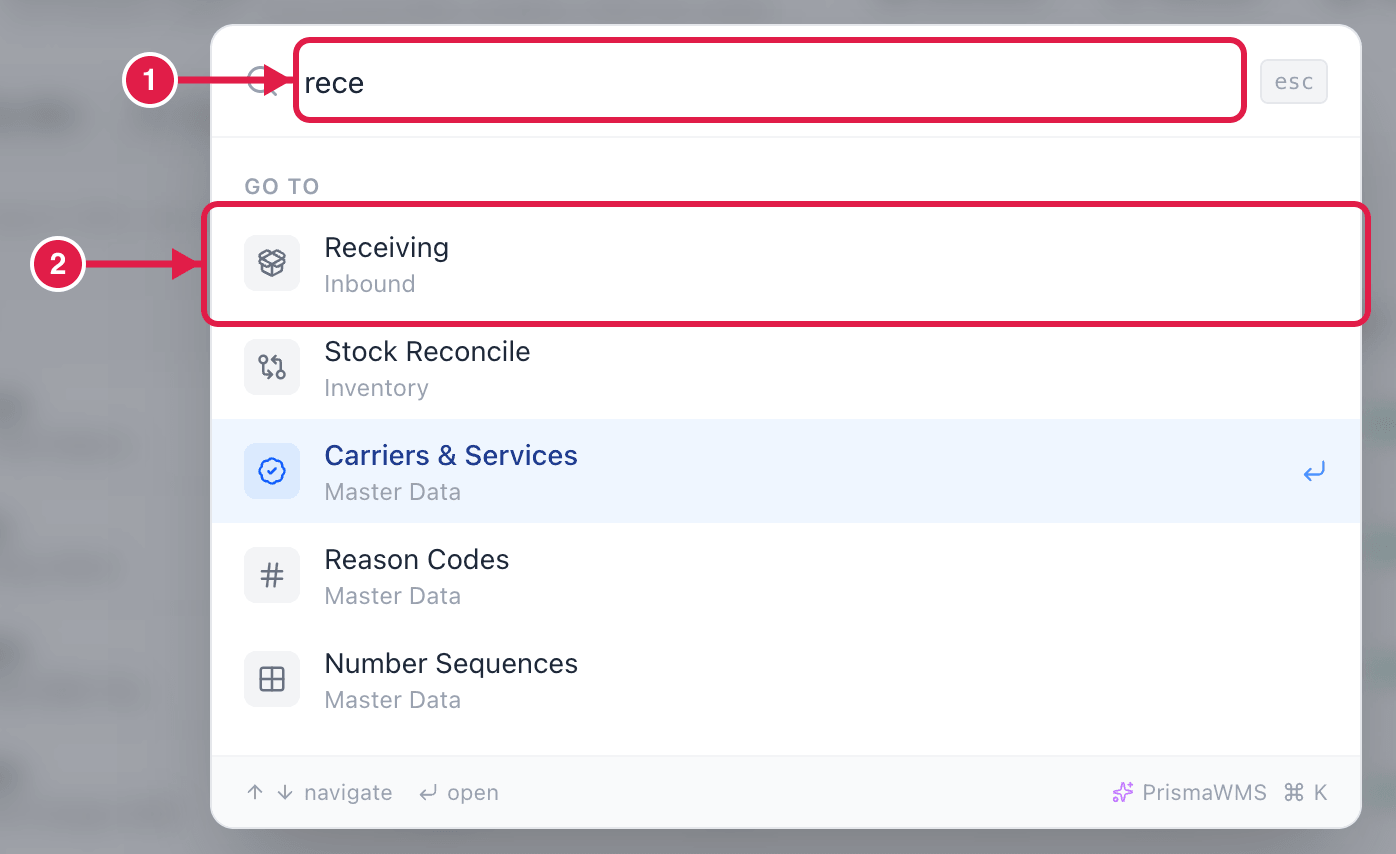
- Click the magnifier (or press ⌘K / Ctrl+K) and start typing, e.g.
rece. - Click the result (or use the arrow keys and Enter) to open the screen.
Your profile menu
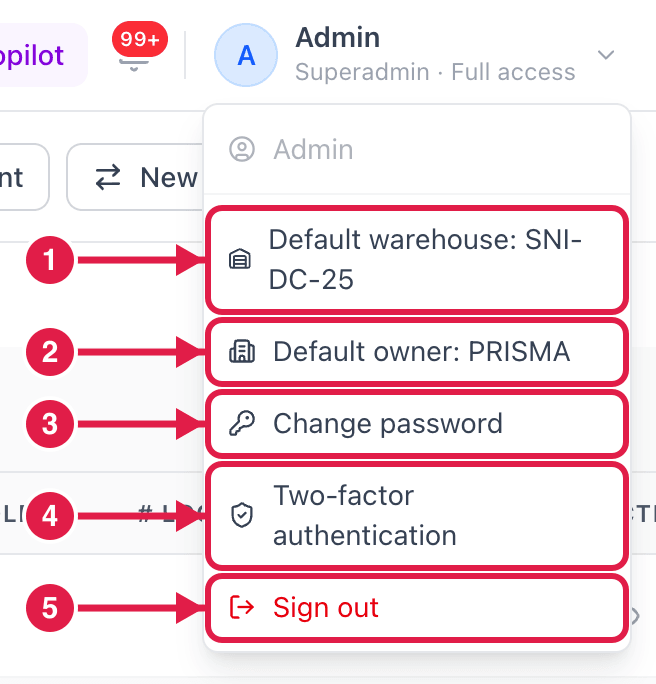
- Default warehouse — the warehouse PrismaWMS fills in for you on new documents and lists.
- Default owner — the client PrismaWMS fills in when you store goods for several owners.
- Change password.
- Two-factor authentication — add a 6-digit code from your phone for extra safety.
- Sign out.
Set your default warehouse first
If you mainly work in one warehouse, set it as your default. Lists then show that warehouse first and new documents are filled in for you — far fewer clicks.