ASN — Advance Shipping Notice
An ASN is the supplier's message "this is on its way to you": which items, how many, which lots and expiry dates, on which truck, arriving when. Receiving uses the ASN as its checklist, so the receiver only has to confirm what arrived. Like a PO, an ASN does not change stock.
Where: Inbound → ASN
The life of an ASN
An ASN can be edited until receiving starts. It can be cancelled only while nothing has been received against it — cancelling also releases its quantity on the PO and drops its booked appointment.
The list
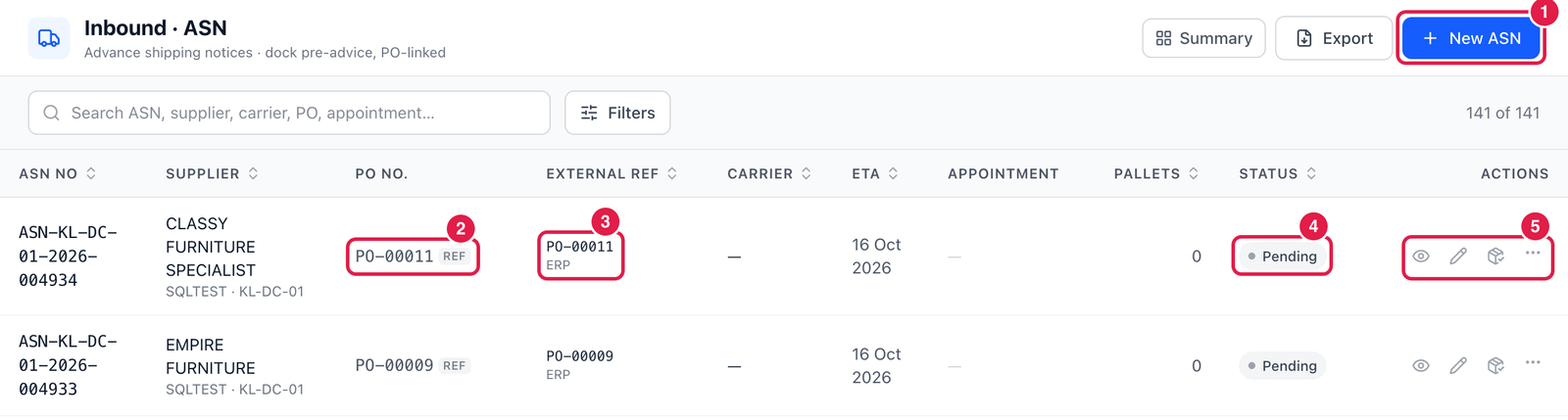
- New ASN — create an ASN.
- PO No. — the purchase order. A REF tag means the PO number comes from your ERP (it is kept as a reference; there is no WMS PO behind it).
- External ref — the reference in the system the ASN came from, and that source (ERP, EDI, API …). These ASNs were created automatically by the SQL Accounting integration.
- Status — Pending (nothing booked yet), Booked, Arrived, Receiving, Received …
- Actions — View, Edit, Receive (box icon — start receiving this ASN) and ⋯ with Print ASN, Book dock appointment and Cancel ASN….
The Appointment column shows the booked door and time, once there is one.
Create an ASN
Click New ASN. The fastest way is to copy it from the purchase order.
Step 1 — Copy the lines from the PO
Click Copy from… → Purchase order, then click the PO.
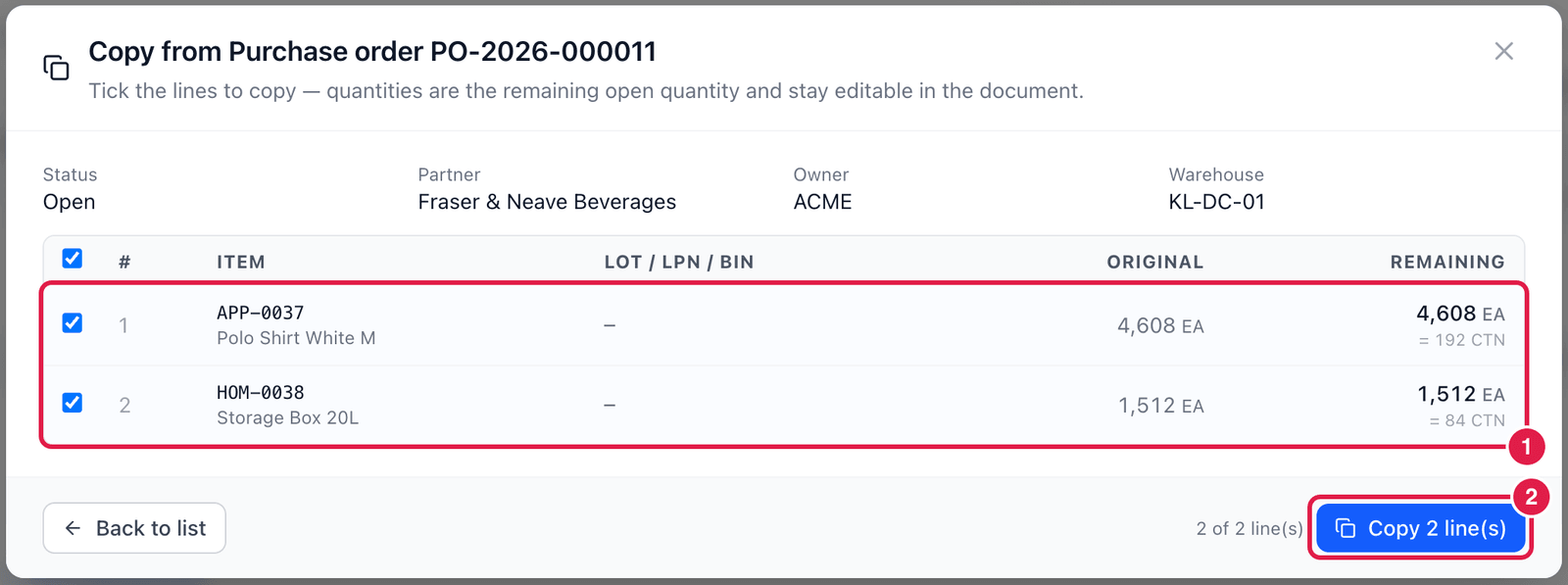
- Tick the lines that are on this delivery. The quantity offered is what is still open on the PO (here 4,608 EA = 192 cartons); you can change it afterwards.
- Copy 2 line(s) — the lines are added to the ASN.
If the PO does not appear, untick Match this document — the list is filtered to the owner and warehouse already chosen on the ASN.
Step 2 — Check the header and lines
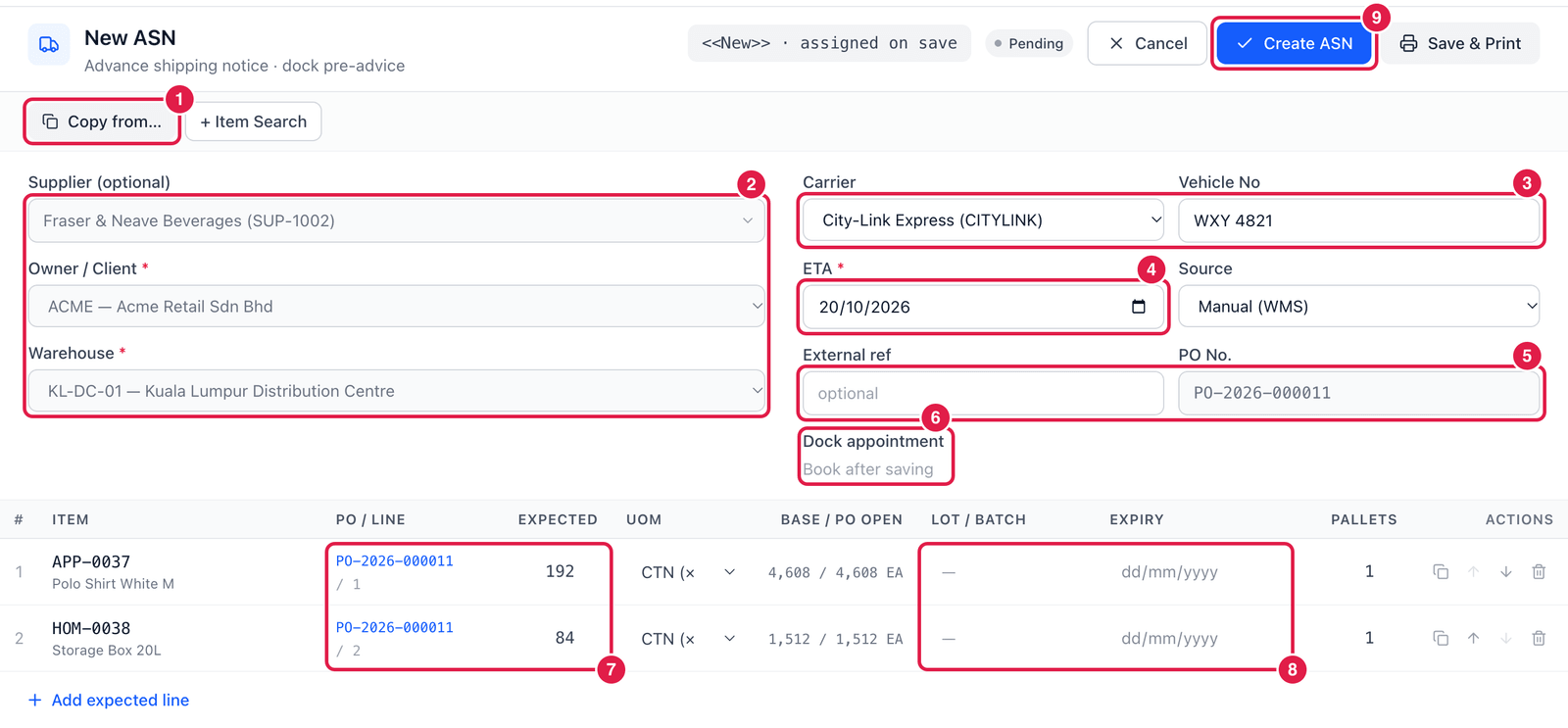
- Copy from… — also offers ASN (duplicate) to repeat a previous delivery.
- Supplier, Owner, Warehouse — taken from the PO and locked.
- Carrier and Vehicle No — who brings it, e.g. City-Link in truck
WXY 4821. - ETA — the expected arrival date. It cannot be in the past.
- External ref and PO No. — the supplier's delivery-note number (optional) and the PO.
- Dock appointment — can be booked after saving (⋯ → Book dock appointment).
- PO / line and Expected — which PO line each ASN line belongs to, and how many are coming.
- Lot / Batch and Expiry — fill in if the supplier told you. Expiry must be in the future.
- Create ASN — save. The ASN number is given on save.
If an ASN announces more than is still open on the PO, PrismaWMS asks for an over-shipment reason (a reason code valid for Over-receipt). Lines for one ASN must all belong to the same supplier, owner and warehouse.
Good to know
- Your administrator can make ASNs required, optional or off (Administration → Workflow Designer → Process). When ASNs are off, you receive directly from the PO or without any document.
- Your process settings can also require lots or expiry dates on the ASN for tracked items (System Settings → Module Settings).
- ASNs that come from an integration keep their source and external reference — these cannot be changed by hand.