Dock Appointments
A dock appointment reserves an inbound door for a delivery at a time slot — so trucks do not all arrive at once and the team knows which door to prepare. When the truck reaches the gate, the guard does a gate check-in: the appointment becomes Arrived and receiving can start.
Where: Inbound → Dock Appointments
From booking to unloading
The list
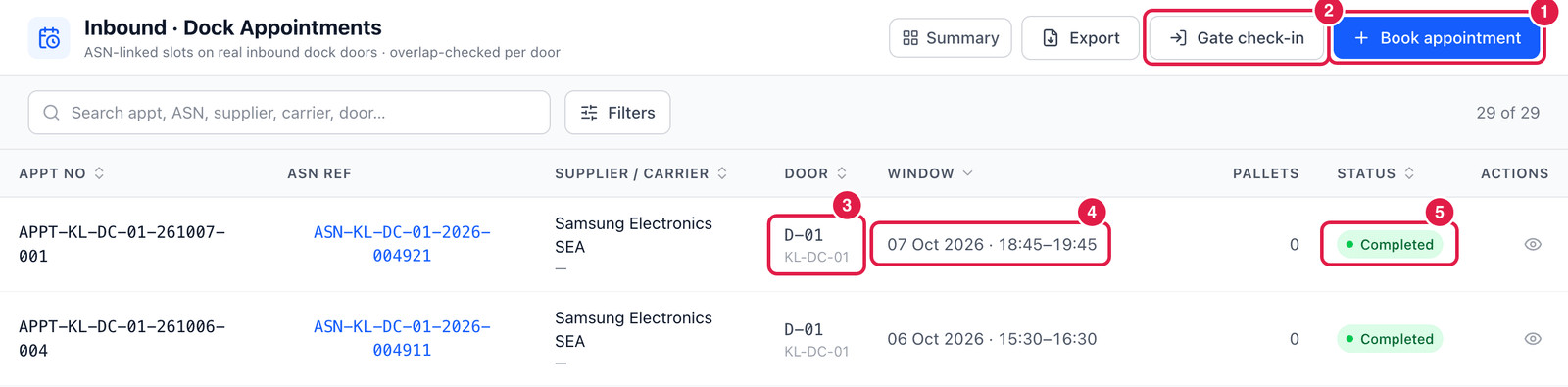
- Book appointment — reserve a door for an ASN.
- Gate check-in — register a truck that has arrived.
- Door — the inbound door (and its warehouse).
- Window — the booked date and time.
- Status — Booked, Confirmed, Arrived, In Progress, Completed, No-Show or Cancelled.
The ⋯ menu of an open appointment has Reschedule, Mark no-show and Cancel appointment. The eye icon opens the ASN.
Book an appointment
Click Book appointment (or, on the ASN screen, ⋯ → Book dock appointment).
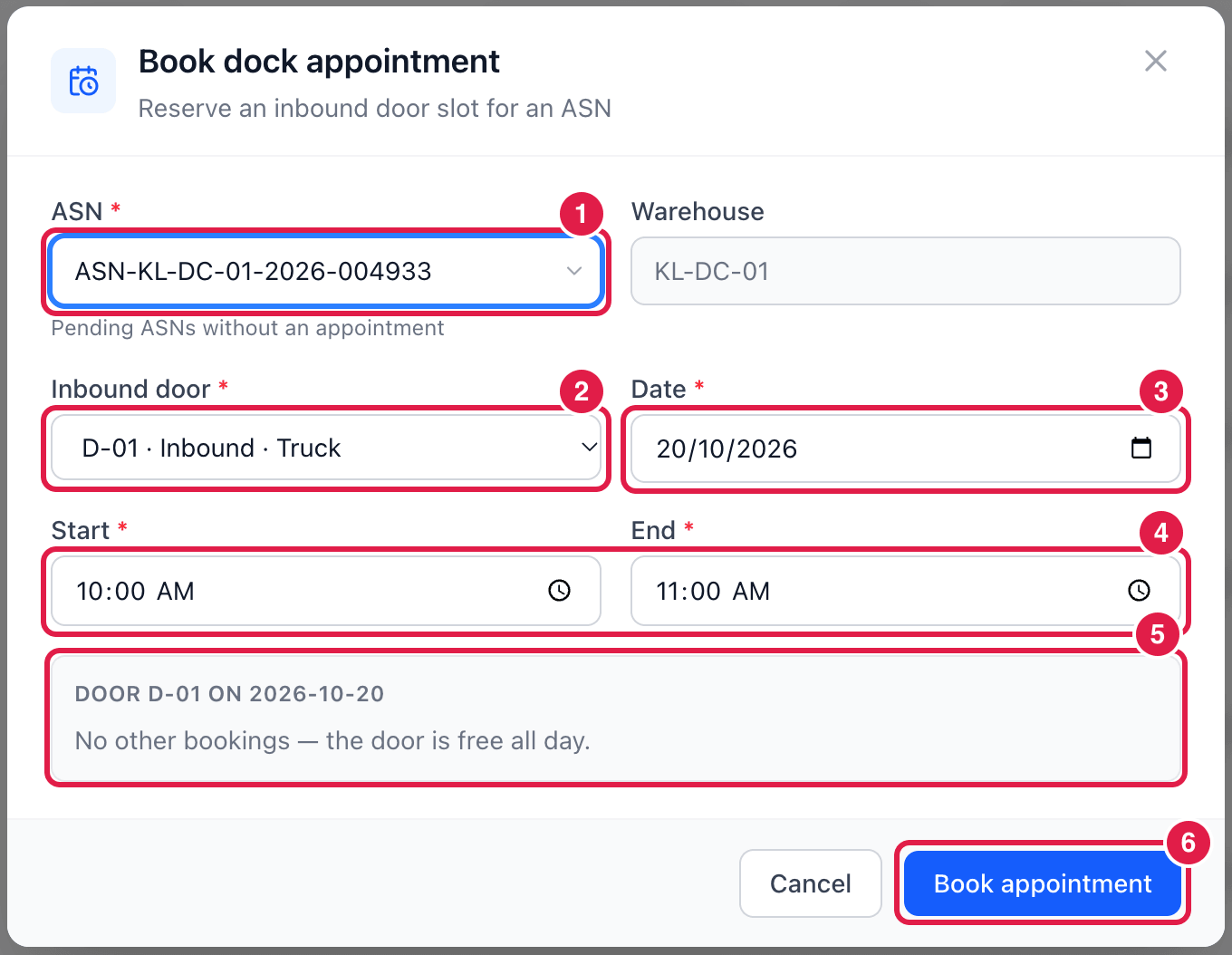
- ASN — only pending ASNs without an appointment are listed. The warehouse comes from the ASN.
- Inbound door — the warehouse's inbound doors and what they suit (Truck, Container, Van, Parcel). Doors are set up in Warehouses.
- Date of the delivery.
- Start and End of the slot.
- Bookings on this door — the other bookings for that door and day, so you can see free time. Here the door is free all day.
- Book appointment — save. The ASN becomes Booked.
PrismaWMS refuses a booking that overlaps another booking on the same door — you will see which appointment is in the way. Reschedule moves an appointment to another door or time (overlap-checked too); it then has to be confirmed again.
Check a truck in at the gate
When the truck arrives, click Gate check-in.
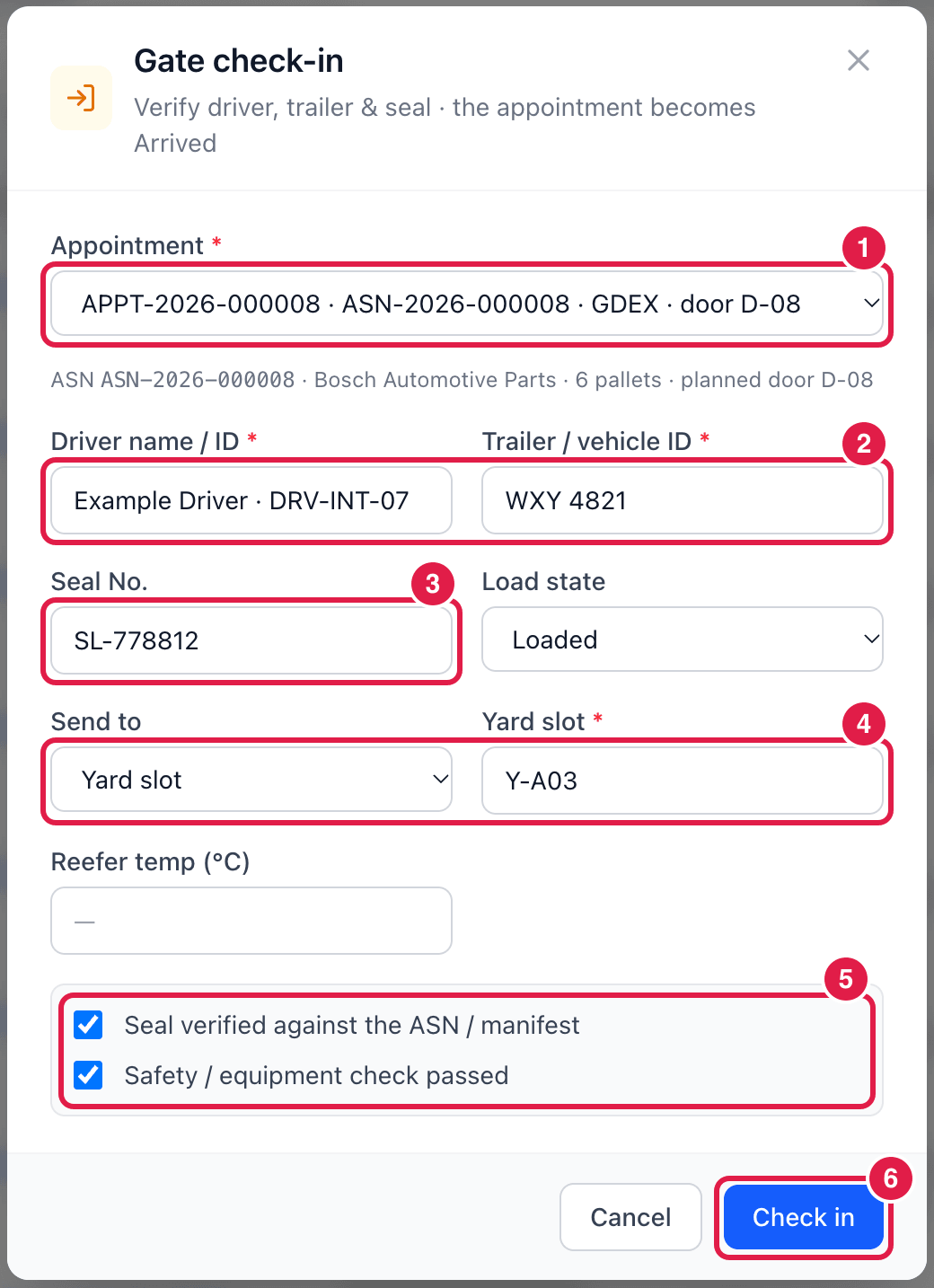
- Appointment — the booked appointment. Under it you see the ASN, supplier, pallets and planned door.
- Driver name / ID and Trailer / vehicle ID — both required.
- Seal No. — the seal on the trailer doors, if there is one.
- Send to — a yard slot (e.g.
Y-A03) to wait, or straight to a door. Enter the reefer temperature for chilled / frozen trucks. - Checks — tick Seal verified (required when a seal number is entered) and Safety / equipment check passed (always required).
- Check in — the appointment and its ASN become Arrived, and the truck appears on the Yard & Dock board.
Good to know
- Whether appointments are required before an ASN can be received is a process setting (Administration → Workflow Designer → Process). By default they are optional.
- Appointment numbers look like
APPT-KL-DC-01-261007-001— warehouse, date and a running number.