GRN — Goods Received Note
The GRN is the moment the goods become stock. Posting a GRN takes a completed receipt and books every unit into a bin: good units into the receiving bin (ready for putaway), QA-hold units into the QA bin, damaged units into the damage bin. It also creates a putaway task for every pallet of good stock. A posted GRN cannot be edited — mistakes are corrected by reversing it.
Where: Inbound → GRN
What posting a GRN does
If your process is set to GRN posted automatically (Administration → Workflow Designer → Process), completing the receipt posts the GRN for you — you only use this screen to look GRNs up, print them or reverse them.
The list
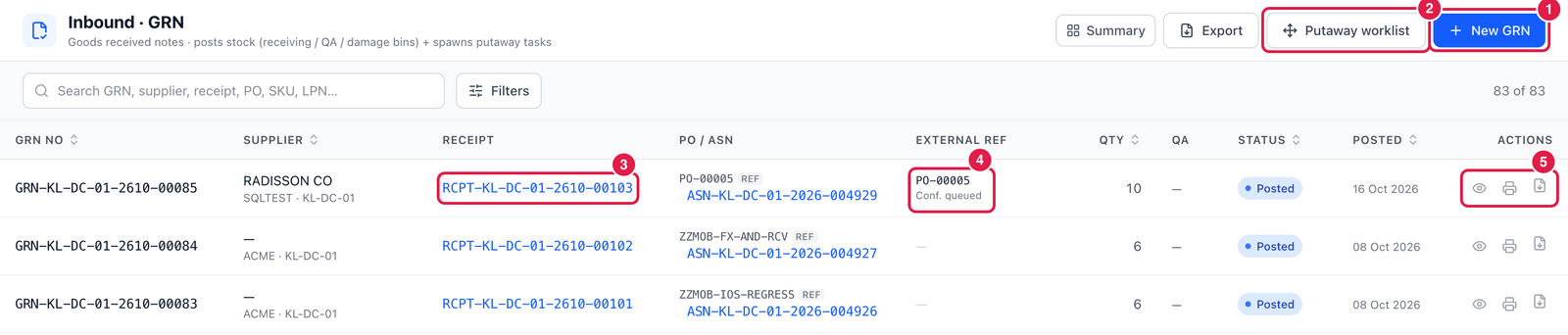
- New GRN — post a GRN for a completed receipt.
- Putaway worklist — the putaway tasks created by GRNs (see Putaway).
- Receipt — the receipt this GRN was posted from.
- External ref — for deliveries that came from an ERP: the ERP's reference and, below it, whether a receipt confirmation for that system has been queued (Conf. queued).
- Actions — View, Print GRN and ⋯.
Post a GRN
Click New GRN.
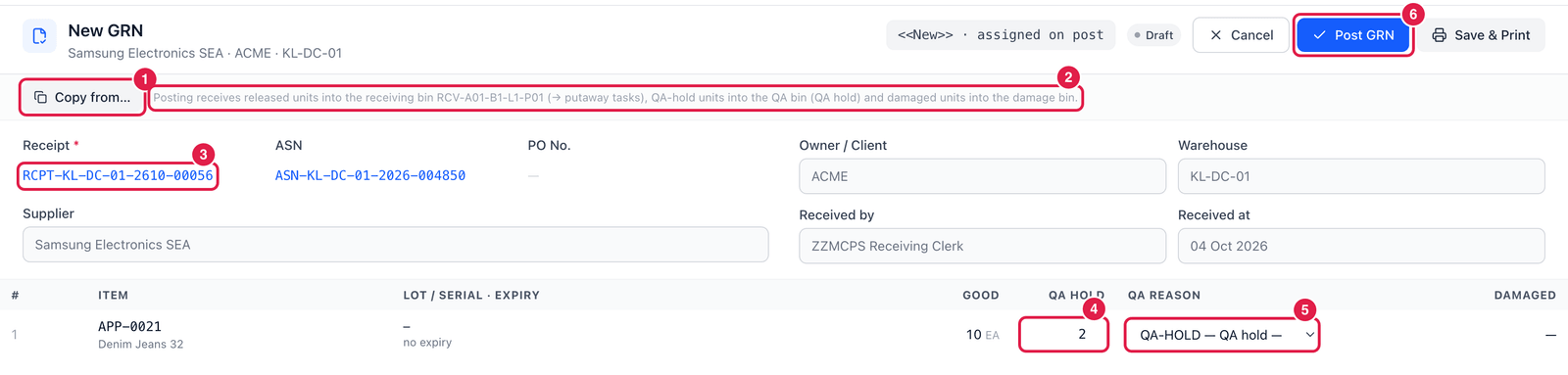
- Copy from… — choose the completed receipt that is waiting for its GRN. Its lines load into the table.
- Where the stock goes — the note shows the receiving bin (here
RCV-A01-B1-L1-P01) and reminds you that QA-hold units go to the QA bin and damaged units to the damage bin. - Receipt — with its ASN and PO.
- QA hold — how many of the received units must be inspected before they can be used. Here 2 of the 10 go to QA hold; the other 8 are released to putaway. (The Good column shows what was received.)
- QA reason — required when QA hold is more than 0: e.g. QA-HOLD — pending inspection, EXPIRED, RECALL.
- Post GRN — post. The totals at the bottom (Released 8 · QA hold 2 · Damaged 0) show exactly what will be booked where.
After posting
Open a posted GRN with View:
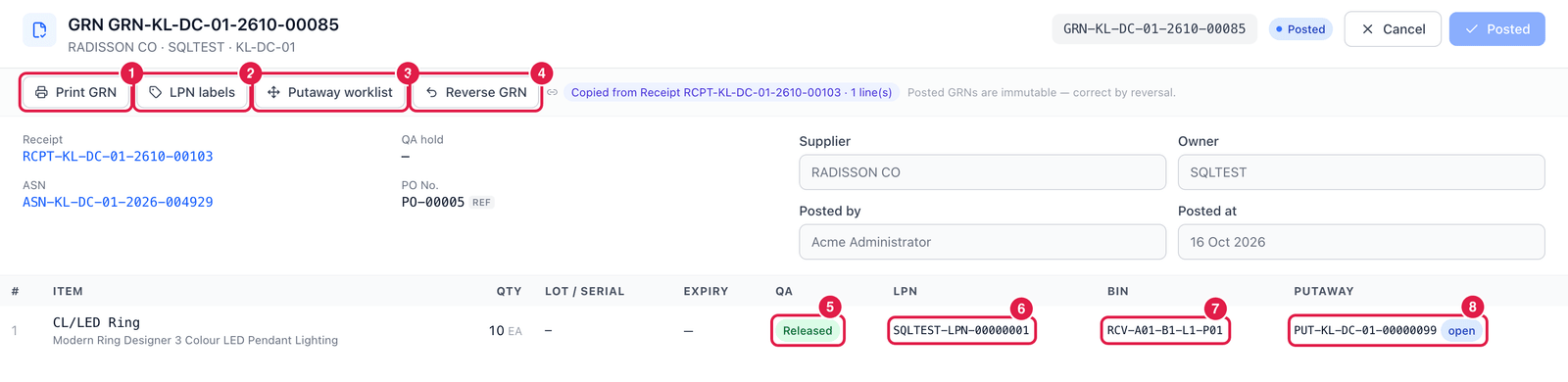
- Print GRN — the goods received note for the supplier or your files.
- LPN labels — print a pallet label for every LPN.
- Putaway worklist — go to the putaway tasks of this GRN.
- Reverse GRN — undo the posting (see below).
- QA — Released (ready for putaway) or On hold.
- LPN — the pallet / licence-plate number created for the stock.
- Bin — where the stock is now (the receiving bin).
- Putaway — the putaway task and its status (open until someone moves the pallet).
Reverse a GRN
Reverse GRN takes the stock back out, cancels its LPNs and gives the received quantities back to the PO and ASN. The receipt is freed, so it can be reopened, corrected and posted again — use this when a GRN was posted with wrong quantities or lots. A reason is required. It is not possible when:
- a putaway task has already moved the stock to its storage bin — move it back first;
- the GRN's QA hold has already been released or rejected.
Open putaway tasks of the GRN are cancelled automatically.
Good to know
- The PO's Received figure and the ASN status are updated when the GRN is posted.
- For deliveries imported from SQL Accounting, the goods receipt is sent back to SQL Accounting from Administration → Integrations (Preview → Send).