Purchase Orders
A purchase order (PO) tells the warehouse what to expect: which supplier, for which owner, into which warehouse, which items and how many, and roughly when. It does not change stock — it is the reference the receipt is checked against. When the goods are received, the PO shows how much has arrived.
Where: Inbound → Purchase Orders
You do not have to create POs here. Purchase orders can be imported from SQL Accounting or another ERP (Administration → Integrations), and — depending on your process settings — you can receive goods without any WMS PO at all. See Inbound overview.
The life of a purchase order
- A PO can be edited while it is Open or Part-Received — but never below what has already been received or announced on an ASN.
- Cancel is only possible when nothing has been received and no live ASN refers to the PO. Once goods have arrived, use Close short instead.
The list
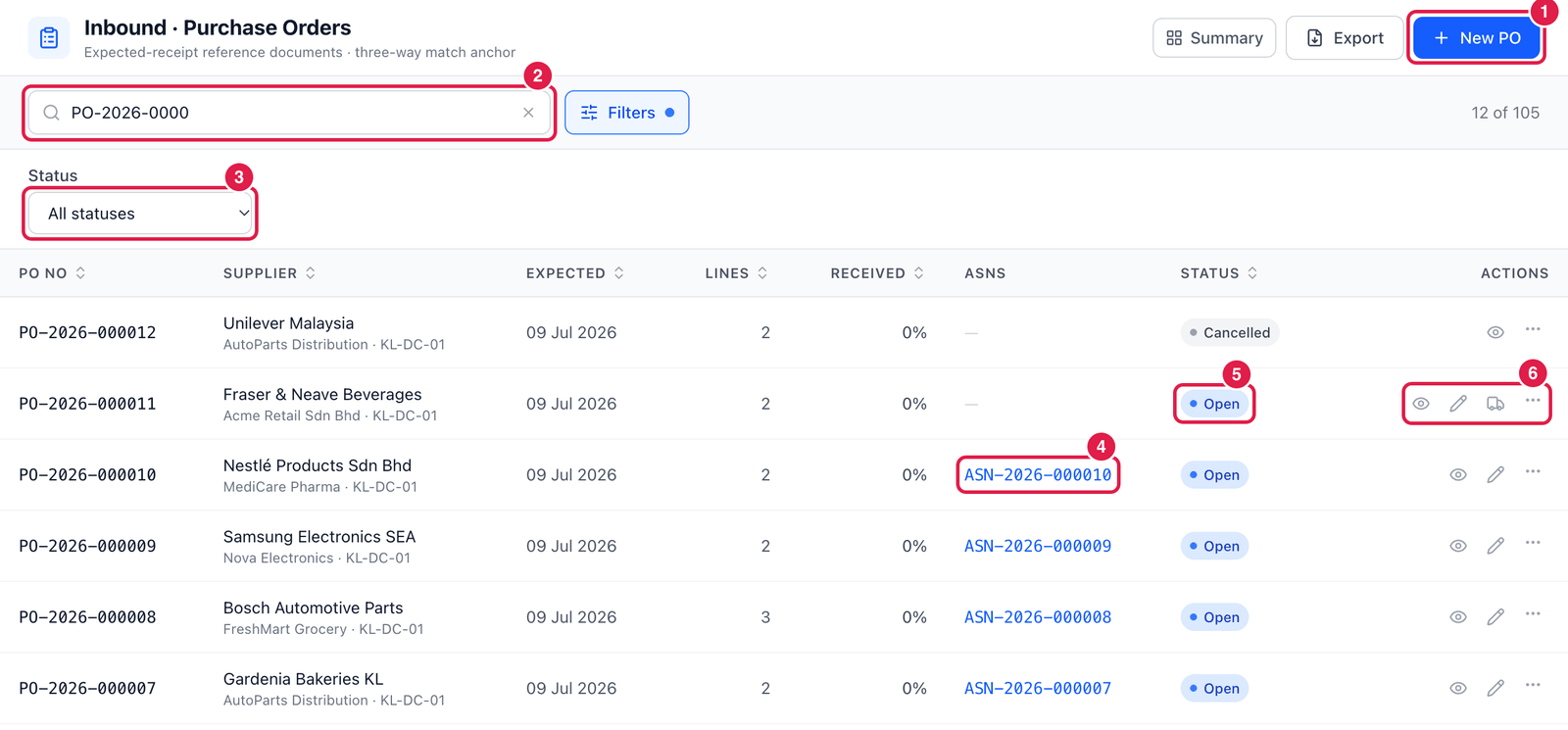
- New PO — create a purchase order.
- Search — by PO number, supplier, SKU or warehouse.
- Status filter (click Filters) — Open, Part-Received, Closed, Cancelled.
- ASNs — the ASN(s) created for this PO. Click to open.
- Status of the PO.
- Actions — View, Edit, Create ASN (truck icon, shown while the PO still has quantity without an ASN) and ⋯ with Print PO, Close short… and Cancel PO….
Create a purchase order
Click New PO. The PO opens in its own tab.
Step 1 — Header and lines
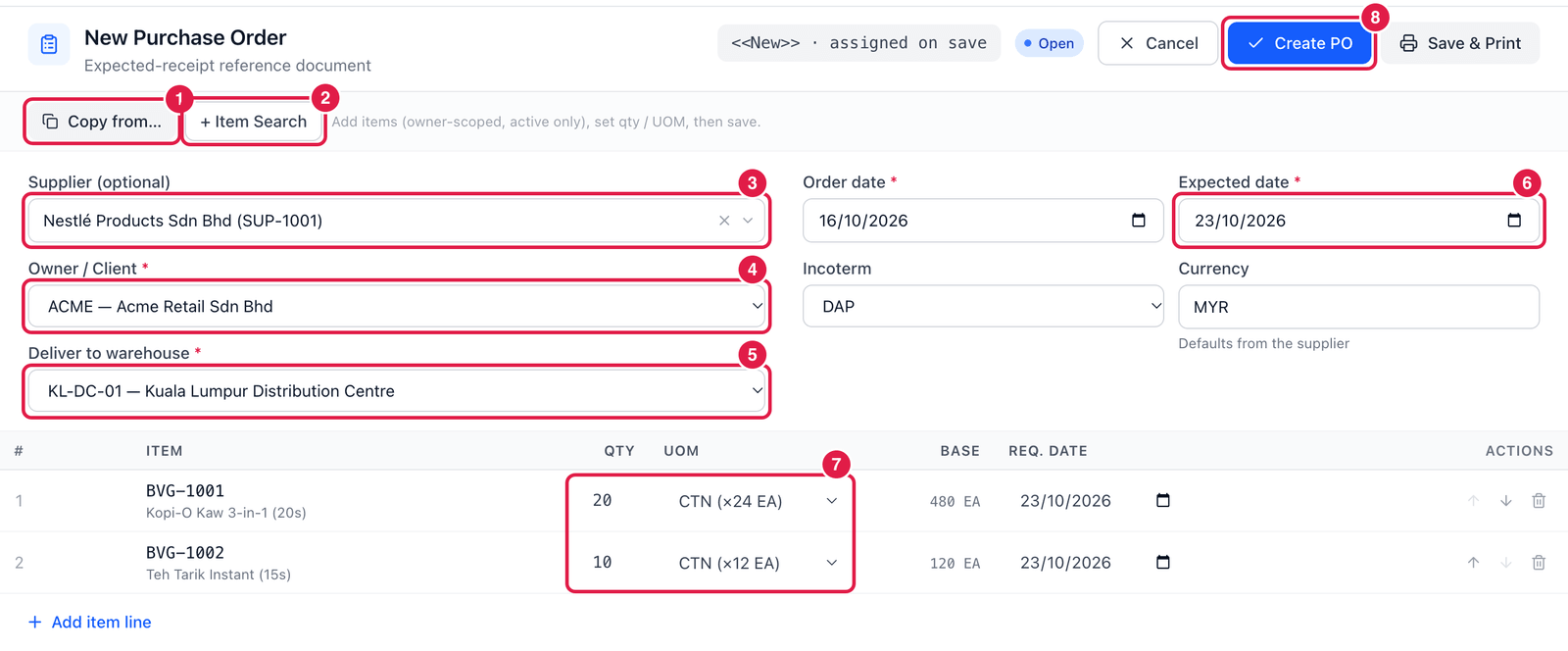
- Copy from… — start from an existing PO (duplicate) or from replenishment suggestions.
- + Item Search — add several items at once (next step).
- Supplier — optional. Type a few letters and choose; the currency is taken from the supplier.
- Owner / Client — whose goods these are. Choose it first — items are filtered by owner.
- Deliver to warehouse — where the goods will arrive.
- Expected date — when the goods should arrive. Order date defaults to today.
- Qty and UOM — how many, in which unit. Here 20 CTN (cartons of 24) = 480 EA shown under Base. Each line also has a Req. date (defaults to the expected date).
- Create PO — save. The PO number (e.g.
PO-KL-DC-01-2026-018614) is given on save. Save & Print saves and opens the printable PO.
Step 2 — Add items
Click + Item Search.
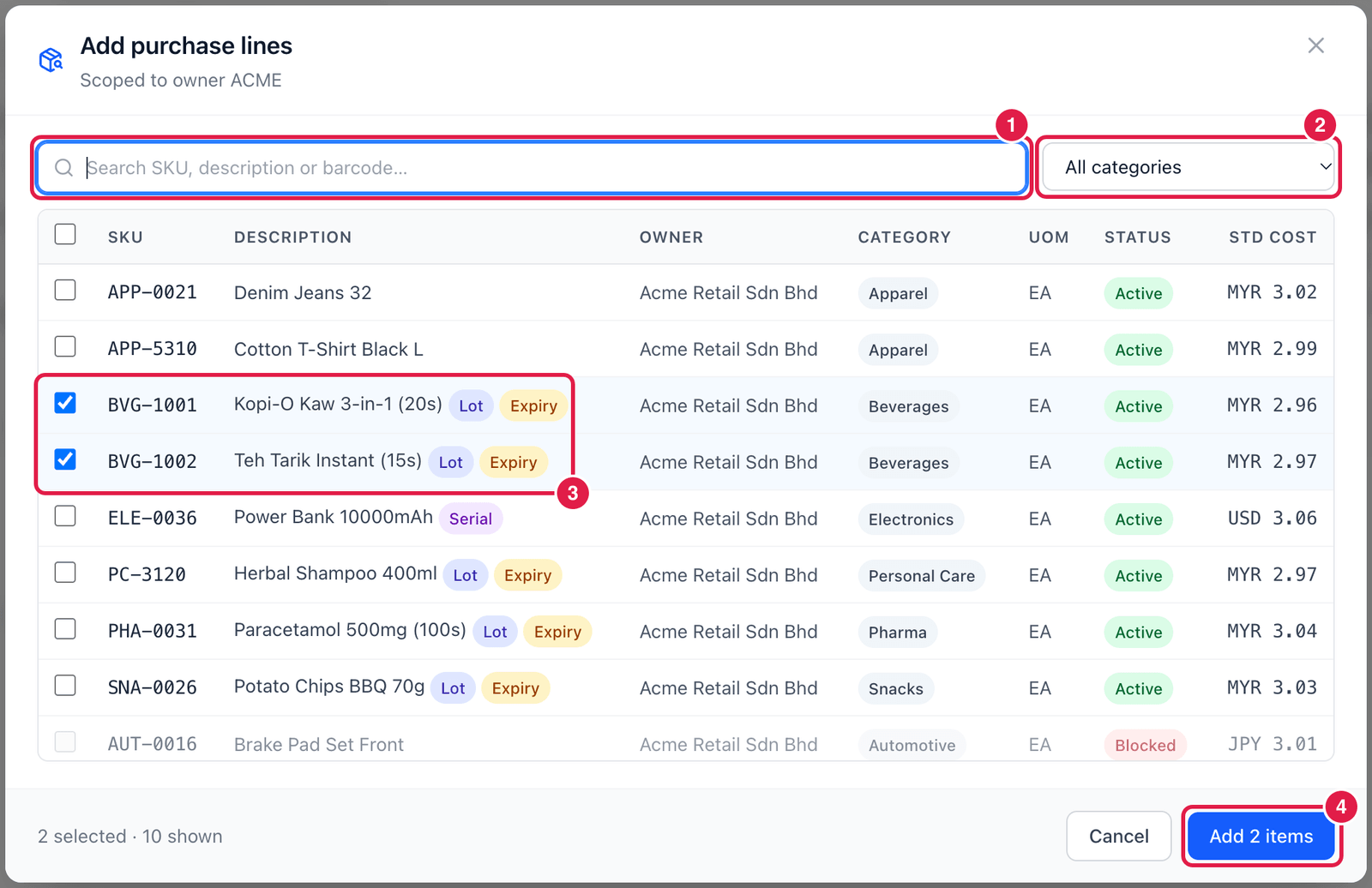
- Search — by SKU, description or barcode.
- Category — narrow the list.
- Tick every item you want. Tags show which items are lot, expiry or serial tracked. Blocked items cannot be ticked.
- Add 2 items — the lines are added to the PO; then enter the quantity and unit for each.
The supplier must be active and not on hold, the owner and warehouse active, and every item active and belonging to the chosen owner. If something is wrong, the message tells you exactly which line to fix.
Good to know
- Create ASN from the PO when the supplier tells you a delivery is on its way — see ASN.
- Close short… asks for a reason, e.g. supplier cannot deliver the rest. Any open ASN must be received or cancelled first.
- The PO's Received column fills in automatically as GRNs are posted.