Receiving
Receiving is where you record what really arrived — against an ASN, against a PO, or blind with no document at all. For every line you confirm the quantity, the lot, the expiry date, and how many are damaged. When you complete the receipt, it is ready for the GRN that puts the goods into stock (or, if your process is set to automatic, the stock is posted at once).
Where: Inbound → Receiving
The life of a receipt
The list
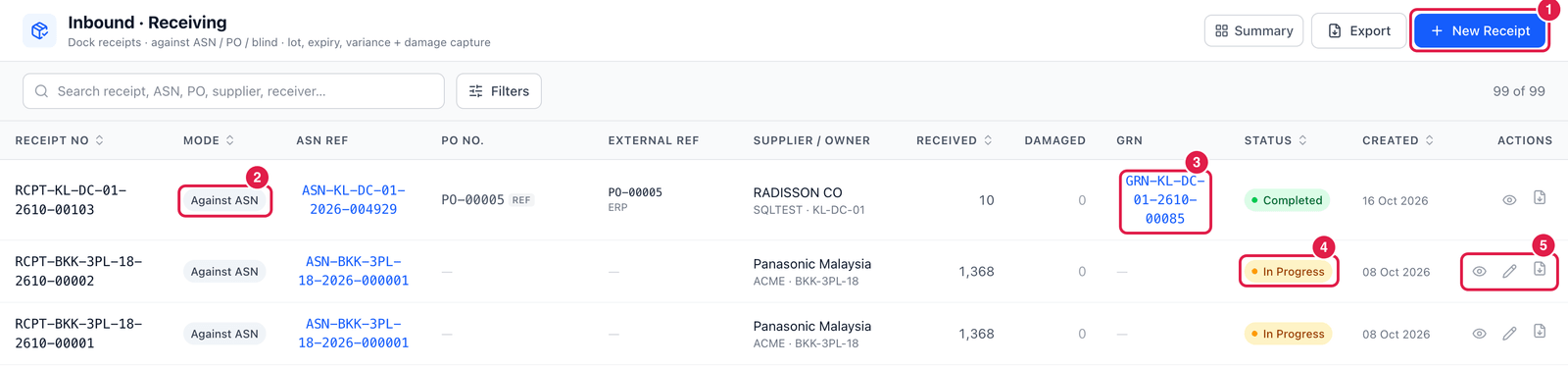
- New Receipt — start receiving.
- Mode — Against ASN, Against PO or Blind.
- GRN — once the receipt has been posted, the GRN number appears here. Click it to open the GRN.
- Status — In Progress (counting has started), Completed, Cancelled …
- Actions — View, Edit (while in progress) and ⋯.
You can also start a receipt from the ASN list with the Receive (box) icon.
Receive a delivery
Click New Receipt.
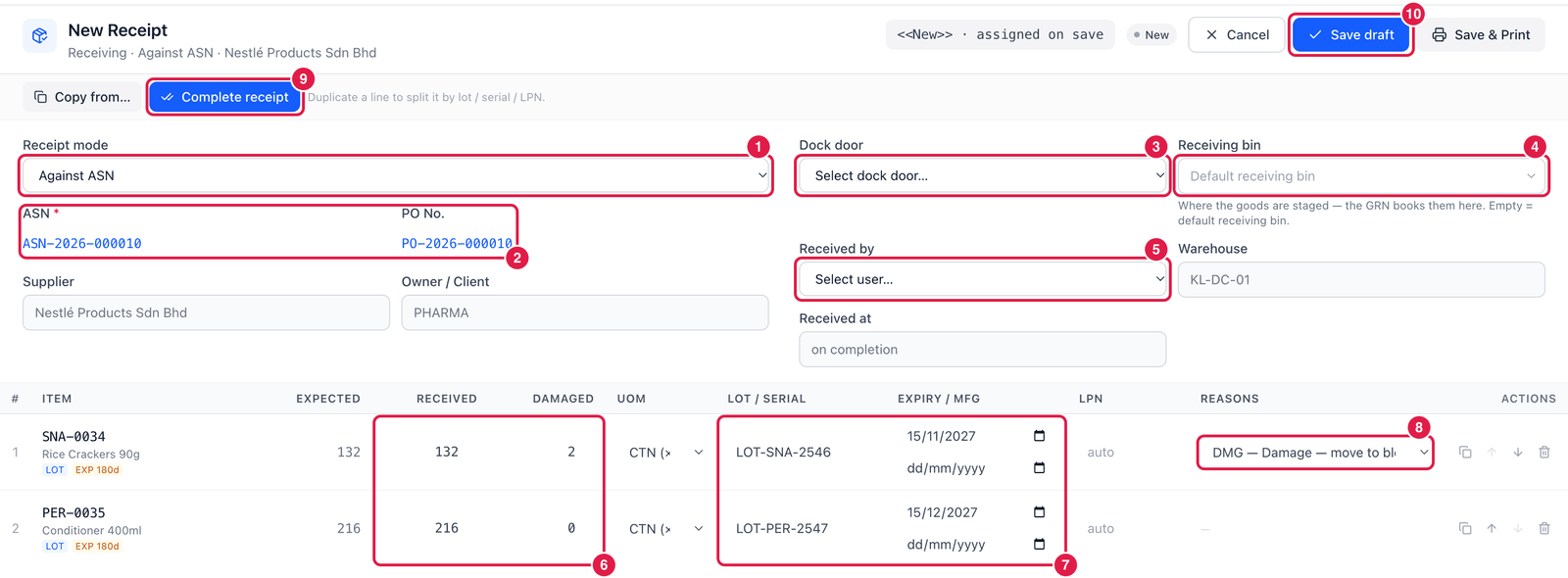
- Receipt mode:
- Against ASN — the usual case: the supplier announced the delivery.
- Against PO — no ASN, but there is a purchase order.
- Blind — no document at all; you add the items yourself.
- ASN and PO No. — click Copy from… and choose the ASN (or PO). Its open lines load into the table, with the expected quantities, lots and expiry dates the supplier sent.
- Dock door — the door you are unloading at.
- Receiving bin — where the goods are staged. Leave empty to use the warehouse's default receiving bin; the GRN books the stock here.
- Received by — who did the count. Received at is filled in when you complete.
- Received and Damaged — how many arrived in the line's unit. Damaged is part of Received: here 132 cartons arrived, 2 of them damaged.
- Lot / Serial and Expiry / Mfg — the lot and the expiry date (or the manufacturing date — PrismaWMS then works out the expiry from the item's shelf life). Lines show LOT and EXP 180d tags for tracked items. LPN can be left on auto: a pallet ID is generated at GRN.
- Reasons — a damage reason is required when Damaged is more than 0. A short or over quantity needs a reason too.
- Complete receipt — finish counting. PrismaWMS checks every line and tells you what is missing.
- Save draft — save and continue later (the receipt becomes In Progress).
If one ASN line arrives as two lots (or two pallets), click Duplicate (copy icon in Actions) and split the quantity: one line per lot / serial / LPN.
Differences: short, over and damaged
When the count does not match what was expected, PrismaWMS asks why:
| Situation | What you must do |
|---|---|
| Damaged units | choose a damage reason (e.g. DMG). Damaged units are posted to the damage bin, not to available stock. |
| Short against an ASN | choose a short-receipt reason |
| Over — more than ordered | choose an over-receipt reason |
If the reason code requires approval (see Reason Codes), Complete receipt sends the receipt for approval instead — it waits in Inventory → Approvals and completes as soon as it is approved.
When an item has a minimum remaining life % and the goods arrive with less life left, the line shows a warning such as 62% life < 70%. Decide with your supervisor whether to accept, put them on QA hold, or reject them.
Good to know
- Reopen a completed receipt to correct it — possible only until its GRN is posted.
- Cancel… a receipt that was started by mistake (a reason is required).
- If your process is set to GRN posted automatically, completing the receipt immediately posts the stock; otherwise continue with the GRN screen.
- Receiving can also be done with the PrismaWMS mobile (PDA) app by scanning.