Adjustments
Sometimes the stock in the system is simply wrong: 2 T-shirts are missing, a carton was crushed, or you found a box nobody received. An adjustment corrects the quantity (or the status) of stock, and every adjustment needs a reason code. The reason decides whether it posts at once or must first be approved by someone else. Every posted adjustment is written to the Stock Ledger, and a posted adjustment can be reversed.
Where: Inventory → Adjustments
How an adjustment goes
The adjustments list
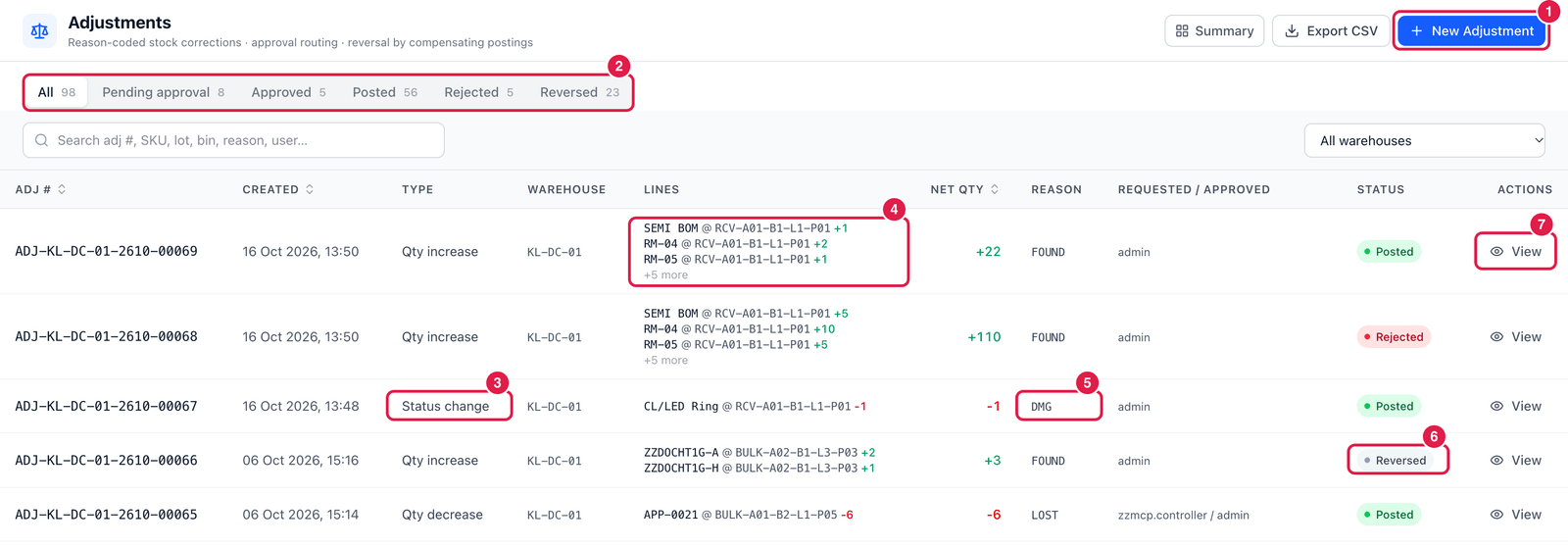
- New Adjustment — start a correction.
- Status tabs — All, Pending approval, Approved, Posted, Rejected and Reversed, each with its count.
- Type — worked out from the lines: Qty increase, Qty decrease, Status change (e.g. stock moved to Damaged), Scrap / Write-off, or Reclassify when one adjustment has both increases and decreases.
- Lines — which item in which bin, and by how much (
+added,-removed). - Reason — the reason code, e.g. DMG (damaged), LOST, FOUND.
- Status — where the adjustment is now.
- View — open it to see the lines, the approval and the ledger postings, or to reverse it.
Make an adjustment
Click New Adjustment. Example: after a recount, 2 Cotton T-Shirt Black L are missing from the pick face.
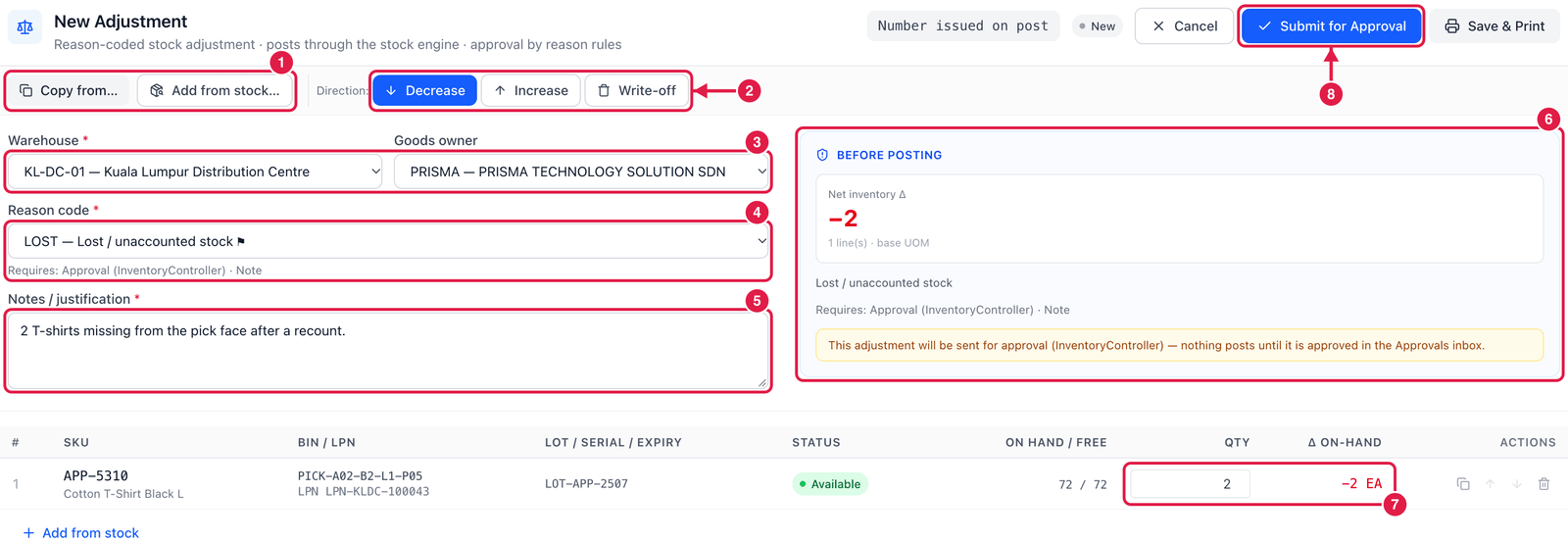
- Add from stock… — pick the exact stock row to correct (bin, LPN, lot). You can also start from a balance: the adjust action on Stock on Hand opens this form with that row filled in. Copy from… takes the unposted variances of a cycle count or stock take, one line per difference.
- Direction — Decrease (stock is missing or damaged), Increase (you have more than the system says) or Write-off (stock is scrapped). The direction filters the reason codes you can choose. With Increase an extra button Found stock (new balance)… appears for stock that is in no bin in the system yet.
- Warehouse and Goods owner — both are filled with your defaults. Changing the warehouse clears the lines.
- Reason code — why the stock changes, e.g. LOST — Lost / unaccounted stock. Under the field you see what the reason needs: here Approval (InventoryController) and a Note.
- Notes / justification — explain what happened. Some reasons also ask for a photo / evidence reference or a lot / serial.
- Before posting — the net change (here −2) and a warning when the adjustment will go for approval instead of posting.
- Qty — how many units; Δ On-hand shows the effect (−2 EA). You cannot take out more than the free quantity.
- Post — the button says Post when the reason needs no approval, and Submit for Approval when it does. Save & Print does the same and prints the adjustment.
The adjustment gets its number (ADJ-…) when you post or submit it.
- No approval needed — the stock changes at once and the ledger is written.
- Approval needed — the adjustment waits in Approvals as Pending approval. Nothing changes in stock until another user with the approver role approves it; then it is posted (from the inbox or with Post on the adjustment).
Reverse a posted adjustment
Made a mistake? Open the adjustment with View and click Reverse. Enter why. PrismaWMS writes opposite postings for every line, so the stock goes back to what it was and the adjustment becomes Reversed. The original postings stay in the ledger — nothing is deleted. Reversing needs the approve adjustments permission, and it is refused when the stock has been used since (for example, the found units were already picked).
A pending adjustment cannot be reversed — click Withdraw instead (or Cancel on an approved one that is not posted yet). It moves to Rejected, the approval request is cancelled and nothing is posted.
Good to know
- An adjustment can have up to 200 lines.
- A decrease always needs an existing stock row. Only an increase can create new stock (found stock).
- Choose the reason carefully: reports and the reason-code usage count are built from it. Set up reasons in Reason Codes.
If you are not sure how much is really there, do a cycle count first and use Copy from… — the adjustment is then linked to the count that proved it.