LPN / Pallets
An LPN (licence plate number) is the ID on a pallet, case or tote — for example LPN-KLDC-100010. With LPNs
you can handle a whole pallet in one scan: move it, hold it, or count it. This screen lists every LPN with
what is on it, and lets you split, merge, nest (put an LPN onto a parent pallet) and seal them.
Every change goes through the stock engine.
Where: Inventory → LPN / Pallets
What you can do with an LPN
LPNs are created automatically at the GRN (one per received pallet). New LPN creates an empty one, for example a pallet you are about to build.
The LPN list
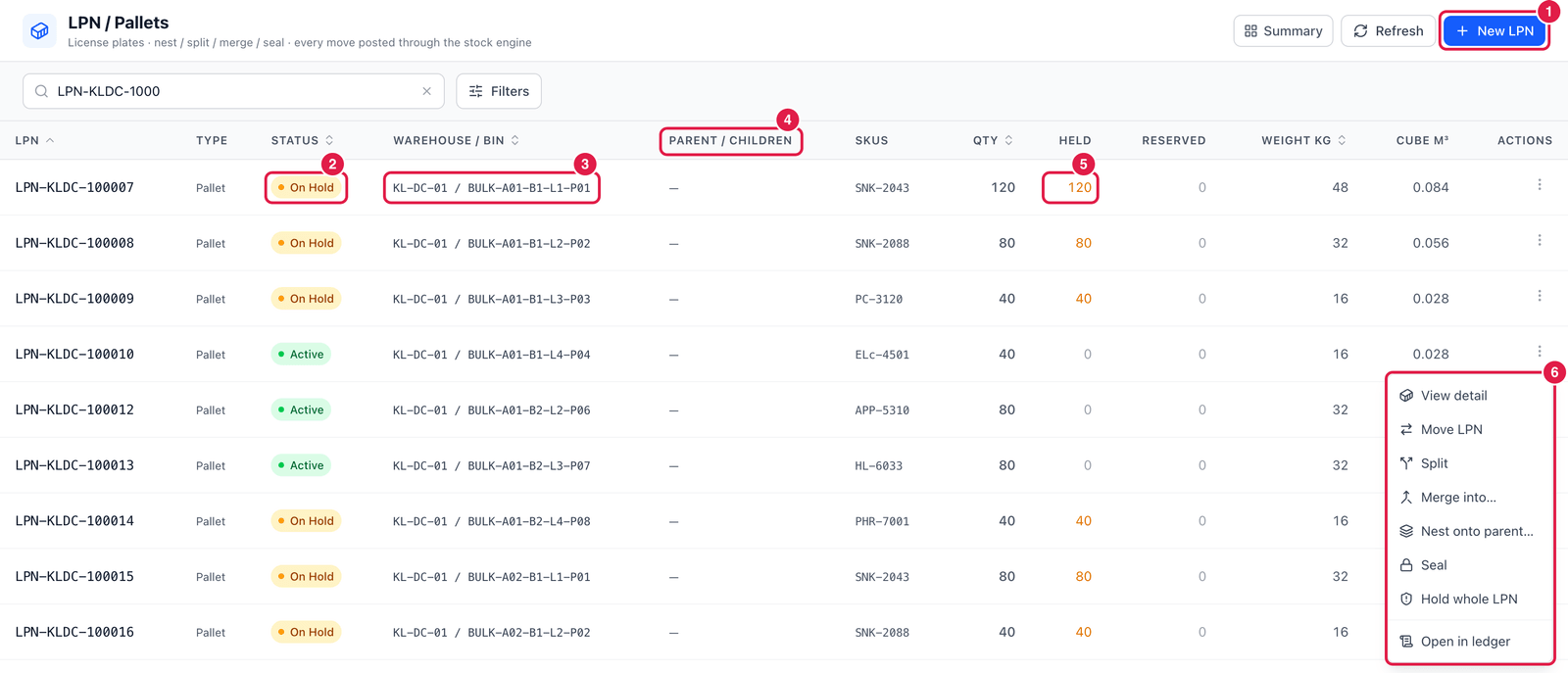
- New LPN — create an empty LPN (pallet, case, tote …) in a warehouse.
- Status — Active, On Hold (stock on it is held), Sealed …
- Warehouse / Bin — where the LPN is.
- Parent / Children — for nested LPNs: the master pallet, or the LPNs nested on this one.
- Held and Reserved — how much of the LPN's stock is on hold or reserved for orders.
- ⋯ Actions:
- View detail — contents, movements and audit history;
- Move LPN — move the whole pallet to another bin;
- Split — move part of the stock onto another (or a new) LPN;
- Merge into… — move all stock onto another LPN;
- Nest onto parent… — put this LPN on a master pallet (and Un-nest later);
- Seal — lock it: nothing can be taken off until it is unsealed;
- Hold whole LPN;
- Open in ledger.
Sealed LPNs
Stock cannot be taken off a sealed LPN, and sealed LPNs cannot be split, merged or used as a parent. Unseal it first.
Good to know
- LPNs with reserved stock cannot be merged or nested elsewhere — unallocate first.
- Search by LPN, bin, SKU or lot. On the PDA app, Lookup shows what is on an LPN when you scan it.
- Pallet labels are printed from the GRN (LPN labels) or from Labels & Documents.