Transfers
There are two kinds of transfer:
- A bin-to-bin move moves stock inside one warehouse, e.g. from bulk storage to the pick face. It posts at once
and gets a
TRF-…number. - A transfer order (TO) sends stock to another warehouse. It is approved, shipped (the stock is then in transit — on the road, not on any shelf), and received at the destination.
Lot, expiry, owner, status and LPN always travel with the stock.
Where: Inventory → Transfers
A transfer order from start to finish
Before shipping, an order can be cancelled. After shipping, it can be recalled as long as nothing has been received yet — the stock goes back to the origin and the order returns to Approved.
The transfers list
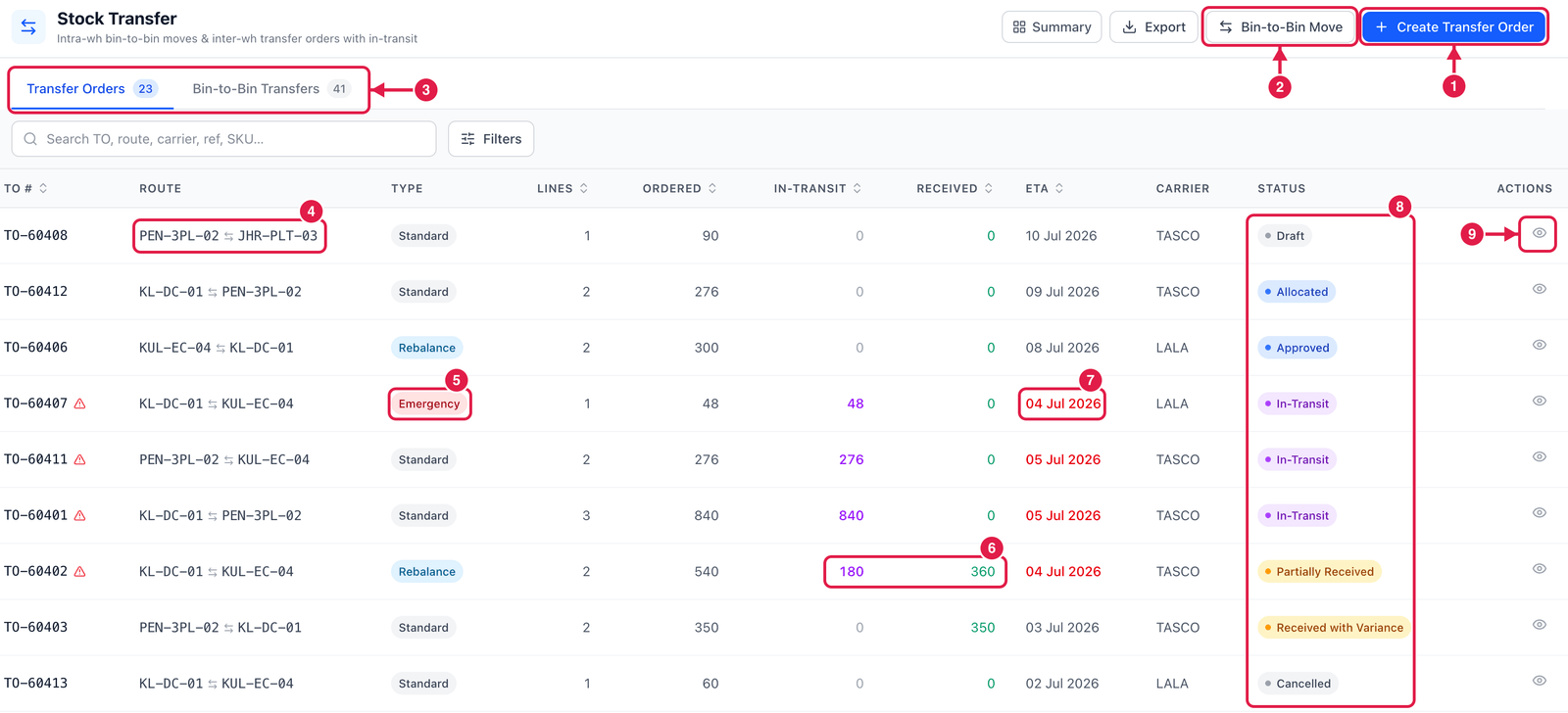
- Create Transfer Order — send stock to another warehouse.
- Bin-to-Bin Move — move stock inside one warehouse.
- Tabs — Transfer Orders (between warehouses) and Bin-to-Bin Transfers (posted moves inside a warehouse).
- Route — from which warehouse to which warehouse.
- Type — Standard, Emergency or Rebalance. It is a label for sorting and reporting; the steps are the same.
- In-Transit and Received — how many units are on the road and how many have arrived.
- ETA — the expected arrival. A red date with a ⚠ sign means the order is overdue: the ETA has passed and stock is still in transit.
- Status — where the order is now (see the flowchart above).
- View — open the order to see its lines and do the next step: Approve, Reserve, Ship, Receive, Close.
Create a transfer order
Click Create Transfer Order. Example: send T-shirts and jeans from Kuala Lumpur to the Penang hub.
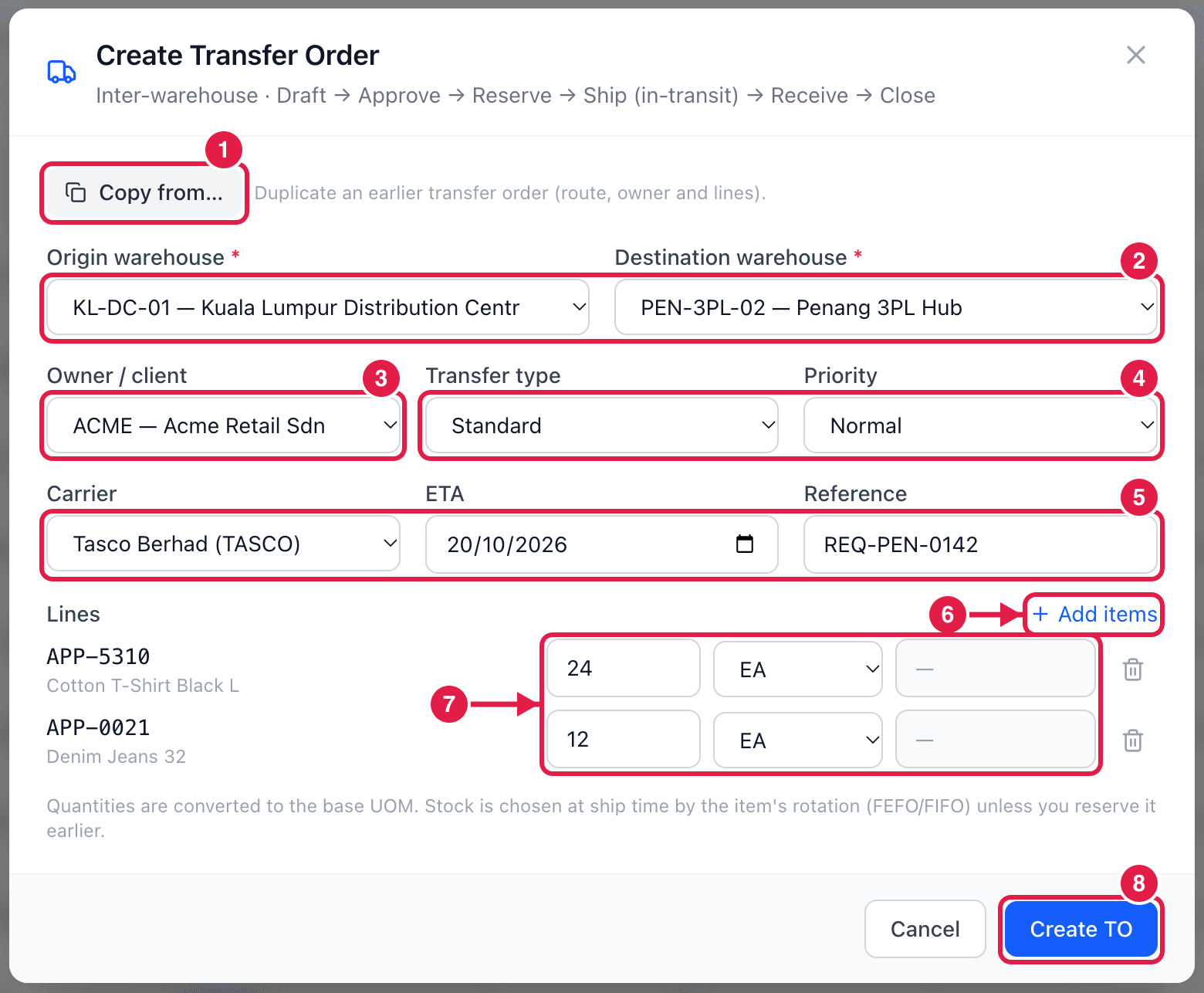
- Copy from… — duplicate an earlier transfer order (route, owner and lines).
- Origin warehouse and Destination warehouse — they must be different. (Inside one warehouse, use a bin-to-bin move instead.)
- Owner / client — whose stock is sent. The item list in step 6 only shows this owner's items.
- Transfer type and Priority (Low, Normal, High, Urgent).
- Carrier, ETA and Reference (e.g. the request or bill-of-lading number) — all optional now; you can also enter them when you ship.
- Add items — choose the items to send.
- Quantity and UOM for each line. For lot-tracked items you may name a lot; otherwise the field stays grey.
- Create TO — the order is saved as a Draft with its number (
TO-…). No stock moves yet.
If you do not reserve stock, PrismaWMS chooses it when you ship, following the item's rotation (FEFO / FIFO). Use Reserve stock (allocate) after approval to lock the stock early, so nobody picks it for another order.
Ship, receive and close
Open the order with View and follow the steps:
- Approve — only a draft can be approved (needs the approve transfers permission).
- Reserve stock (optional) — reserves free stock at the origin. If not everything is free, the order is partially reserved and you see how much is short.
- Ship — enter the quantity per line (less than ordered is a short shipment), the carrier, the bill of lading / manifest number and the ETA, then Confirm dispatch. The stock leaves the origin and appears as in transit.
- Receive — at the destination, choose the receiving bin (the warehouse's receiving bin is the default) and enter what arrived. You cannot receive more than is in transit — receive extra units on a GRN. If a line will never arrive in full, tick Close short and choose a short-receipt reason: the missing units are written off as a transit variance.
- Close — when everything is received, close the order.
Move stock from bin to bin
Click Bin-to-Bin Move. Example: move 24 T-shirts from bulk storage to the pick face.
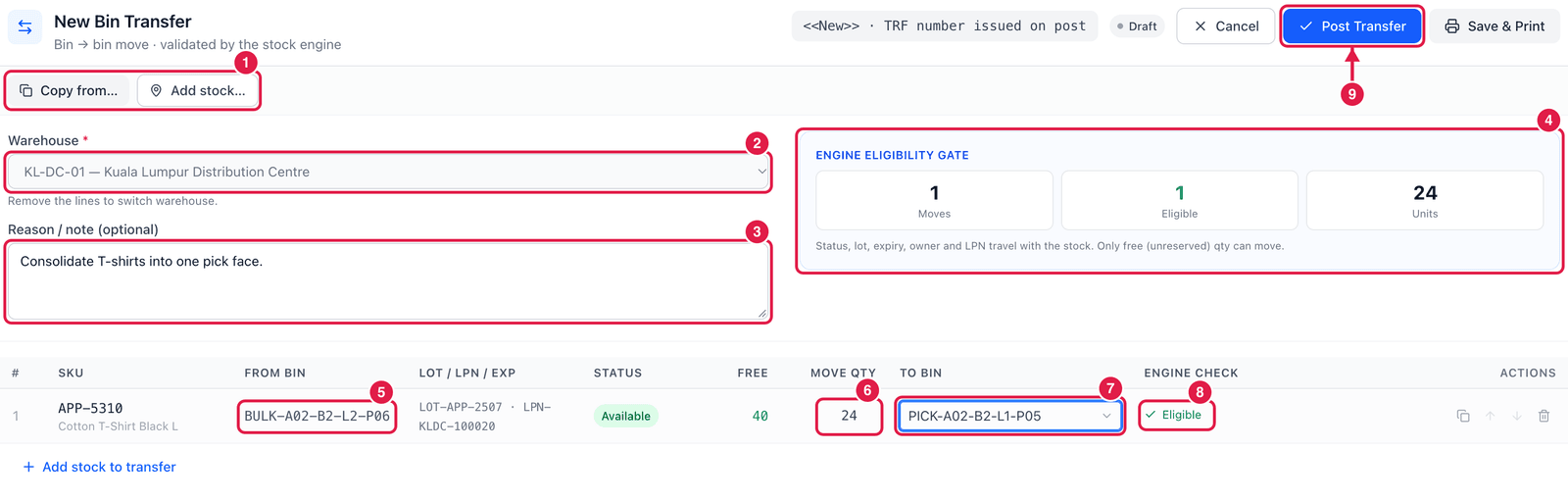
- Add stock… — pick the stock rows to move (search by SKU, bin, lot or LPN). Copy from… takes the lines of an open replenishment task.
- Warehouse — fixed once you have lines (remove the lines to switch).
- Reason / note — optional, e.g. Consolidate T-shirts into one pick face.
- Engine eligibility gate — how many moves, how many are eligible, and how many units.
- From bin — where the stock is now, with its lot / LPN, status and free quantity.
- Move qty — how many to move. Only free (unreserved) stock can move.
- To bin — scan or search the target bin. The list shows each bin's zone and fill.
- Engine check — Eligible when the target bin accepts this stock. Otherwise you see why, for example the bin is blocked, full or inactive, dedicated to another SKU or owner, or not suitable for the item's temperature or hazmat class. A bin being counted cannot be moved out of.
- Post Transfer — the move is done at once and gets its
TRF-…number.
Moved the wrong stock? Open the posted transfer on the Bin-to-Bin Transfers tab and reverse it with a reason.
Good to know
- A transfer (either kind) can have up to 200 lines.
- In-transit stock is not free stock: it cannot be moved bin-to-bin until it is received at the destination.
- The Summary button shows open orders, in-transit quantity, overdue orders, receipt variance and today's bin moves.
You don't need to plan every pick-face top-up by hand: Replenishment creates the bin-to-bin moves for you.