Documents
The Documents screen is one place to print every paper document the warehouse needs: purchase orders, ASNs, goods receipt notes, pick lists, packing lists, delivery notes, bills of lading, load manifests, adjustment vouchers, count sheets and return authorisations. Each document is filled with live data from the record you choose, and every print is kept in the document's print history.
Where: Labels & Documents → Documents
How printing a document works
The document cards
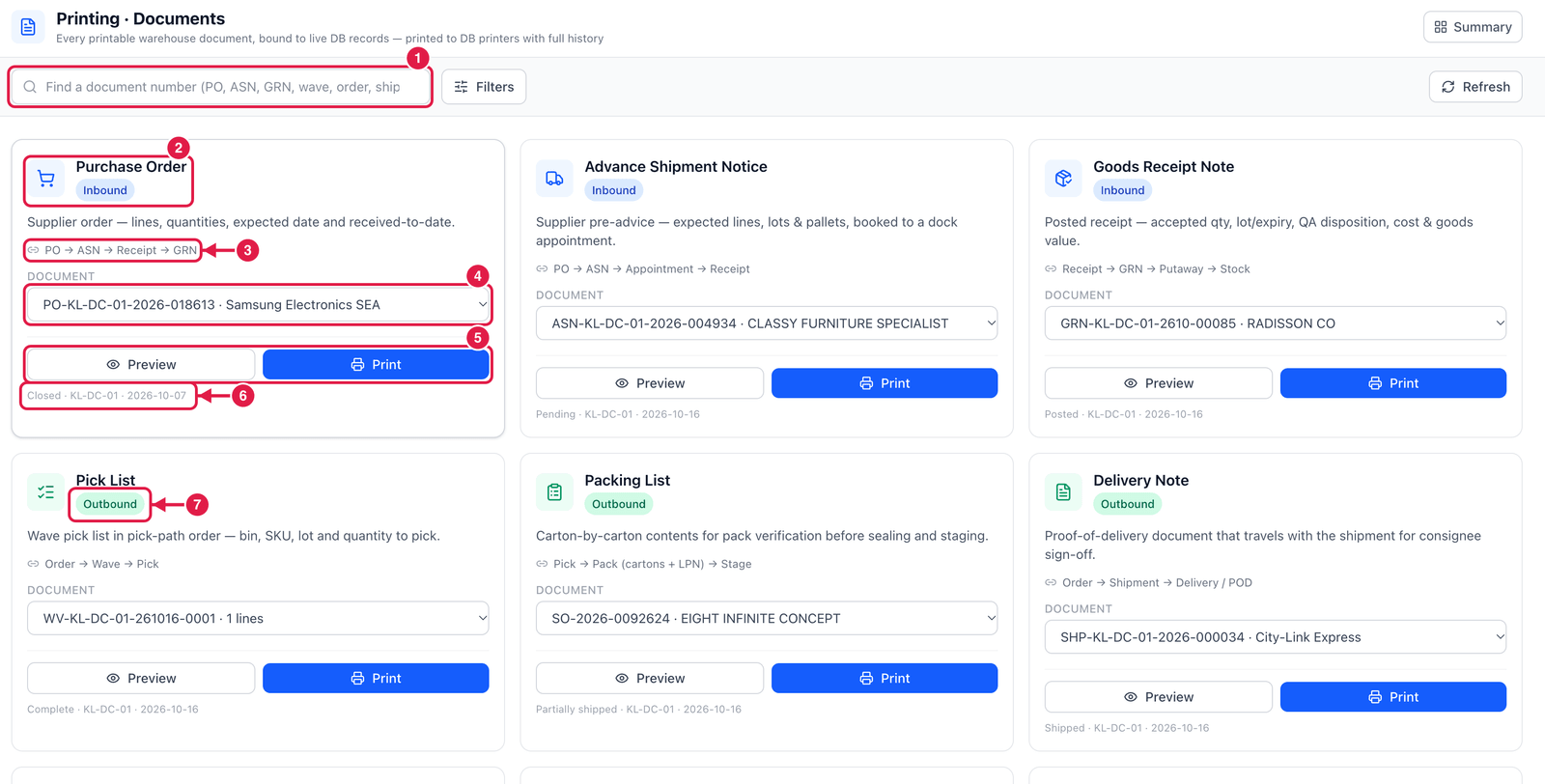
- Find a document number — type a PO, ASN, GRN, wave, order or shipment number to jump to it.
- Document type — each card is one kind of document, with the area it belongs to (Inbound, Outbound, …).
- Flow — where the document sits in the process, e.g. PO → ASN → Receipt → GRN.
- Document — choose which record to print (the most recent ones are listed).
- Preview and Print — Preview shows the document on screen first; Print sends it straight to the default document printer of that warehouse (set one up under Print Queue → Printers).
- Status line — the status, warehouse and date of the chosen record.
- Area badge — Inbound documents come first, then Outbound ones (pick list, packing list, delivery note, bill of lading, load manifest), then inventory and returns documents.
Preview and print
- Choose the record and click Preview.
- Check the document. Choose a printer if you do not want the default document printer.
- Click Print. The job appears in the Print Queue.
- Below the preview you see the print history of this document — who printed it, when, and on which printer.
Printing from the document itself
Most screens also have a Print or Save & Print button (for example on a GRN, an adjustment or a shipment). They use the same templates and also appear in the Print Queue — this screen is handy when you need a copy later.