Label Designer
Every label PrismaWMS prints — LPN, pallet, carton, location, item barcode, shipping label — comes from a label
template. A template is written in ZPL (the language of Zebra label printers) with placeholders like
{{lpn}} or {{sku}}, which are filled with real data when you print. The designer shows a live preview using a
real record from your database. Templates have versions: you change a draft, and only when you activate it
do the printers start using it.
Where: Labels & Documents → Label Designer
How a template changes
Only one version per code is live at a time. If a client (owner) has its own template of the same kind, it is used for that owner's stock instead of the shared one.
The designer
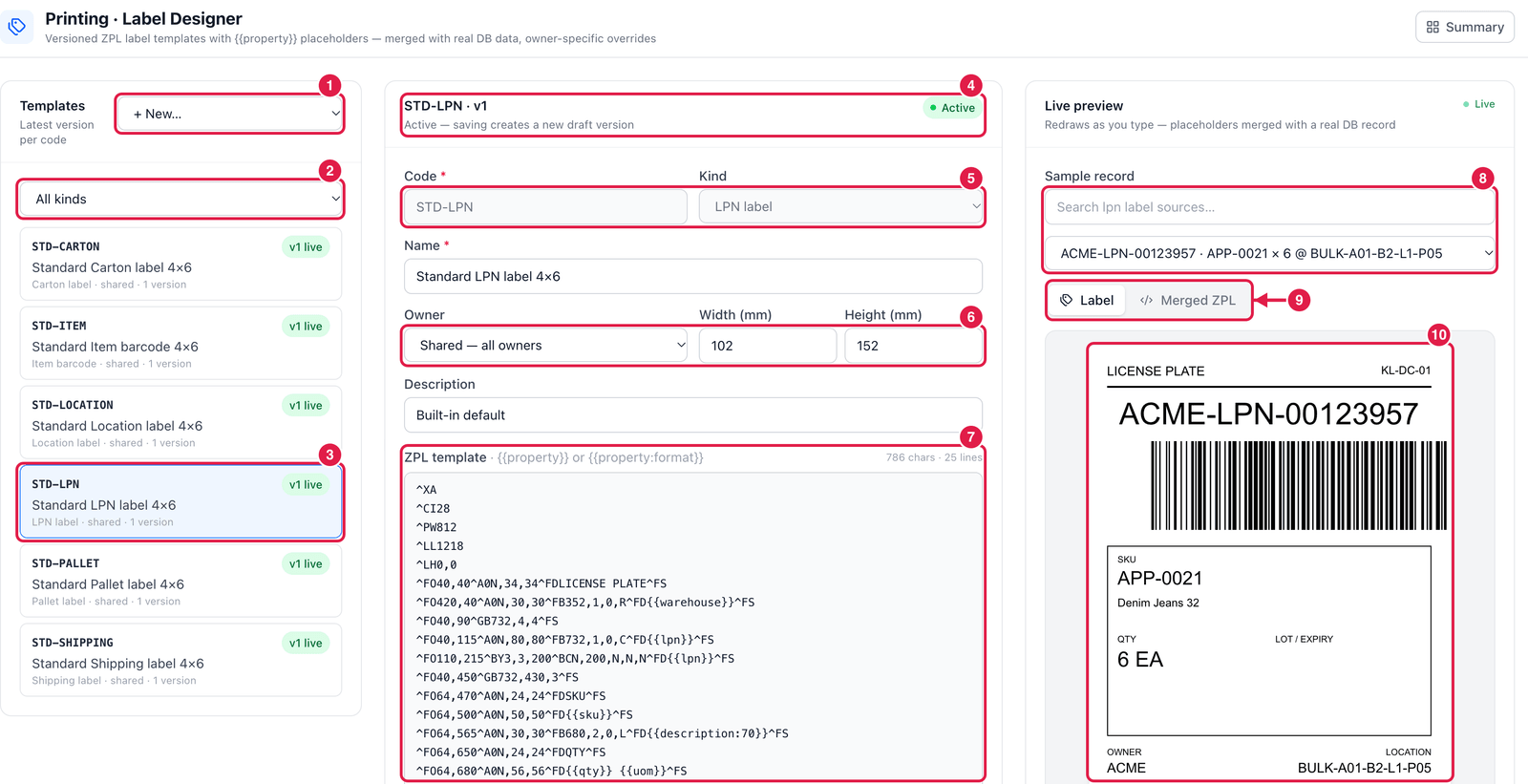
- + New… — start a new template of a kind: LPN, Item barcode, Shipping, Pallet, Location, Carton or Custom label.
- All kinds — filter the template list by kind.
- Template card — code, name, kind, shared or owner-specific, number of versions, and v1 live (the version in use). Click a card to open it.
- Header — the code and version, its status (Active or Draft). Saving an active template creates a new draft version; the live one keeps printing until you activate the new one.
- Code and Kind.
- Owner (Shared — all owners, or one client) and the label size in mm (Width, Height; 102 × 152 mm is a 4 × 6 inch label).
- ZPL template — the label itself. Placeholders are written
{{property}}, or{{property:format}}— for example{{description:30}}cuts the text to 30 characters;upperandlowerchange the case; a date pattern such as{{expiry:DD/MM/YYYY}}formats a date. Below the editor you see whether the ZPL is valid and how many properties it uses. - Sample record — choose a real record (here an LPN) to fill the placeholders.
- Label / Merged ZPL — see the drawn label, or the final ZPL with the data filled in.
- Live preview — redraws as you type.
Below the editor: Save draft (or Save as new version), Activate, Duplicate and Discard changes.
The built-in STD-… templates are a good start. Duplicate one, change it, preview it with a few different
records (long names, long LPN numbers), and only then Activate.
Always preview with your longest real values. A long LPN or SKU can make a barcode or text wider than the label — the preview shows this before you print a whole roll.