Print Queue
Whenever someone prints a label or a document, PrismaWMS creates a print job. The Print Queue lists every job: what was printed, on which printer, how many copies, and whether it worked. Failed jobs can be retried, finished ones reprinted. The second tab, Printers, is where you set up your label and document printers.
Where: Labels & Documents → Print Queue
How a print job travels
There are three ways to reach a printer:
- Network — the server sends ZPL straight to a Zebra printer's IP address and port.
- Print agent (queue) — for printers the server cannot reach (USB, a PC's spooler, a printer behind a firewall). A small agent program on a PC next to the printer collects the jobs and confirms each one.
- Browser print dialog — the label or document opens in your browser's print window (also for PDF / A4 documents).
The print jobs
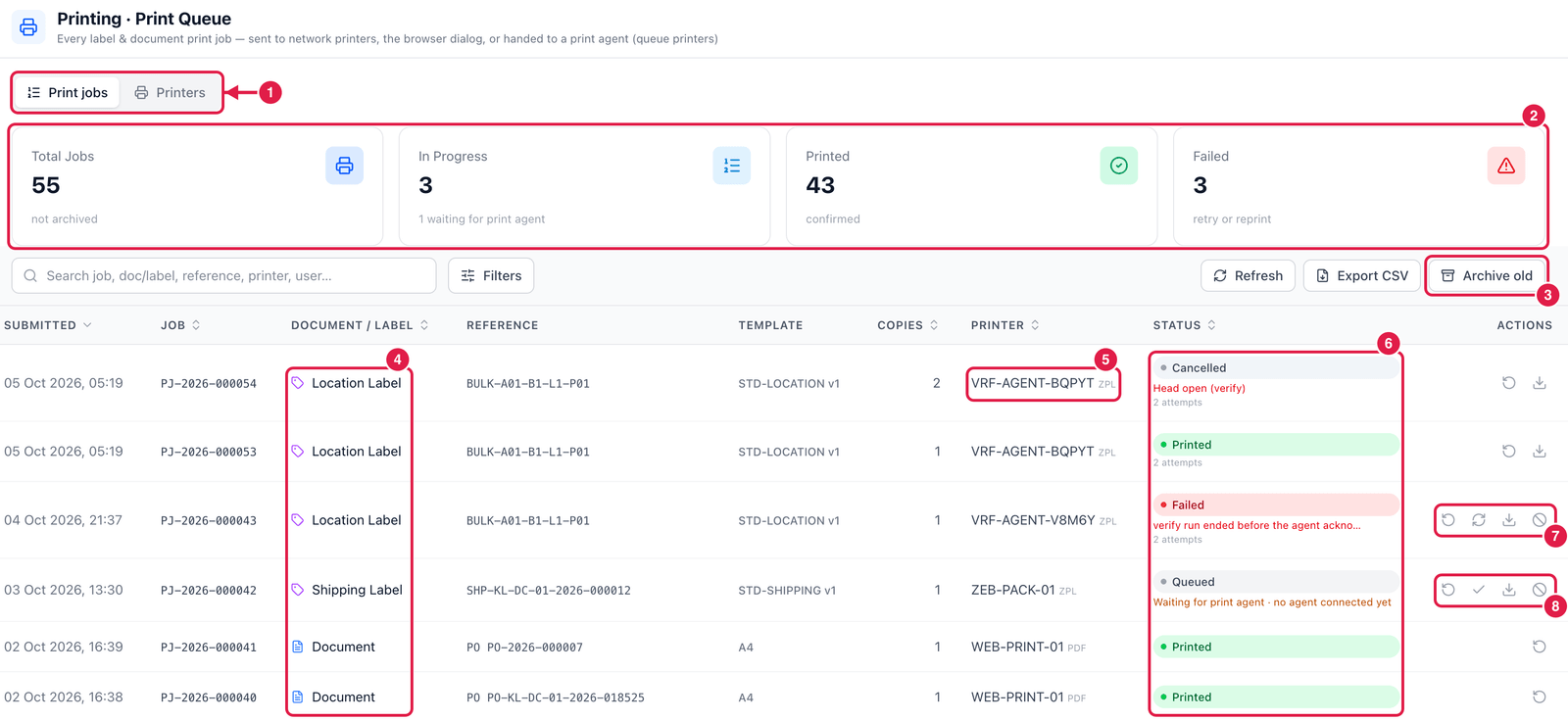
- Tabs — Print jobs and Printers.
- Totals — all jobs, jobs in progress (including those waiting for print agent), printed, and failed.
- Archive old — hide finished jobs (printed, failed or cancelled) older than a number of days. They are not deleted, only archived.
- Document / Label — what was printed: a label (with its template, e.g. STD-LOCATION v1) or a document.
- Printer — where it went, and the printer language (ZPL or PDF).
- Status — Queued, Sent, Printing, Printed, Failed or Cancelled, with the reason (e.g. Head open) and the number of attempts.
- Actions on a failed job — Reprint, Retry, Download ZPL and Cancel job.
- Actions on a queued job — Reprint, Mark printed (if it did come out of the printer), Download ZPL and Cancel job. Waiting for print agent · no agent connected yet means the agent PC is off or not set up.
Set up a printer
Open the Printers tab and add a printer:
- Warehouse, Code and Name, and the Type — Label or Document.
- Language — ZPL (Zebra) or Browser (HTML) for labels; Browser or PDF for documents.
- Connection — Network (enter Host / IP and Port), Print agent (queue) (enter the Queue name the agent prints to) or Browser print dialog.
- Resolution (152–600 dpi) and Media width / height in mm.
- Station — where the printer stands, e.g. Receiving bench 2.
- Default printer for — tick what this printer prints by default in this warehouse: LPN, Item, Shipping, Pallet, Location, Carton or Custom labels, or Documents (A4).
In the printer list, the test button tests the connection (network printer) or queues a test print for the agent (queue printer).
Check the printer's connection. For a network printer: is it on, is the IP correct? For a print agent: is the PC on and the agent running? You can always Download ZPL and print it by hand.