Business Partners
Every company you deal with is a business partner. One partner can have several roles — the same company can be your supplier and your customer. The roles are Owner (whose stock it is), Supplier (who sends goods in), Customer (who receives goods) and Carrier (who transports them).
Where: Master Data → Business Partners
The four roles
| Role | Used on | Extra settings for this role |
|---|---|---|
| Owner / Client | Items, stock, every document (3PL) | Short code (the owner code on stock), warehouses, SLA, data segregation, rate card |
| Supplier / Vendor | Purchase orders, ASNs, receipts | Supplier class, Incoterms, lead time, ASN required, QA level |
| Customer | Sales orders, shipments | Customer class, priority / SLA, credit limit, payment terms, preferred carrier |
| Carrier | Shipments, loads | SCAC, mode (parcel, LTL, FTL …), integration |
The list
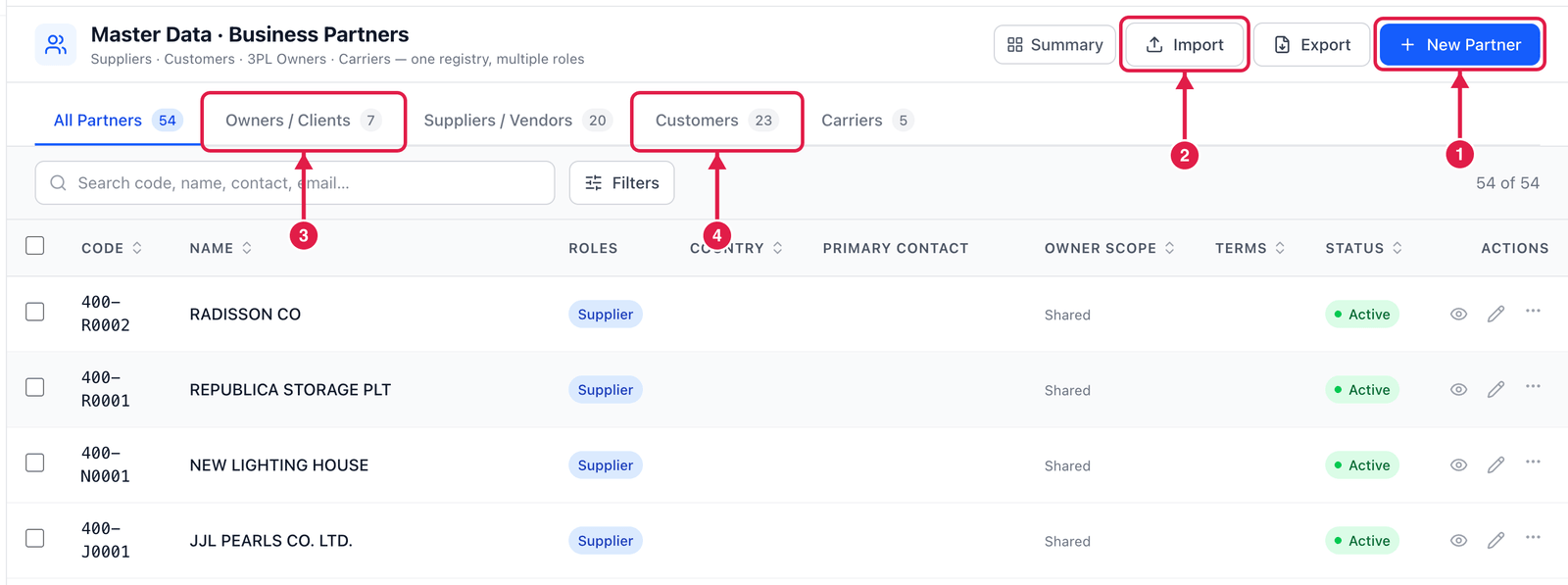
- New Partner — register one partner.
- Import — register many from a CSV file.
- Owners / Clients — show only owners (the number is how many there are).
- Customers — show only customers. Suppliers / Vendors and Carriers work the same way.
Register a partner
Click New Partner.
Step 1 — Identity
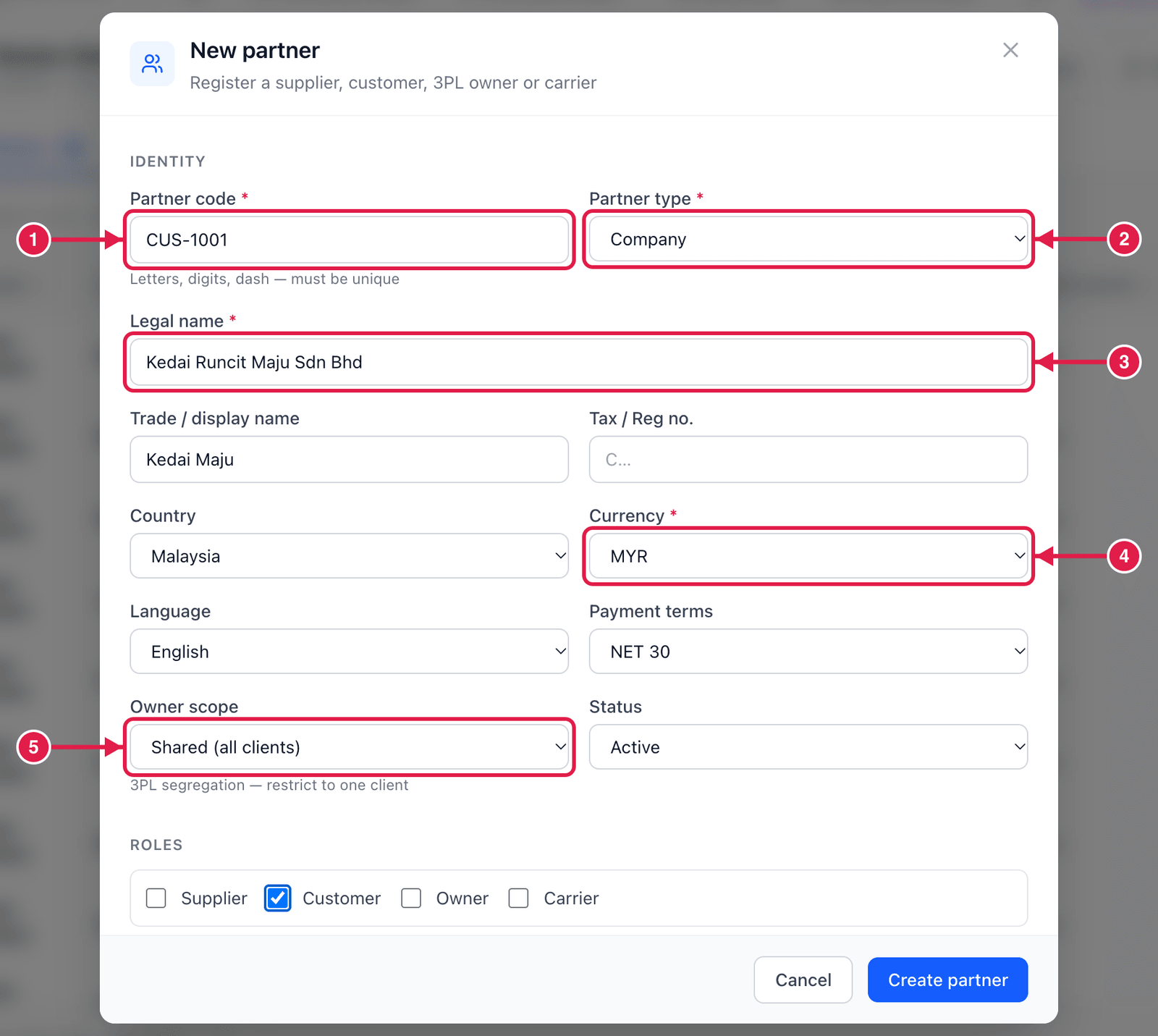
- Partner code — letters, digits, dash; unique. Many companies reuse the code from their accounting
system (e.g.
300-A0001), which makes integration easier. - Partner type — Company or Individual.
- Legal name — the registered name. Add a short Trade / display name if people know it by another name.
- Currency — the partner's trading currency.
- Owner scope — Shared (all clients) for most partners. In a 3PL you can restrict a partner to one owner so other clients never see it.
Step 2 — Roles, addresses and contacts
Scroll down.
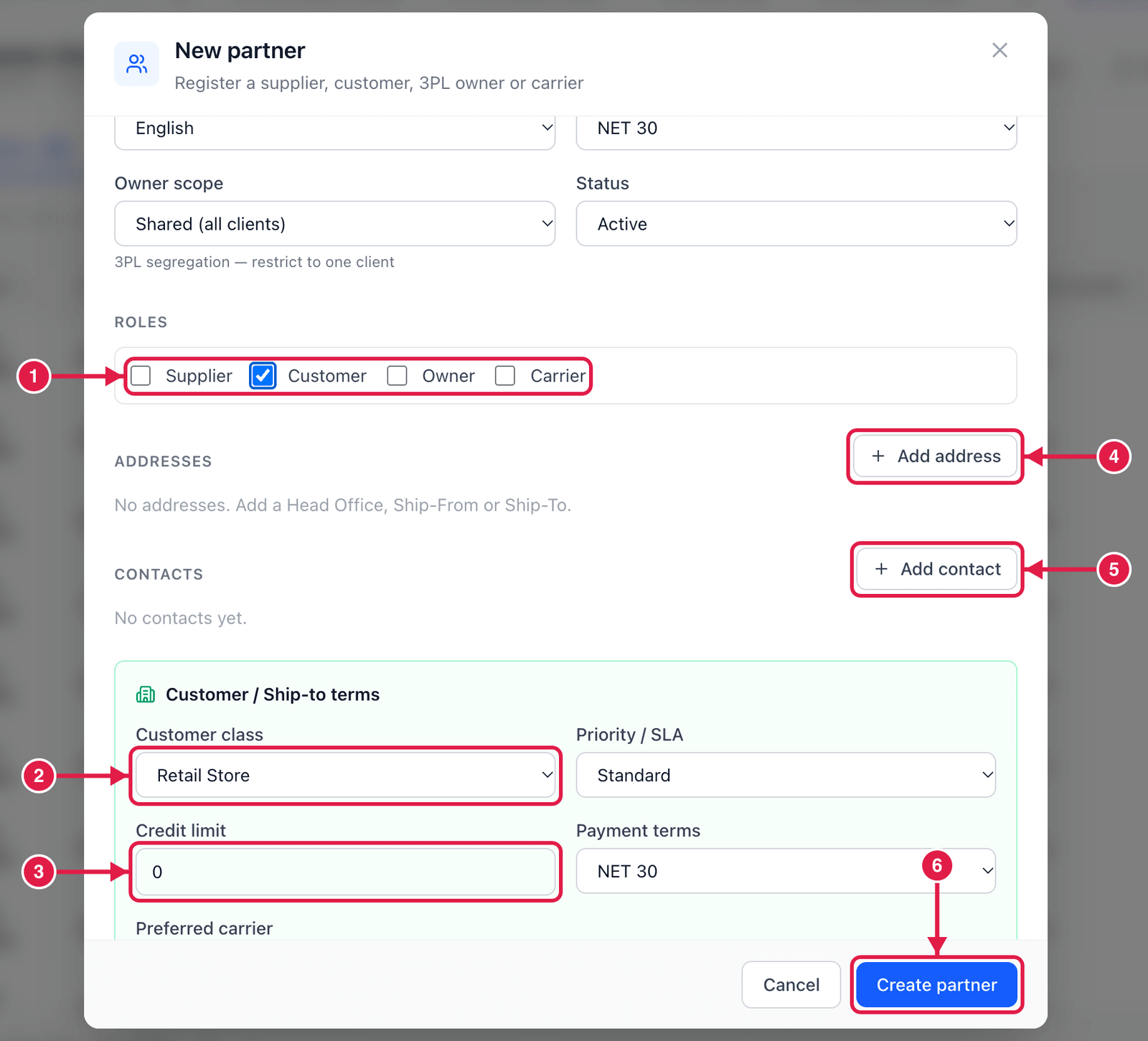
- Roles — tick every role this partner plays. Each ticked role opens its own section below.
- Customer class — e.g. Retail Store, Wholesale, E-commerce (shown because Customer is ticked).
- Credit limit — optional.
- Add address — a Head Office, Bill-to, Ship-From or Ship-To address. Customers need a Ship-To address for deliveries.
- Add contact — name, e-mail, phone; tick which notifications they should receive (ASN, dispatch, exceptions).
- Click Create partner.
When you tick Owner, enter a short code (for example ACME). This code is stamped on every item, stock
line and document of that client and cannot be changed later.
Holds
⋯ → Place on hold stops new business with a partner — for a credit, compliance, quality or dispute reason. Sales orders for a customer on hold are still created, but on hold until the hold is released. Audit history shows every change made to the partner.
Good to know
- Archive hides a partner you no longer use; Delete only works if it was never used on a document.
- Partners can also arrive automatically from an ERP or SQL Accounting integration — see Administration → Integrations.