Carriers & Services
A carrier is a company that transports your shipments — City-Link, DHL, J&T, your own lorries. Each carrier offers services (e.g. Economy, Express). When you give PrismaWMS the carrier's zones (which states cost what) and rate cards (price per weight), the rate-shop can compare all carriers for a shipment and recommend the best one.
Where: Master Data → Carriers & Services
How rate-shop chooses a carrier
A carrier needs four things before rate-shop will use it: at least one active service, a valid
account for the warehouse you ship from, a rate card on the service, and (optionally) a zone map.
Services without a zone map price every destination as zone Z1.
The list
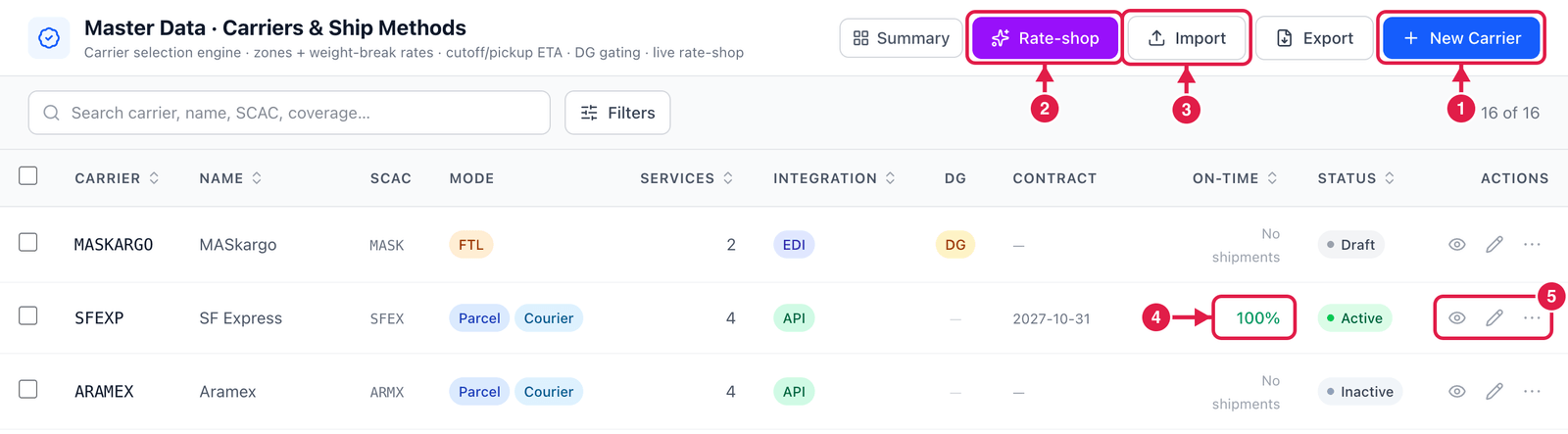
- New Carrier — register a carrier.
- Rate-shop — test which carrier would be chosen for a shipment (see the last section).
- Import — register many carriers from a CSV file.
- On-time — the share of this carrier's shipments that were delivered on time, calculated from your real shipments. No shipments means there is nothing to measure yet.
- View, Edit and ⋯ for each carrier — Duplicate, Activate / Deactivate, Rate-shop and Delete.
Register a carrier
Click New Carrier. The window has six tabs; start with Profile.
Step 1 — Profile
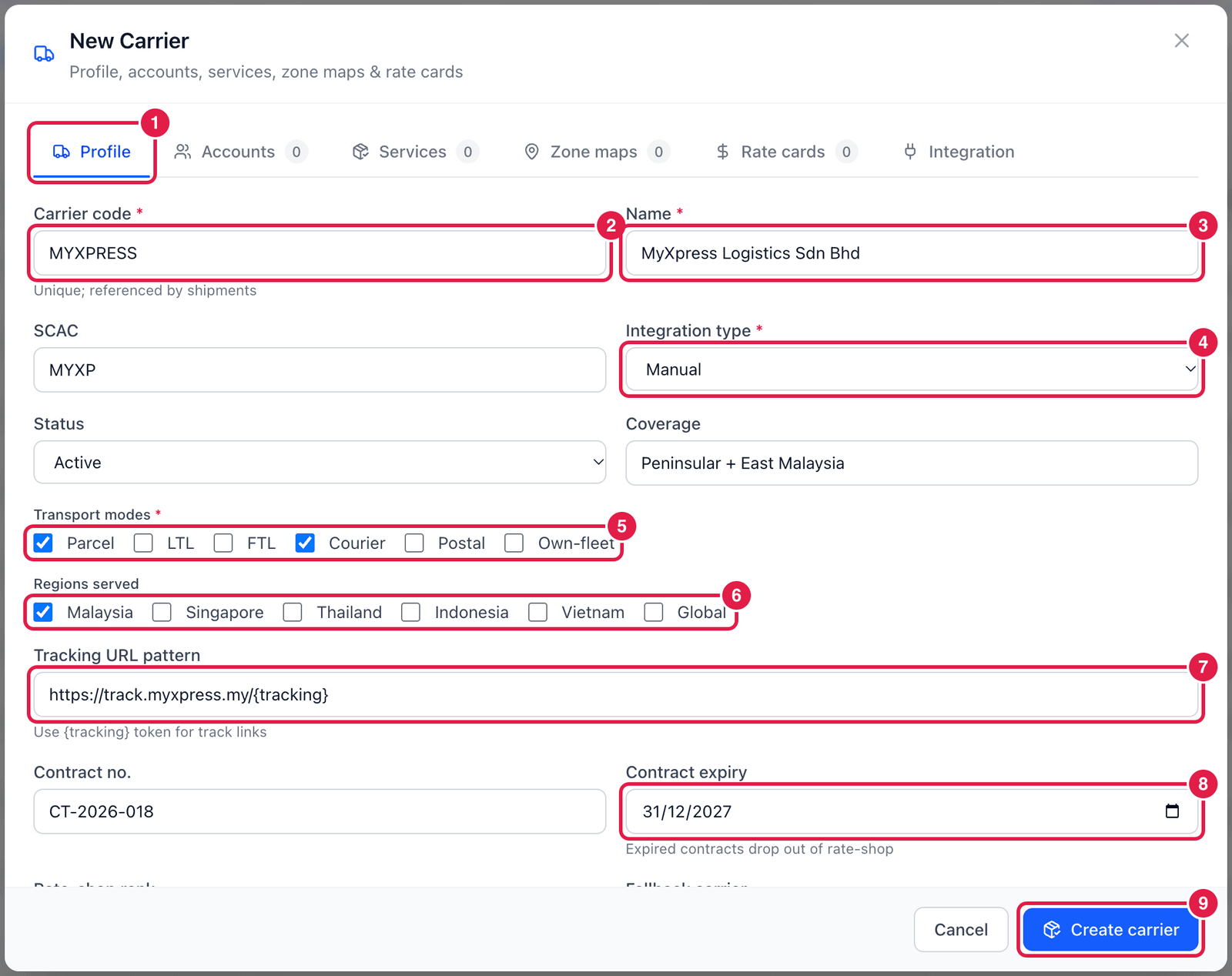
- Profile tab.
- Carrier code — a short unique code, e.g.
MYXPRESS. It is printed on shipments, so keep it short. - Name — the company name.
- Integration type — Manual, API or EDI: how you exchange data with this carrier. This is a record for your team — PrismaWMS does not connect to the carrier's system by itself.
- Transport modes — tick what the carrier carries: Parcel, LTL (part load), FTL (full lorry), Courier, Postal, Own-fleet.
- Regions served — the countries it delivers to.
- Tracking URL pattern — the carrier's tracking page with
{tracking}where the tracking number goes, e.g.https://track.myxpress.my/{tracking}. Shipments then show a clickable tracking link. - Contract expiry — after this date the carrier drops out of rate-shop automatically.
- Create carrier — save. You can save now and add services later, but rate-shop ignores a carrier until it has an active service.
Further down the Profile tab: Rate-shop rank (a tie-breaker — lower ranks first), Fallback carrier, Default carrier for warehouses, Accepts dangerous goods (master switch) and Insurance offered.
Step 2 — Services
A service is one delivery product of the carrier, such as Standard or Express.
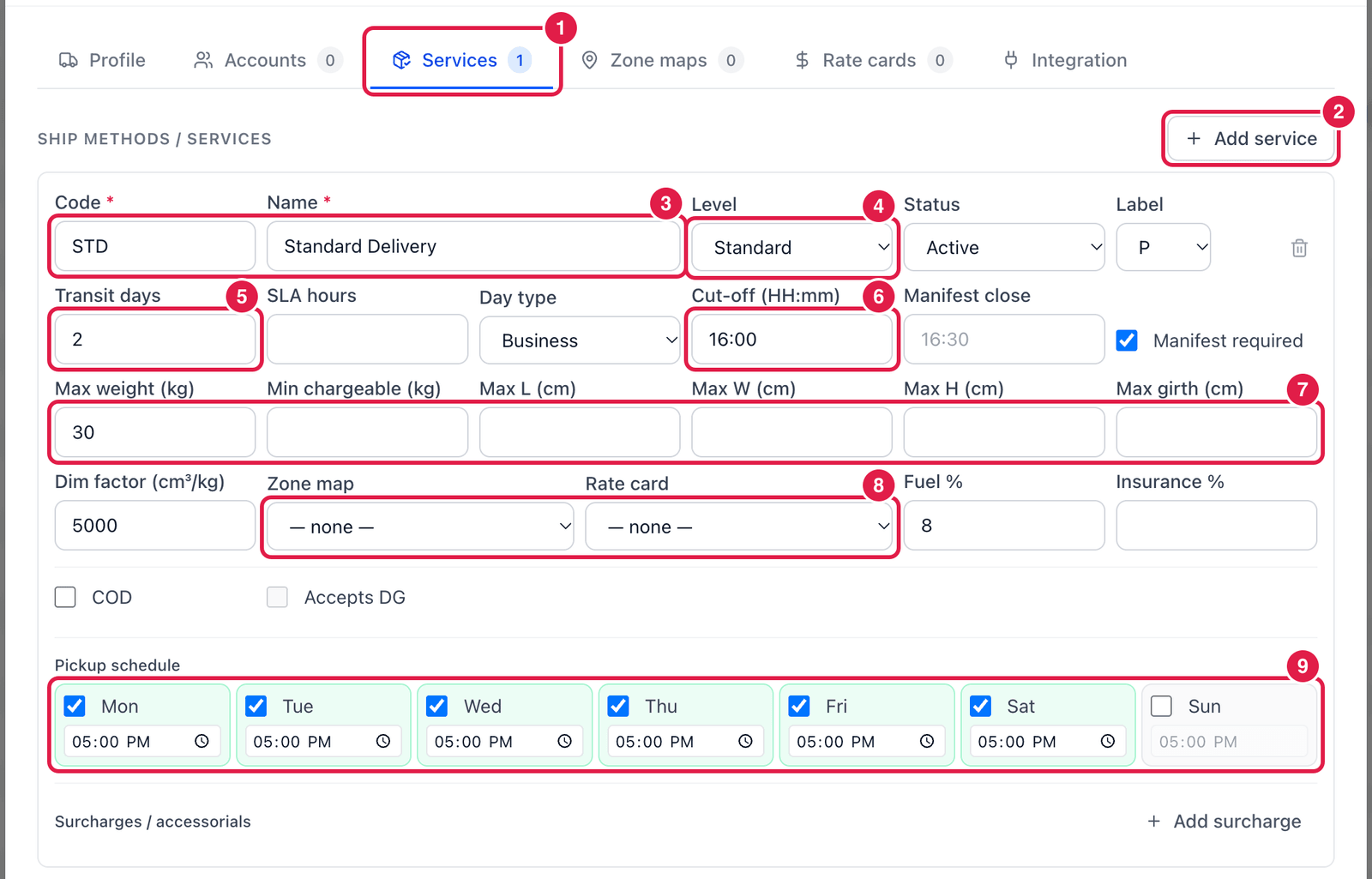
- Services tab.
- Add service — add one service per delivery product.
- Code and Name — e.g.
STD/ Standard Delivery. - Level — Express, Standard, Economy, Freight or Same-day.
- Transit days — how many days delivery takes. Day type says whether weekends count.
- Cut-off (HH:mm) — orders shipped after this time leave the next day. PrismaWMS adds the transit days to get the ETA.
- Limits — maximum weight, minimum chargeable weight and maximum size. A shipment that is too heavy or too big is rejected for this service, with the reason shown.
- Zone map and Rate card — which zones and prices this service uses (create them in the next two tabs first, then choose them here).
- Pickup schedule — on which days and at what time the carrier collects.
Also on the service: Dim factor (for volumetric weight), Fuel % and Insurance % surcharges, COD (cash on delivery) and Accepts DG (dangerous goods).
Step 3 — Accounts
On the Accounts tab, click Add account and enter your account number with the carrier, the billing type (Prepaid, Collect or Third-party), the warehouses it is valid for (empty = all) and its validity dates. In a 3PL you can give each owner its own account. Rate-shop rejects a carrier that has no valid account for the warehouse the shipment leaves from.
Step 4 — Zone maps
A zone map turns a destination state into a zone (a price group).
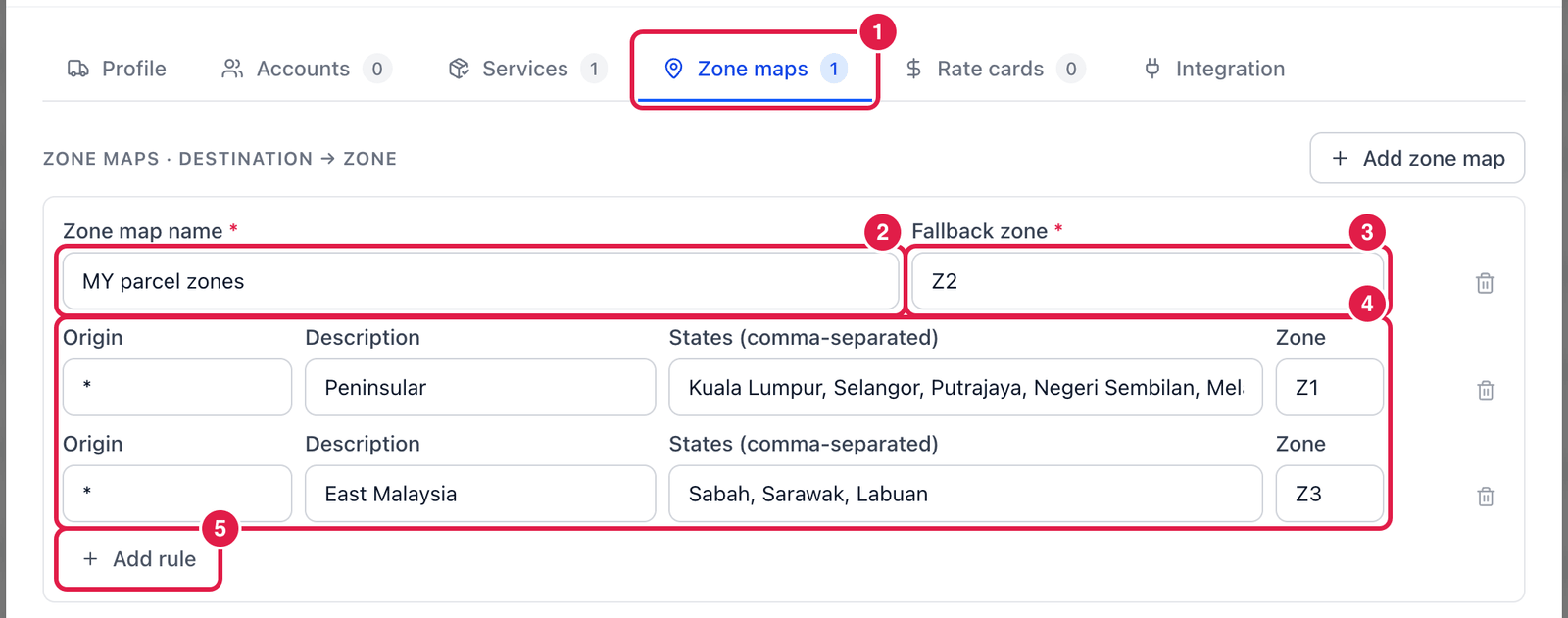
- Zone maps tab, then Add zone map.
- Zone map name — e.g. MY parcel zones.
- Fallback zone — the zone for any state not listed below.
- Rules — each rule lists states (comma-separated, spelled exactly as in the hint below the
table, e.g.
Kuala Lumpur, Selangor) and the zone they belong to. Origin*means "from any warehouse"; put a warehouse code to make a rule apply only to that warehouse. - Add rule — add another group of states.
Step 5 — Rate cards
A rate card is the carrier's price list: a price for each zone and weight band.
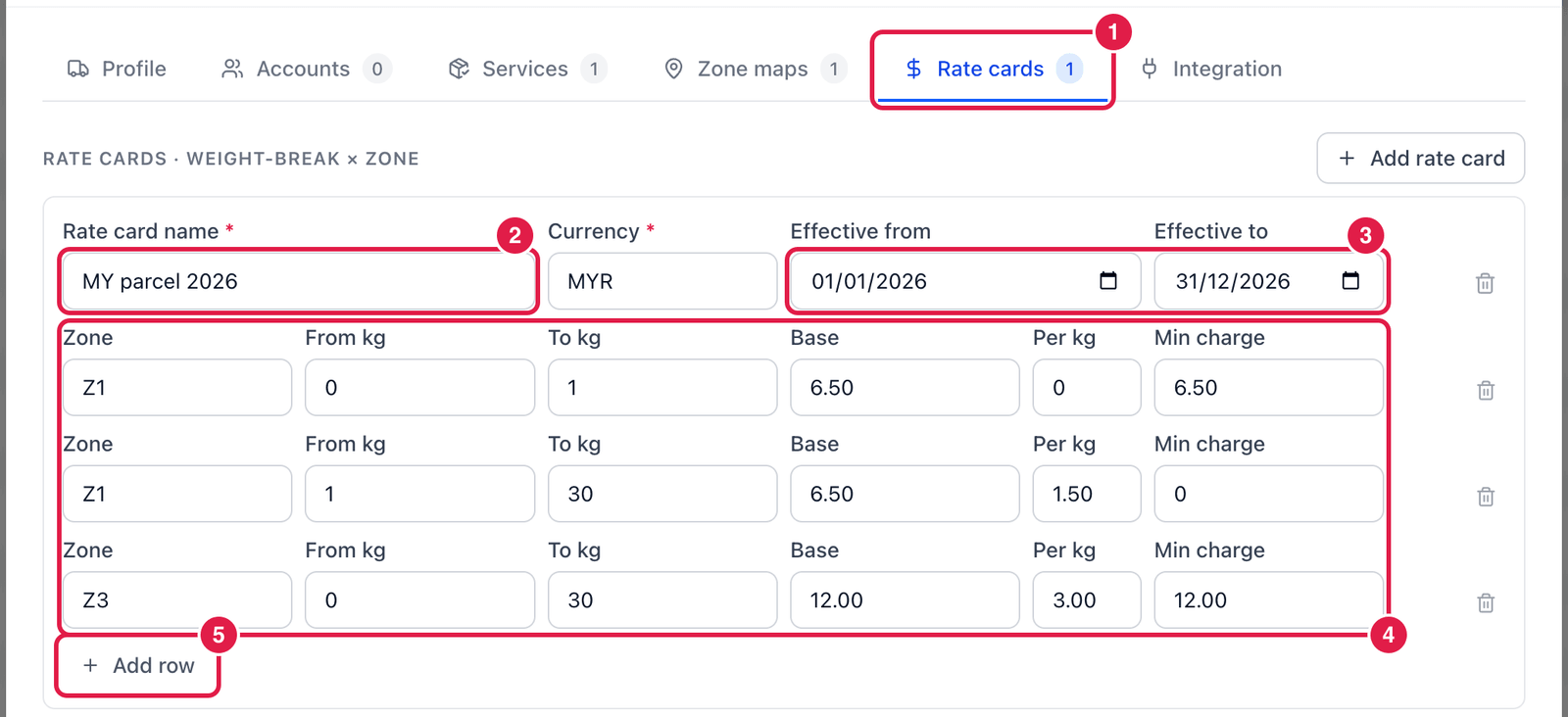
- Rate cards tab, then Add rate card.
- Rate card name and Currency.
- Effective from / to — the period the prices are valid. Outside it, rate-shop reports no rate card.
- Weight bands — for each zone and weight range (From kg – To kg): a Base price, a Per kg price on top, and a Min charge. Here: up to 1 kg in zone Z1 costs RM 6.50; 1–30 kg costs RM 6.50 + RM 1.50 per kg.
- Add row — add another band.
Go back to Services and choose this zone map and rate card on the service, then Create carrier.
The Integration tab lists what the carrier offers electronically (rating, label print, manifest, tracking, pickup booking, POD, cancel / void). Like Integration type, it is information for your team — nothing is sent to the carrier automatically.
Test with Rate-shop
Rate-shop shows which carrier PrismaWMS would choose for a shipment — and why the others were rejected. It uses your live carriers, zone maps and rate cards, priced at the current Malaysia time.
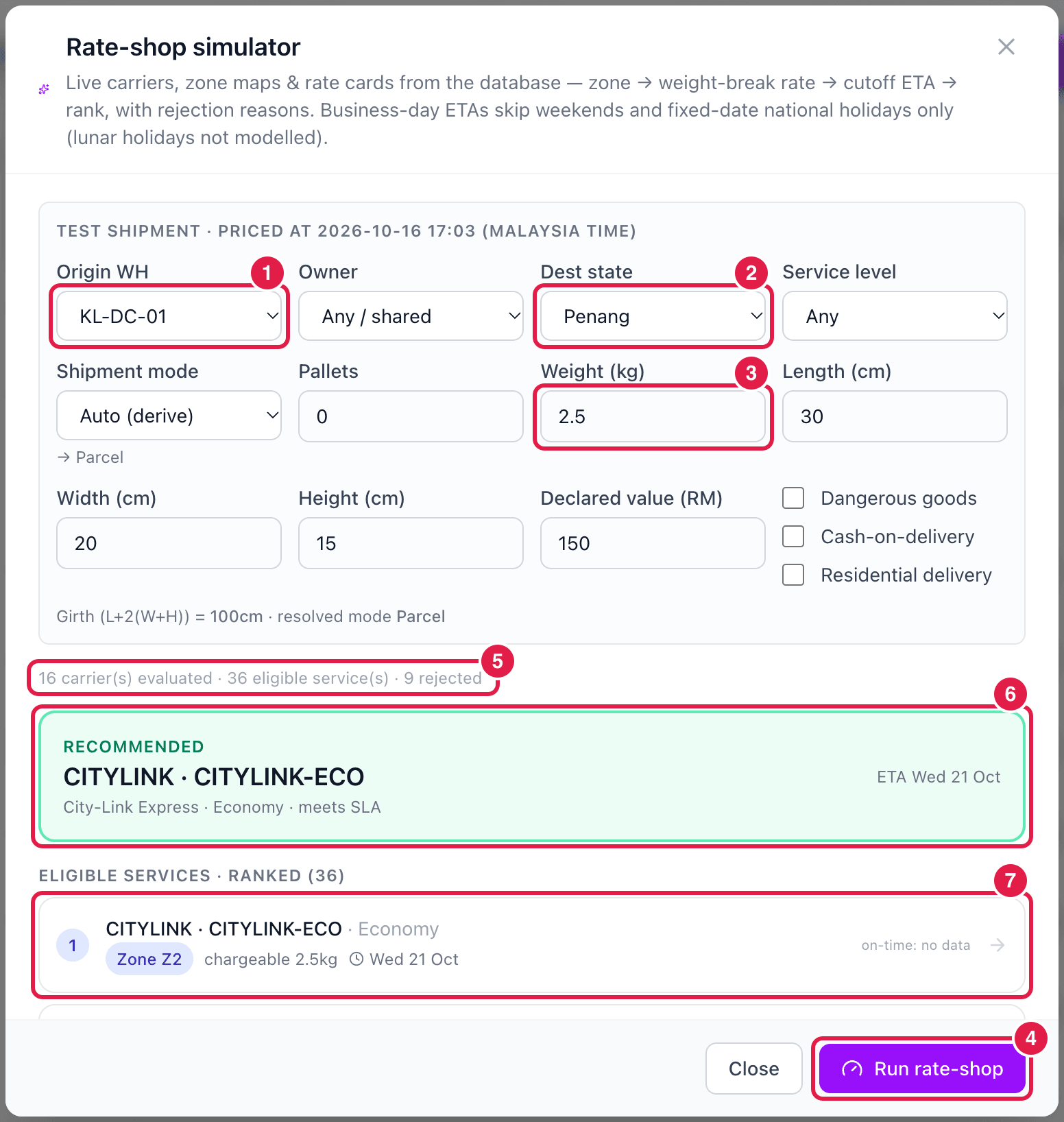
- Origin WH — the warehouse the shipment leaves from.
- Dest state — where it goes.
- Weight (kg) — plus length, width and height. PrismaWMS works out the girth and whether it is a parcel or a pallet shipment.
- Run rate-shop.
- Summary — how many carriers were checked, how many services fit, and how many were rejected.
- Recommended — the best service and its delivery date (ETA). Services that meet the requested level come first, then the cheapest, then the best on-time record.
- Ranked list — every service that fits, in order. Scroll down to Rejected to see why the others were excluded (no rate card, too heavy, no account for this warehouse, contract expired …).
Prices are shown only when your company tracks money (Administration → System Settings → Operations Mode = Costing + GL). In Stock-only mode the ranking still uses the rate cards, but no money amounts are shown.
Good to know
- The same rate-shop runs on the Shipping screen for packed cartons, so what you see here is what shipping will choose.
- Set a carrier to Inactive instead of deleting it — old shipments keep showing it.
- Business-day ETAs skip weekends and fixed-date public holidays; holidays with moving dates (e.g. Hari Raya, Chinese New Year) are not taken into account.
- Lorries and drivers of your own fleet are set up in Vehicles & Drivers.