Categories
Categories group your items in a tree — Apparel → Tops → T-Shirt. Items inherit their category's defaults (temperature, rotation) and its attribute template (for example Size and Colour), so you type less when creating items and reports can total by category.
Where: Master Data → Categories
The screen
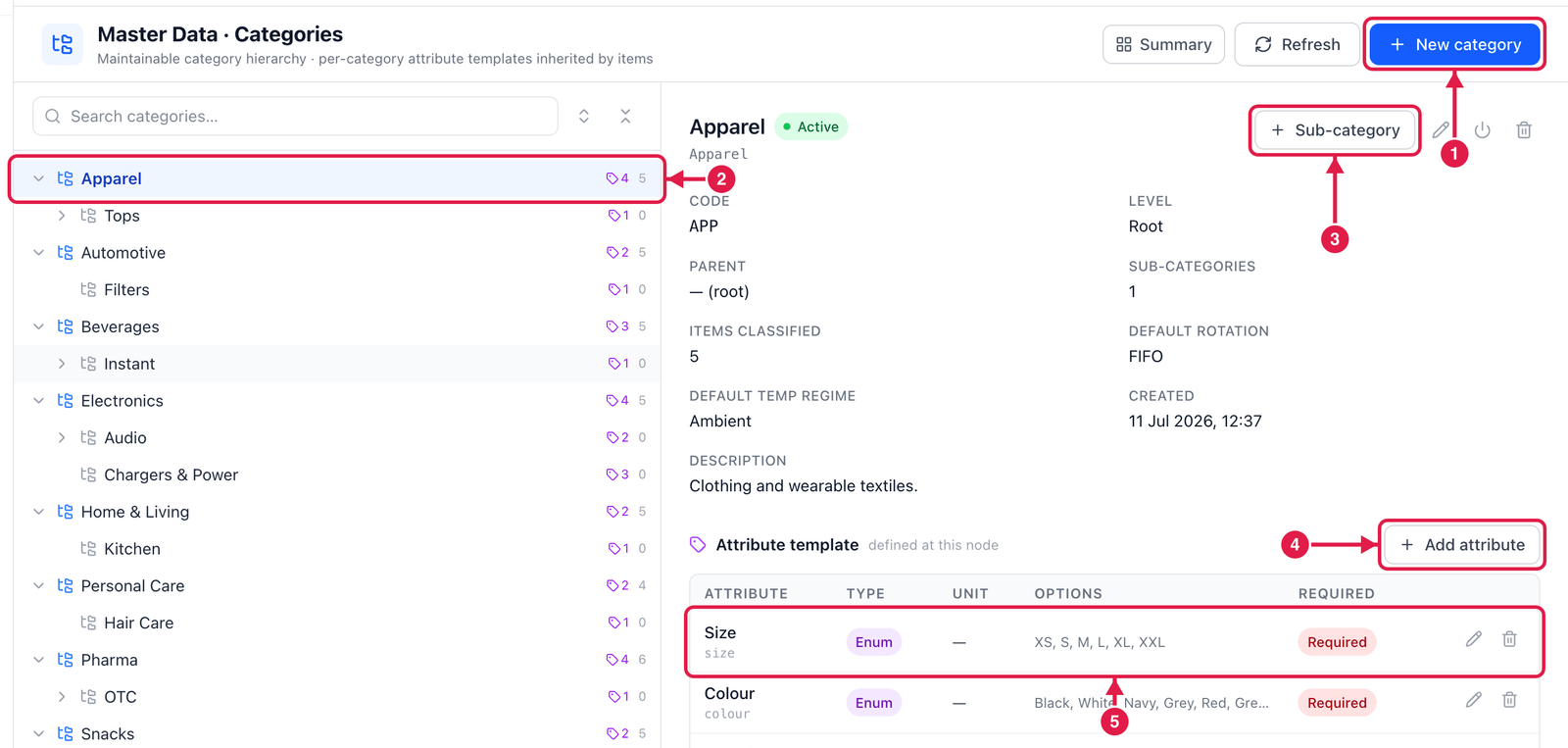
- New category — add a top-level category.
- The tree — click a category to see its details. The small numbers show sub-categories and items.
- Sub-category — add a category under the selected one.
- Add attribute — add a field every item in this category must or may fill (e.g. Size).
- Attribute template — the attributes already defined. Enum means a pick-list (XS, S, M …); Required means items cannot be saved without it.
Create a category
Click New category (or Sub-category to place it under the selected one).
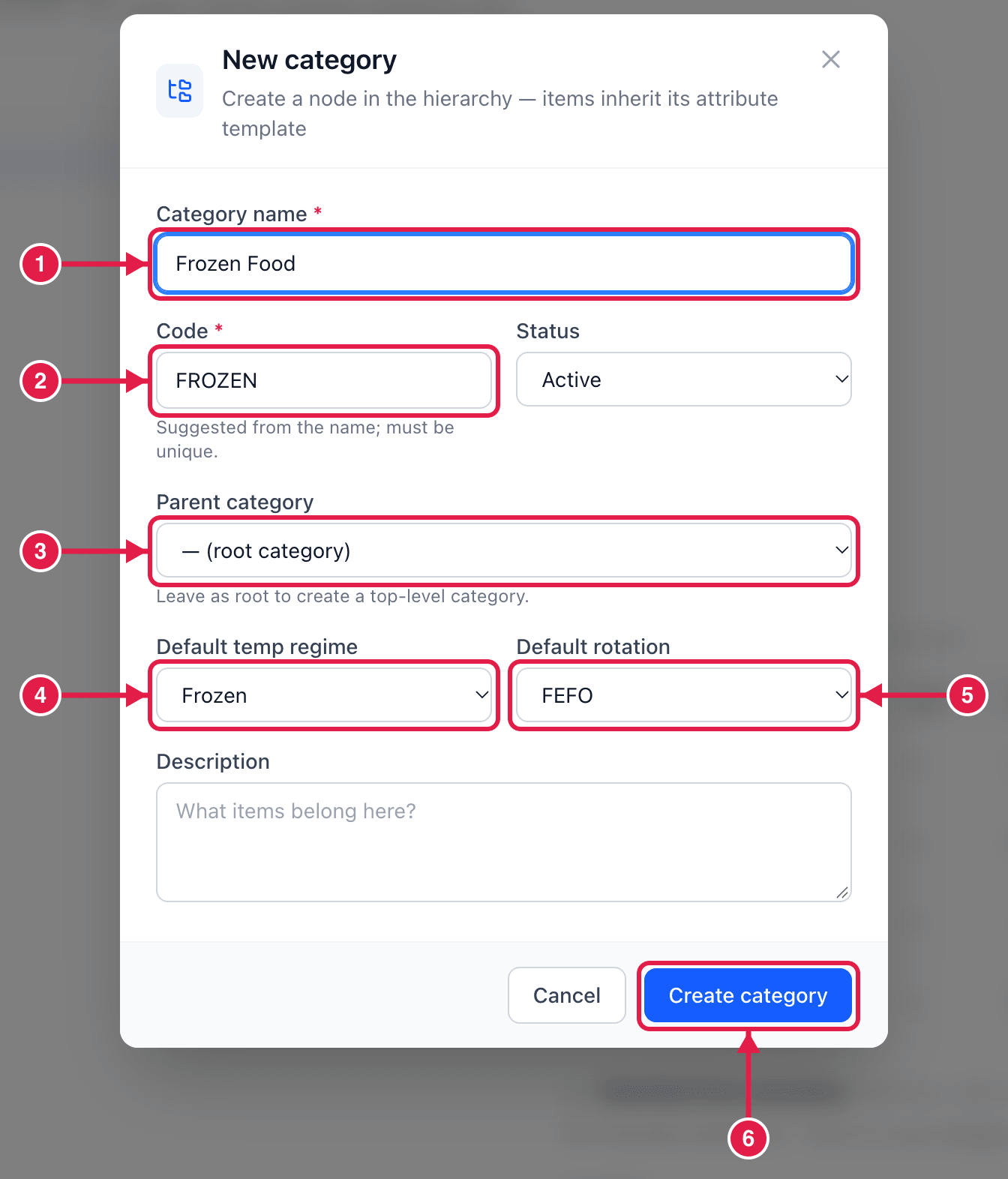
- Category name — e.g. Frozen Food.
- Code — suggested from the name; must be unique.
- Parent category — leave (root category) for a top-level category.
- Default temp regime — e.g. Frozen; new items in this category start with it.
- Default rotation — e.g. FEFO (first-expired-first-out) for food, FIFO for others.
- Click Create category.
Good to know
- Edit / move changes a category or moves it under another parent; Deactivate stops new items using it.
- A category with items cannot be deleted — move or re-categorise the items first.