Items / SKU
An item (also called a SKU, stock-keeping unit) is one product you store — for example Chocolate Wafer 24g. Every receipt, pick, count and shipment refers to an item, so the item master is the most important list in PrismaWMS. Only two fields are required: the SKU code and a short description. Everything else can be added later.
Where: Master Data → Items / SKU
Where an item is used
The lifecycle of an item
A new item is saved as Draft. PrismaWMS refuses to receive or produce an item that is not Active — you will see "Item … is draft — it cannot be received, produced or found into stock." When the item is ready, open it with Edit and set Lifecycle status to Active (or choose Active already when you create it).
The list
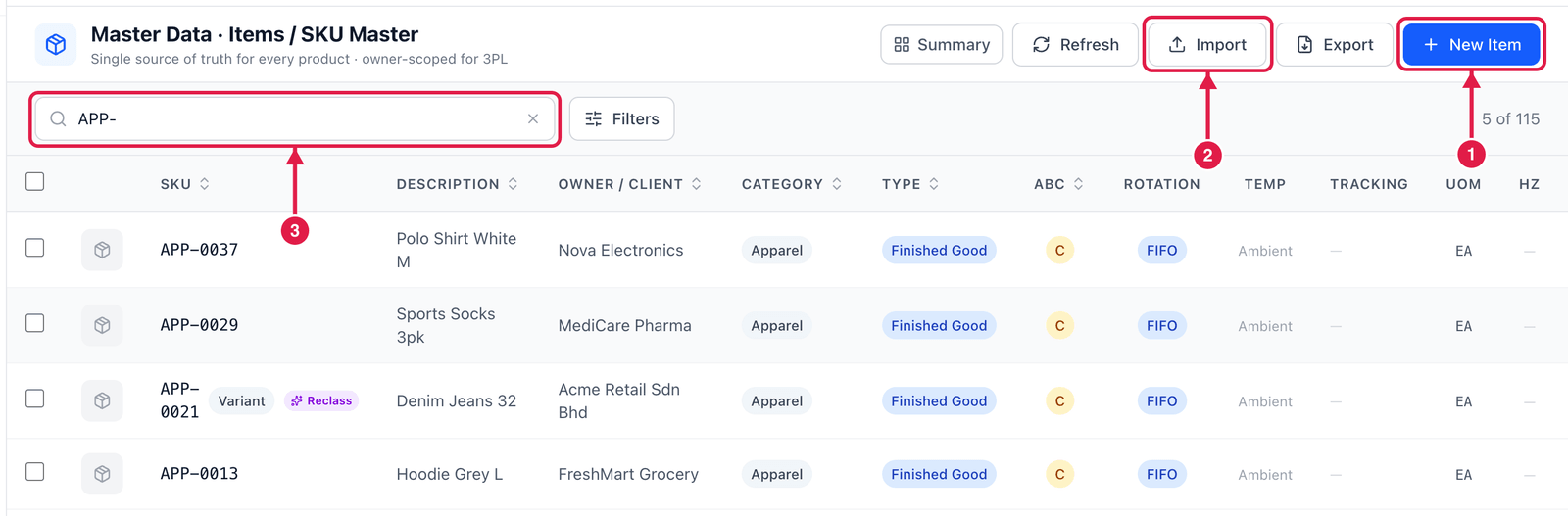
- New Item — register one item.
- Import — register many items at once from a CSV file.
- Search — type part of a SKU, description, owner, barcode, MPN or tag. Here
APP-shows all apparel items.
Each row has four buttons on the right: View (read-only details), Edit, Print label (an item barcode label) and ⋯ More with Clone item, Reclassify ABC, Add barcode, Block / hold and Delete / archive.
Summary (top right) shows totals — SKUs, Active, Hazmat / DG, Lot-tracked, Serial-tracked and Kits / BOM. Filters narrows the list by owner, category, item type, ABC, rotation, temperature, status, or only lot / serial / hazmat / kit items.
Register an item
Click New Item. The item opens in its own tab with six sections. You can jump between the sections in any order and press Create item at any time — only the SKU and description are required.
Step 1 — Identity
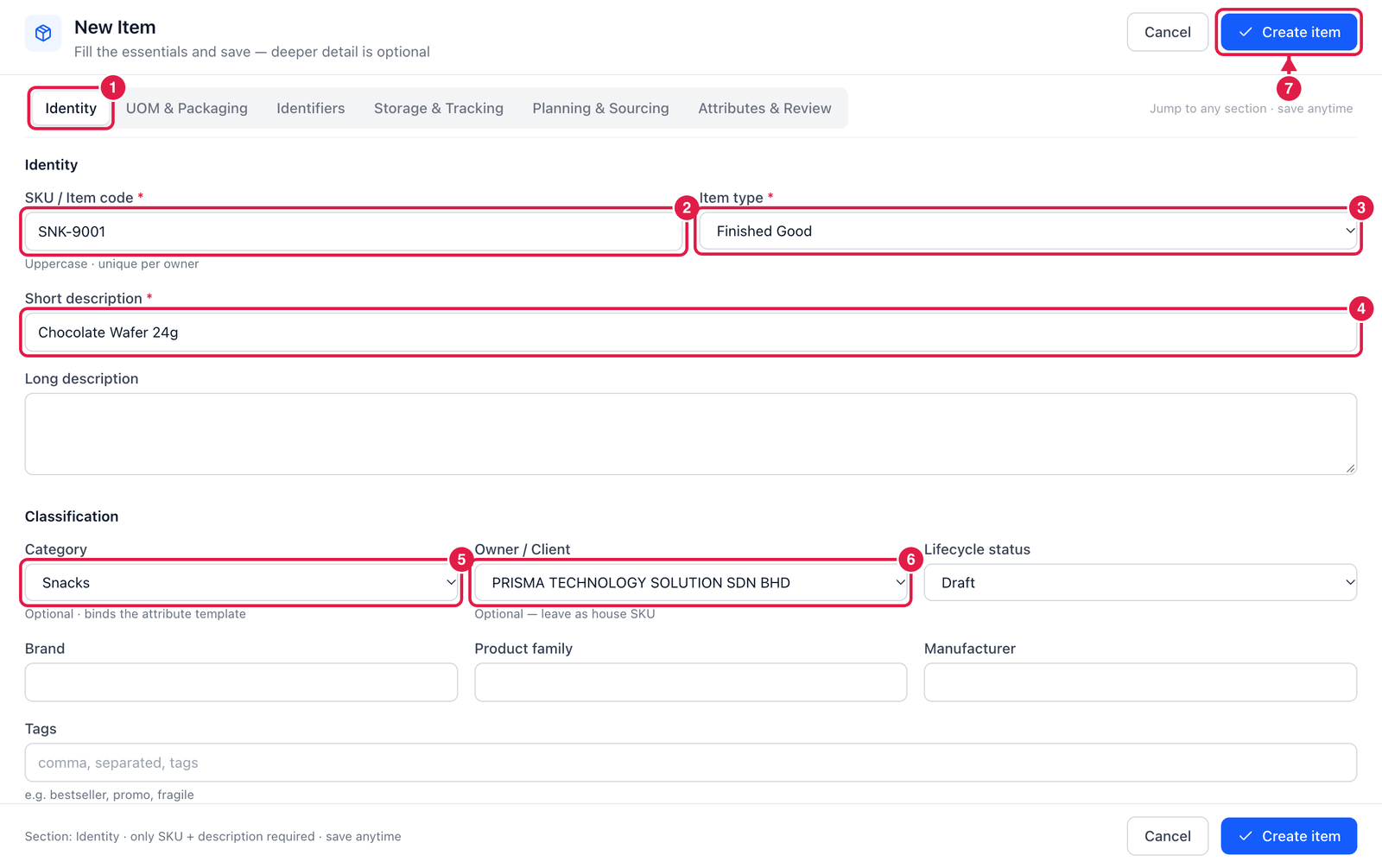
- Identity — the first section.
- SKU / Item code — the code everyone uses for this product. Use capitals, digits and dashes, e.g.
SNK-9001. It must be unique for the owner. - Item type — Finished Good for normal products. Others: Raw Material, WIP, Component, Packaging, Kit/BOM, Service, Virtual.
- Short description — the name shown on screens, pick lists and labels, e.g. Chocolate Wafer 24g.
- Category — optional. Choosing a category also adds that category's extra fields (see Step 6).
- Owner / Client — in a 3PL warehouse, the client who owns this product. Leave None — house / shared SKU if you only store your own goods.
- Create item — saves the item. You can press it now, or continue with the other sections first.
Lifecycle status (next to Owner) is Draft by default — choose Active if the item can be used straight away. Brand, Product family, Manufacturer and Tags are optional and help searching.
Step 2 — UOM & Packaging
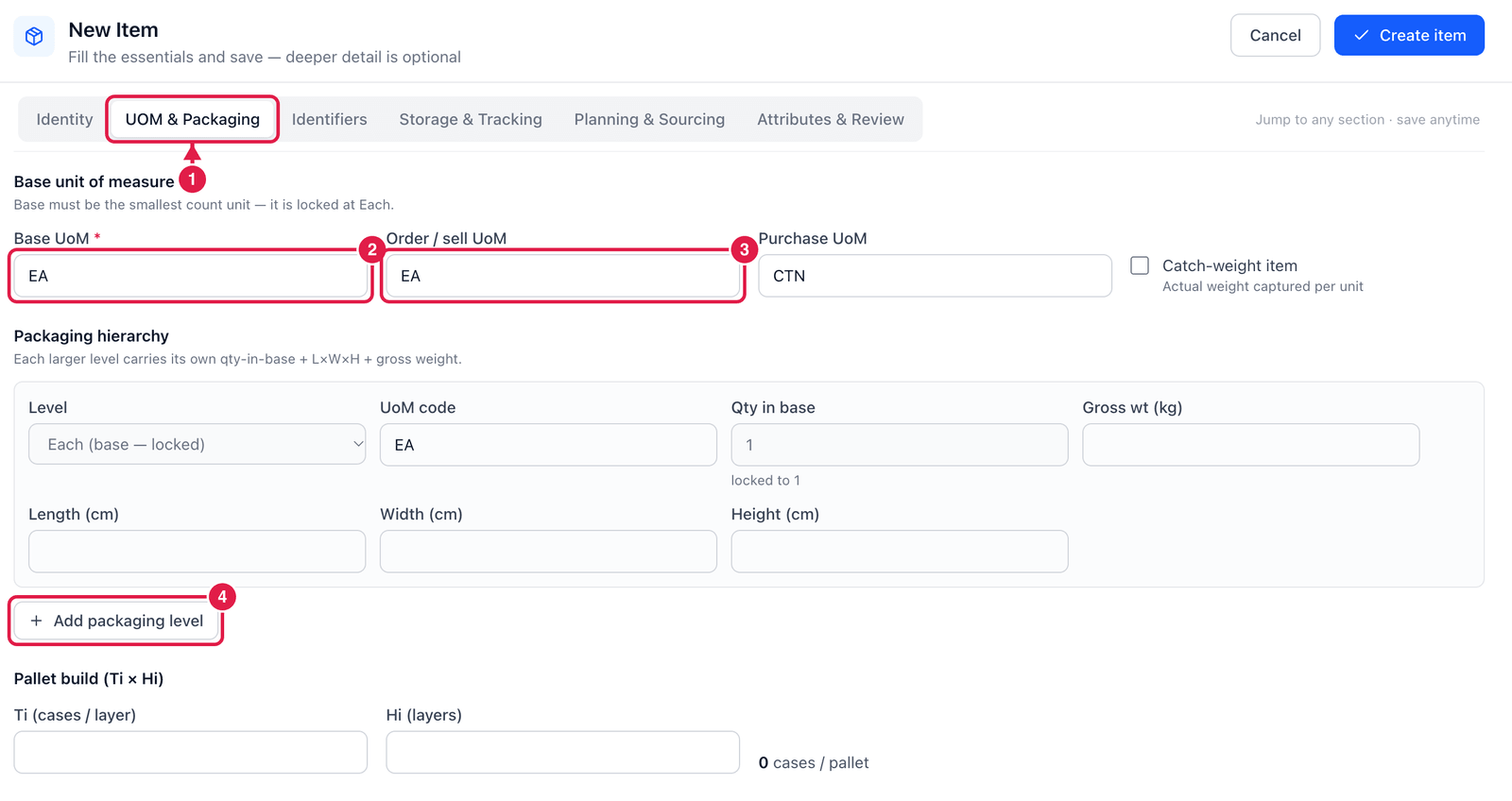
- UOM & Packaging section.
- Base UoM — the smallest unit you count, usually
EA(each). All stock is kept in this unit. - Order / sell UoM — the unit your customers order in. Purchase UoM is the unit you buy in, e.g.
CTN(carton). - Add packaging level — describe bigger packs, e.g. Carton = 24 EA. Enter the Qty in base (how many base units are inside), and the weight and size if you know them.
Pallet build (Ti × Hi) — how many cartons go on one layer (Ti) and how many layers (Hi). PrismaWMS works out the cartons per pallet for you. Tick Catch-weight item only for products sold by actual weight (meat, cheese).
The units you choose here (EA, CTN, …) come from Master Data → UOM & Conversions. See Units of Measure.
Step 3 — Identifiers and barcodes
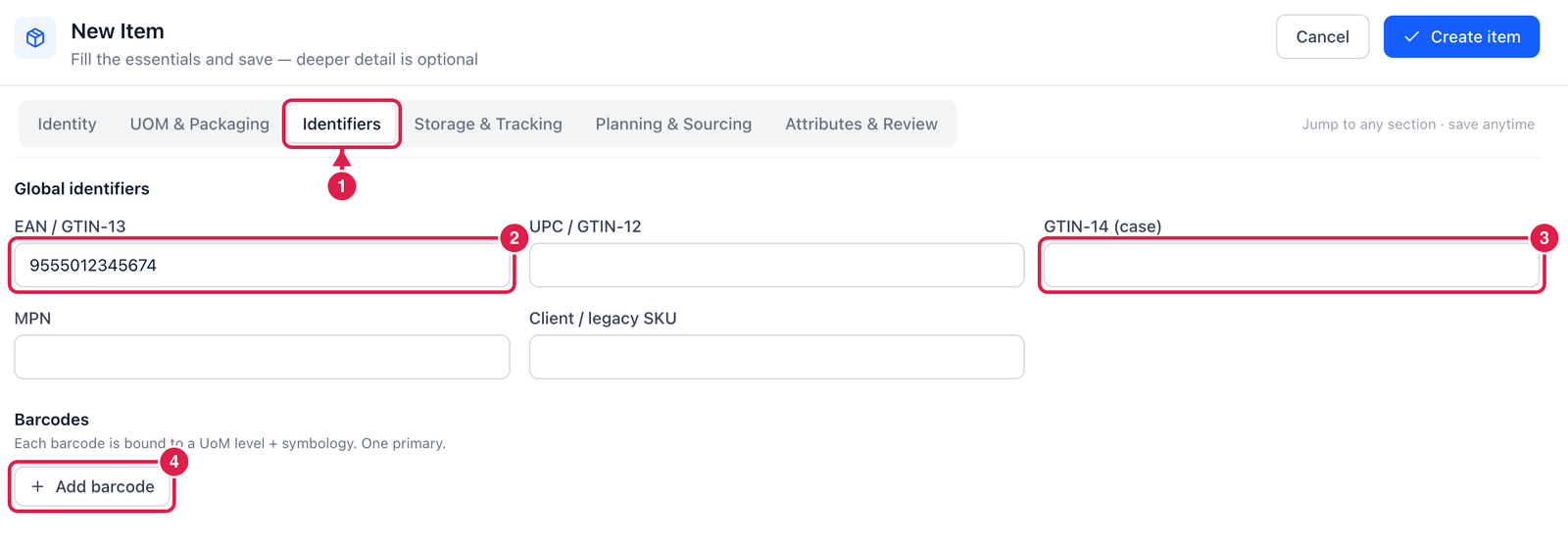
- Identifiers section.
- EAN / GTIN-13 — the barcode printed on the product, e.g.
9555012345674. UPC / GTIN-12 is the American equivalent. - GTIN-14 (case) — the barcode on the outer carton, if it has its own.
- Add barcode — add more barcodes. Each barcode is linked to one packaging level (e.g. the carton
barcode to
CTN) and a symbology (EAN-13, Code 128, …). One barcode is the primary.
MPN is the manufacturer's part number; Client / legacy SKU is the code from an old system — both can be searched in the list.
Step 4 — Storage & Tracking
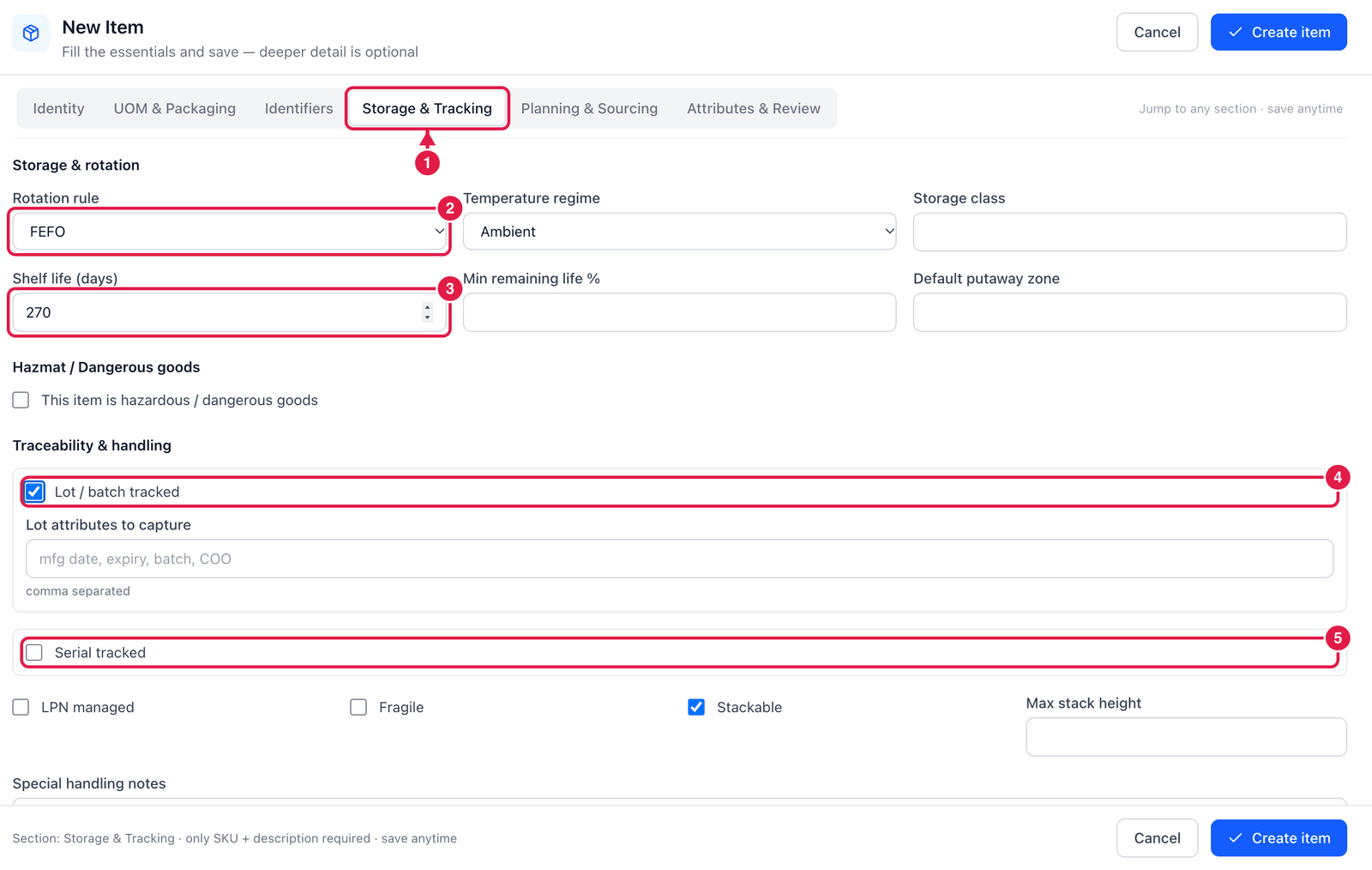
- Storage & Tracking section.
- Rotation rule — which stock leaves first:
- FEFO — first expired, first out — food, medicine, cosmetics;
- FIFO — first in, first out — most other goods;
- LIFO or None — rarely used.
- Shelf life (days) — how long the product lasts after it is made. With a shelf life, the receiving screen also asks for the manufacturing date and works out the expiry for you. Min remaining life % warns at receiving when goods arrive with too little life left (for example less than 70 %).
- Lot / batch tracked — tick when batches must be recorded. Receivers are asked for the lot number, and you can trace each lot from supplier to customer.
- Serial tracked — tick for products where every single unit has its own serial number (phones, machines).
The other fields describe how to store the item: Temperature regime (Ambient, Chilled, Frozen, Controlled), Storage class, Default putaway zone, Hazmat / dangerous goods, LPN managed, Fragile, Stackable and Max stack height.
Turn lot or serial tracking on before the first receipt. Stock received without a lot is kept as a separate no lot balance — lot-specific orders, holds and recalls will not match it. If every lot must be entered, ask your administrator to switch on Require lot / batch for lot-tracked items (Administration → System Settings → Module Settings); the same page has Require expiry for shelf-life items.
Step 5 — Planning & Sourcing
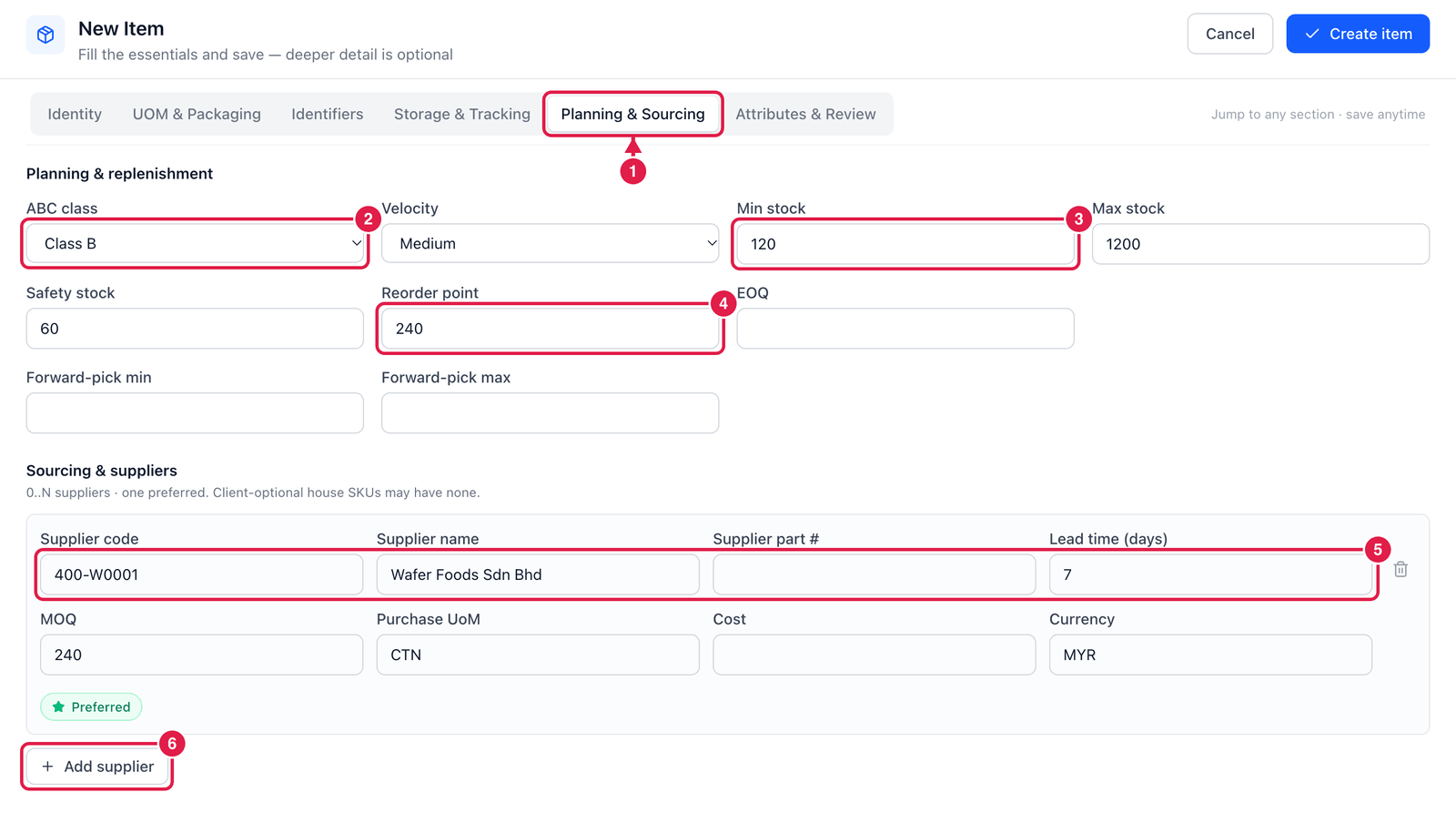
- Planning & Sourcing section.
- ABC class — A = your most important, fast-moving items; C = slow movers. Cycle counts can be planned by ABC class, and the list can be filtered by it.
- Min stock and Max stock — the stock range you want to keep.
- Reorder point — when available stock drops below this number, the low stock notification fires (if you leave it empty, Min stock is used instead). The notification rule must be switched on in Administration → Notifications.
- Supplier — who you buy this item from: supplier code and name, their part number, lead time, MOQ (minimum order quantity), purchase unit, cost and currency. Mark one supplier as Preferred.
- Add supplier — add another supplier for the same item.
Safety stock, EOQ and Forward-pick min / max are optional. Forward-pick min / max is the quantity you want in the pick face; Strategy Rules uses it to check whether pick faces are covered.
Step 6 — Attributes & Review
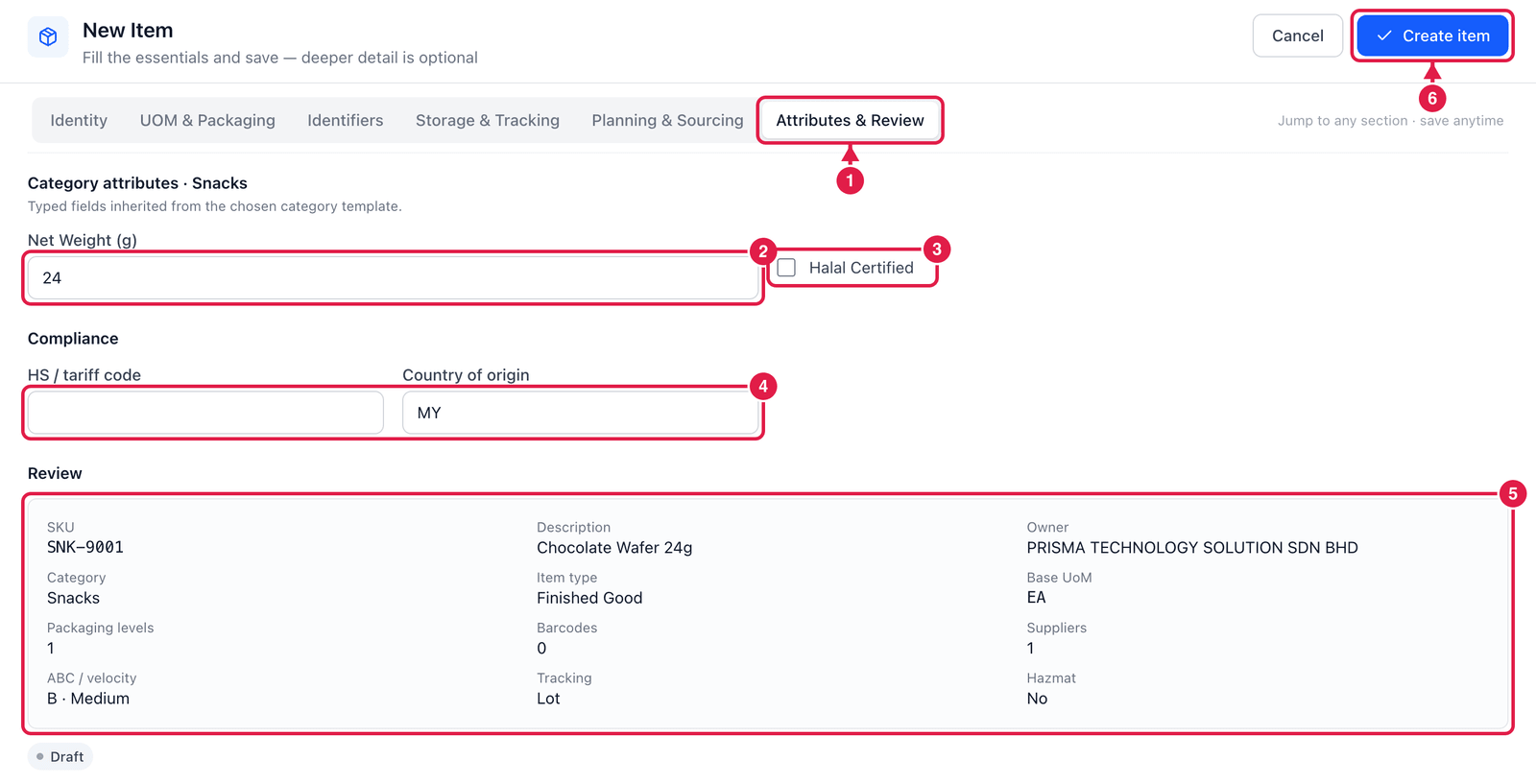
- Attributes & Review section.
- Category attributes — extra fields from the category you chose (here Snacks adds Net Weight (g)). Your administrator defines these in Categories.
- Halal Certified — another category attribute, a simple yes / no.
- Compliance — HS / tariff code and Country of origin, needed for export documents.
- Review — check everything at a glance: SKU, description, owner, units, barcodes, suppliers and tracking.
- Create item — save. The item appears in the list straight away.
Import many items
Click Import on the list.
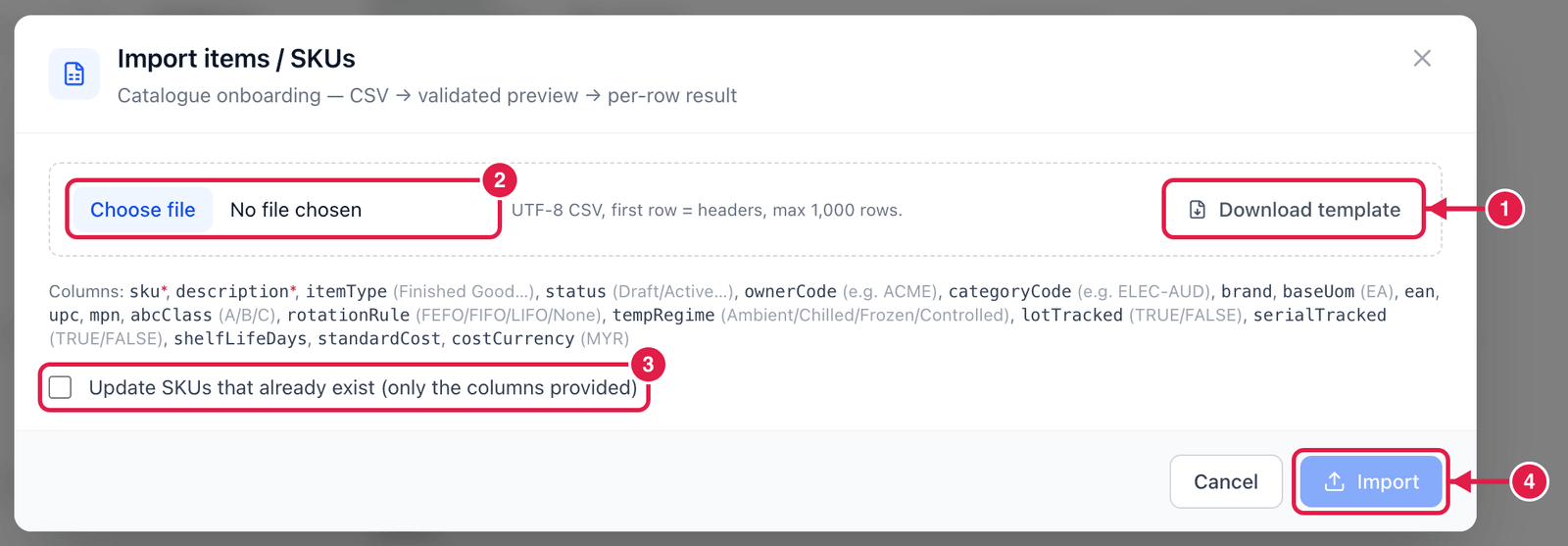
- Download template — a CSV file with the right column headings. Fill it in Excel and save as CSV UTF-8.
- Choose file — pick your filled-in file (up to 1,000 rows). Only
skuanddescriptionare required; the other columns (item type, owner code, category code, base UoM, EAN, rotation rule, lot / serial tracked, shelf life …) are optional. - Update SKUs that already exist — tick to update existing items. Only the columns in your file are changed; everything else stays as it is.
- Import — PrismaWMS first shows a checked preview and then a result for every row, so you can see exactly which rows were added, updated or rejected and why.
Imported items are Draft unless your file has a status column with Active.
Good to know
- Clone item (⋯ menu) copies an item with its settings under a new SKU — the fastest way to add a similar product, such as another size or colour. Barcodes are not copied (each product has its own), and the copy starts as Draft.
- Block / hold stops the item's stock from being reserved or shipped, for example during a product recall. Release hold makes it Active again.
- Delete / archive removes the item from the list. It is archived, not erased, so old documents still show it. This is refused while the item still has stock on hand — move or adjust the stock out first.
- Items can also arrive automatically from SQL Accounting or another ERP — see Administration → Integrations.