Locations — zones and bins
Every unit of stock sits in a bin (a location), and every bin belongs to a zone. Create the zones first, then generate the bins — hundreds at once — and print a barcode label for each.
Where: Master Data → Locations
How a bin code is built
An operator reads the code like an address: go to zone BULK, aisle A05, bay B1, level L2, position P01.
The order to set up locations
The Locations screen

- Warehouse — the list shows the bins of this warehouse.
- Bulk Generate — create a whole range of bins in one go.
- Import — create bins from a CSV file.
- New Location — create a single bin.
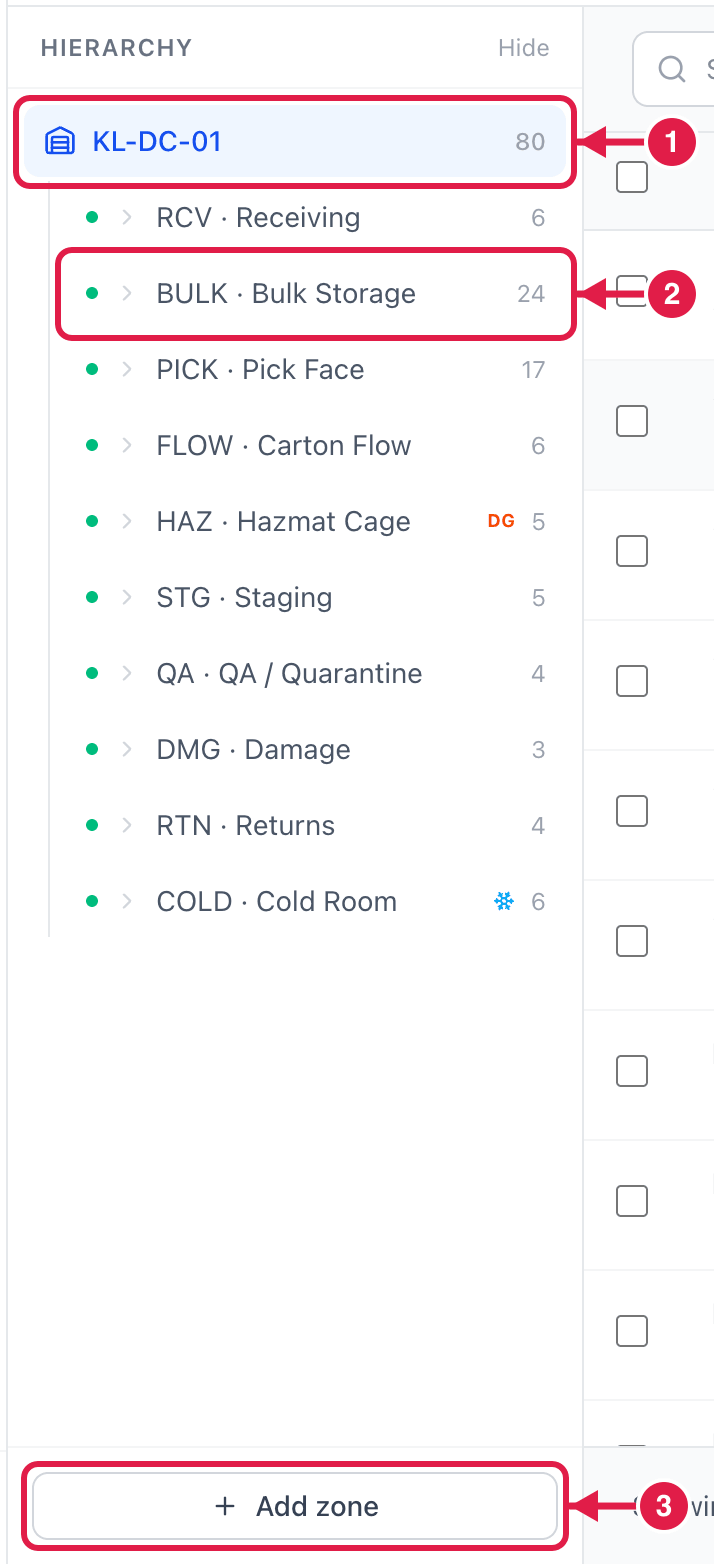
- The warehouse and its total number of bins — click it to see all bins.
- A zone — click it to show only that zone's bins.
- Add zone — create a new zone.
Step 1 — Add a zone
Click Add zone.
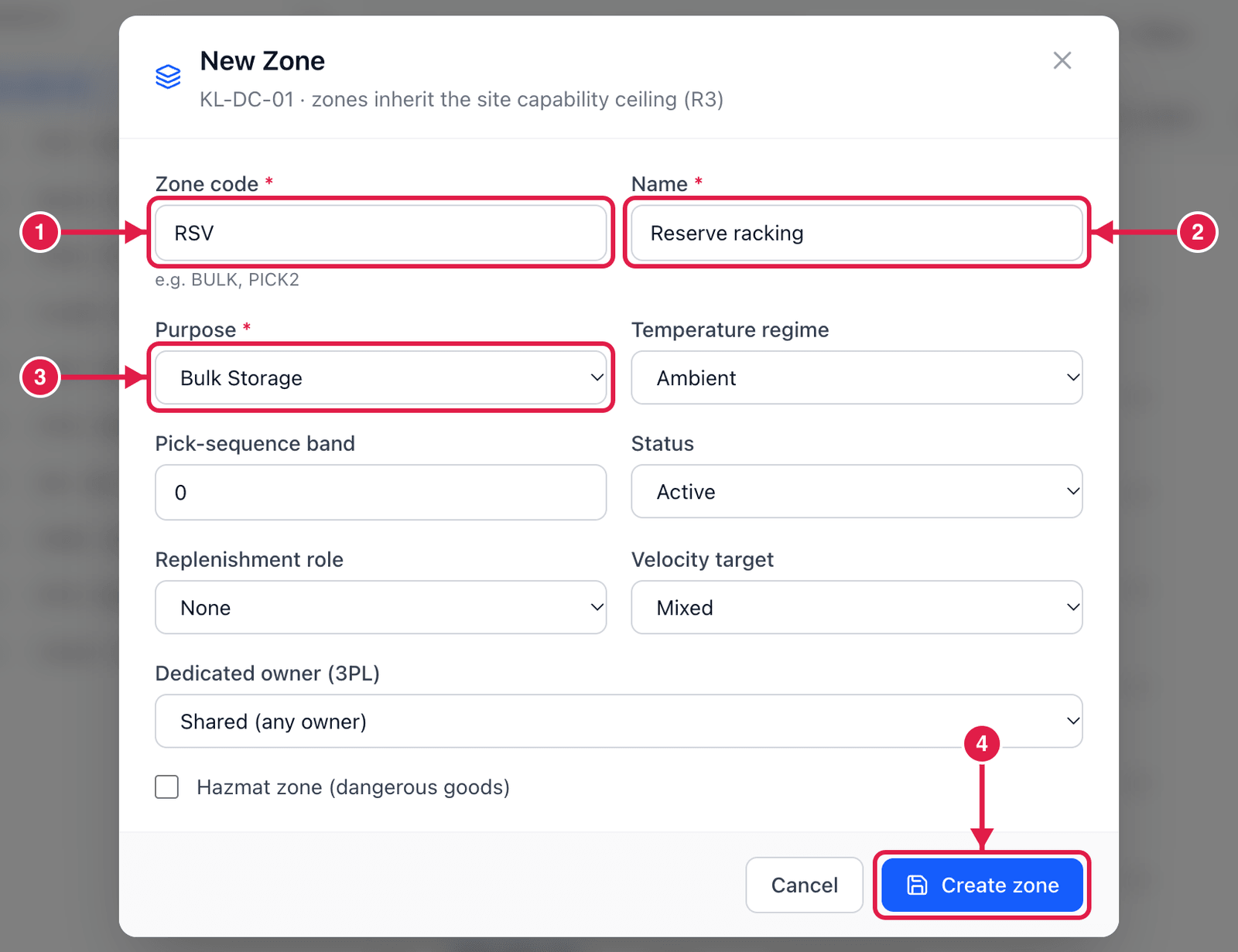
- Zone code — short and upper-case, e.g.
BULK,PICK,RCV. - Name — e.g. Reserve racking.
- Purpose — what the zone is for: receiving, bulk storage, pick face, staging, QA, damage, returns … PrismaWMS uses this to choose bins automatically.
- Click Create zone.
Most warehouses start with RCV (receiving dock), BULK (pallet racking), PICK (pick faces), STG (outbound staging), QA (inspection), DMG (damage) and RTN (returns).
Step 2 — Generate the bins (Bulk Generate)
Click Bulk Generate. A four-step wizard opens.
2a. Zone
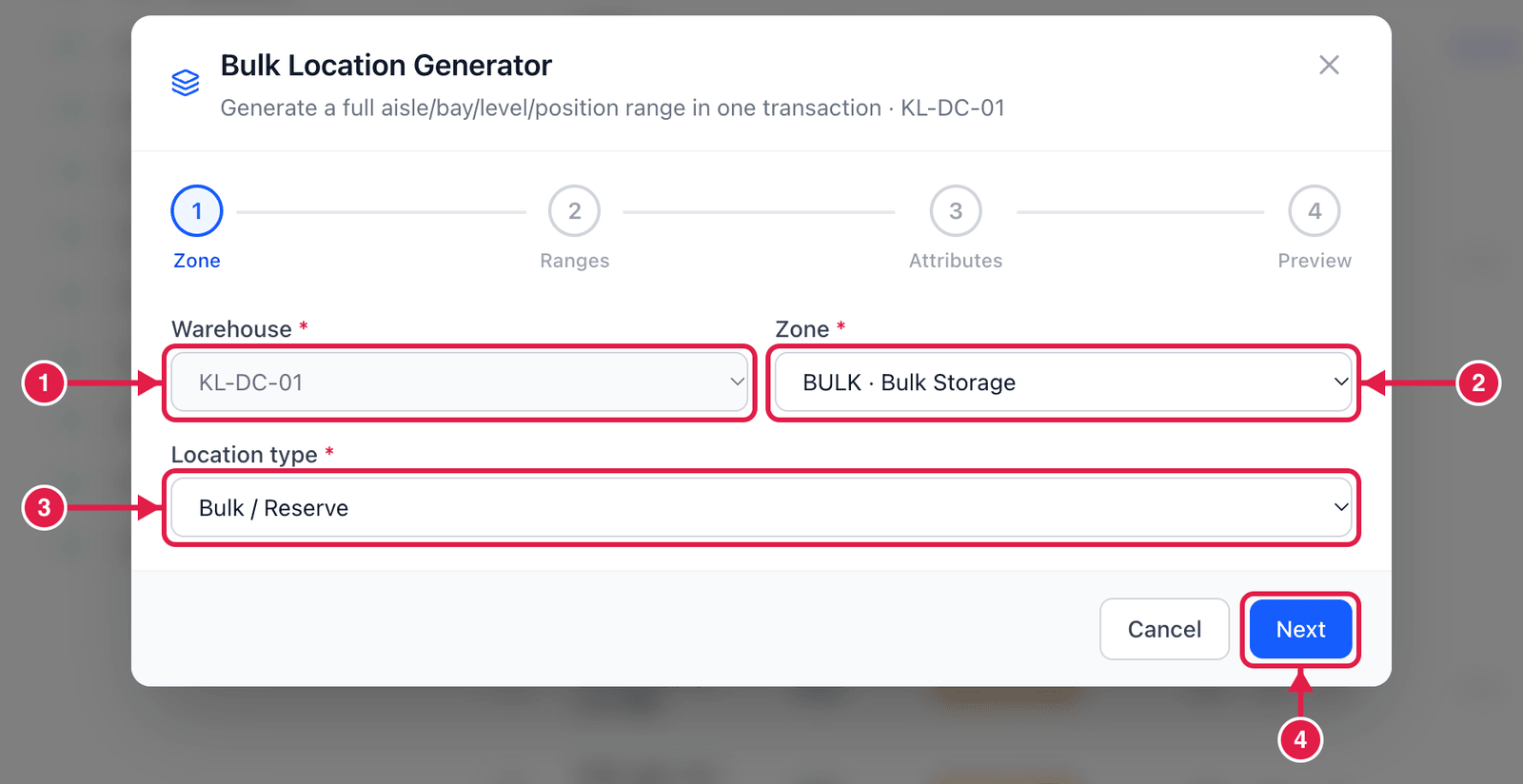
- Warehouse.
- Zone — e.g. BULK · Bulk Storage.
- Location type — e.g. Bulk / Reserve for pallet racking, Pick Face / Forward for picking shelves.
- Click Next.
2b. Ranges
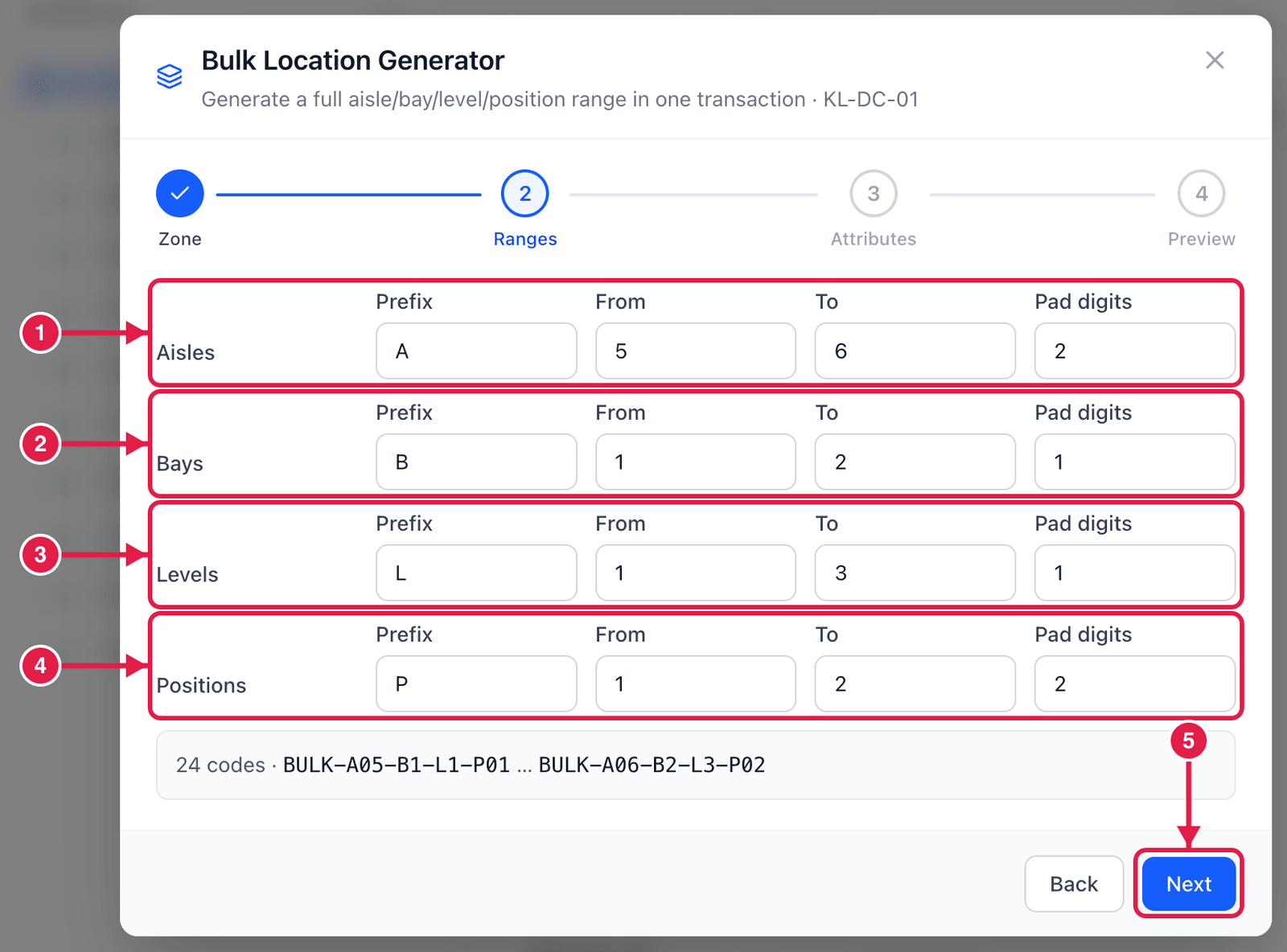
- Aisles — prefix
A, from5to6, pad2→A05, A06. - Bays — prefix
B, from1to2→B1, B2. - Levels — prefix
L, from1to3→L1, L2, L3. - Positions — prefix
P, from1to2, pad2→P01, P02. - Check the line above the buttons (24 codes · BULK-A05-B1-L1-P01 … BULK-A06-B2-L3-P02), then click Next.
Pad digits adds leading zeros so codes sort correctly: with pad 2, aisle 5 becomes A05 and comes before A10.
2c. Attributes
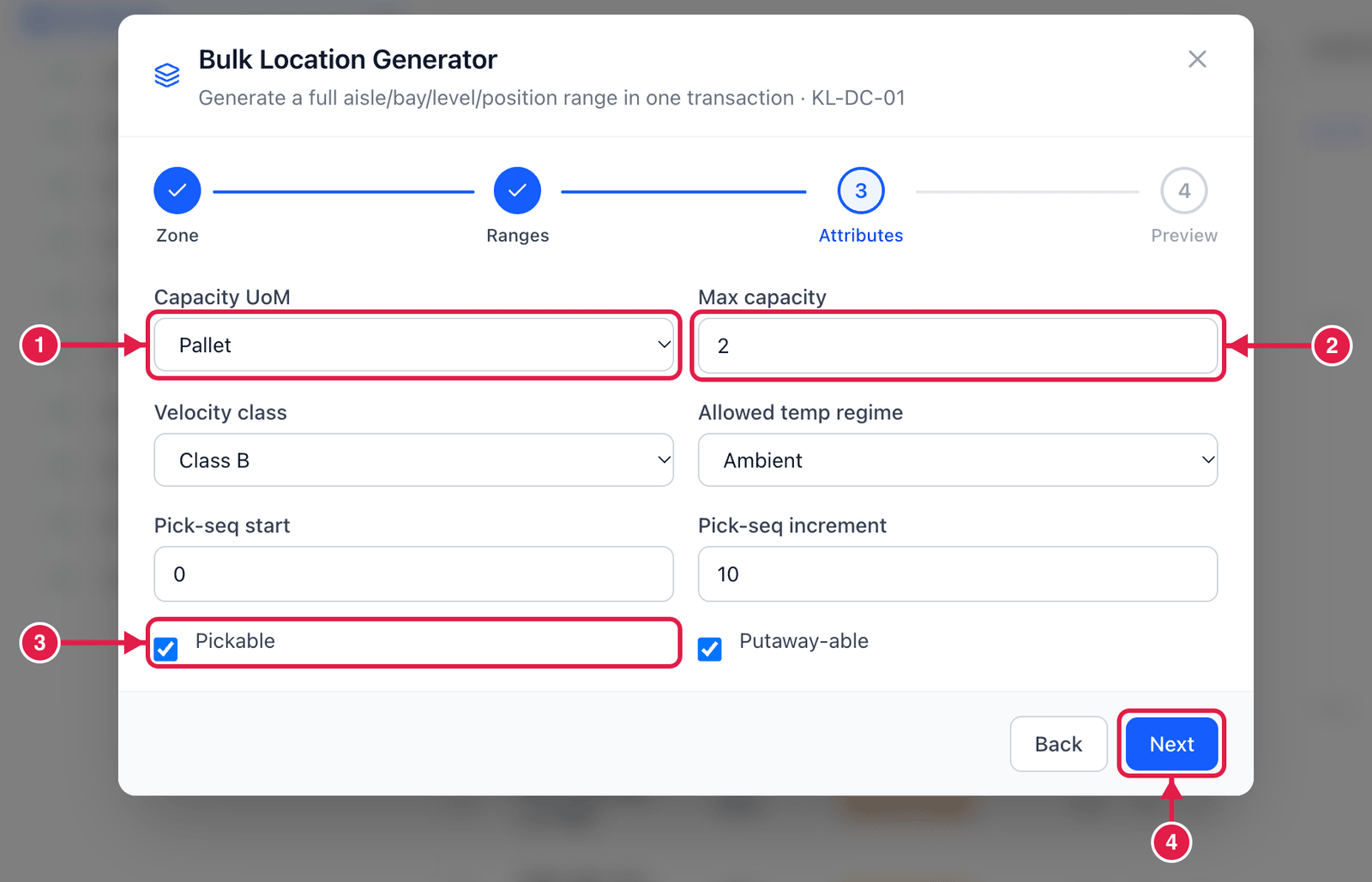
- Capacity UoM — what the bin holds: pallets, cases, eaches …
- Max capacity — e.g.
2pallets per bin. - Pickable — tick if pickers may take stock from these bins (leave Putaway-able ticked so stock can be stored).
- Click Next.
2d. Preview and generate
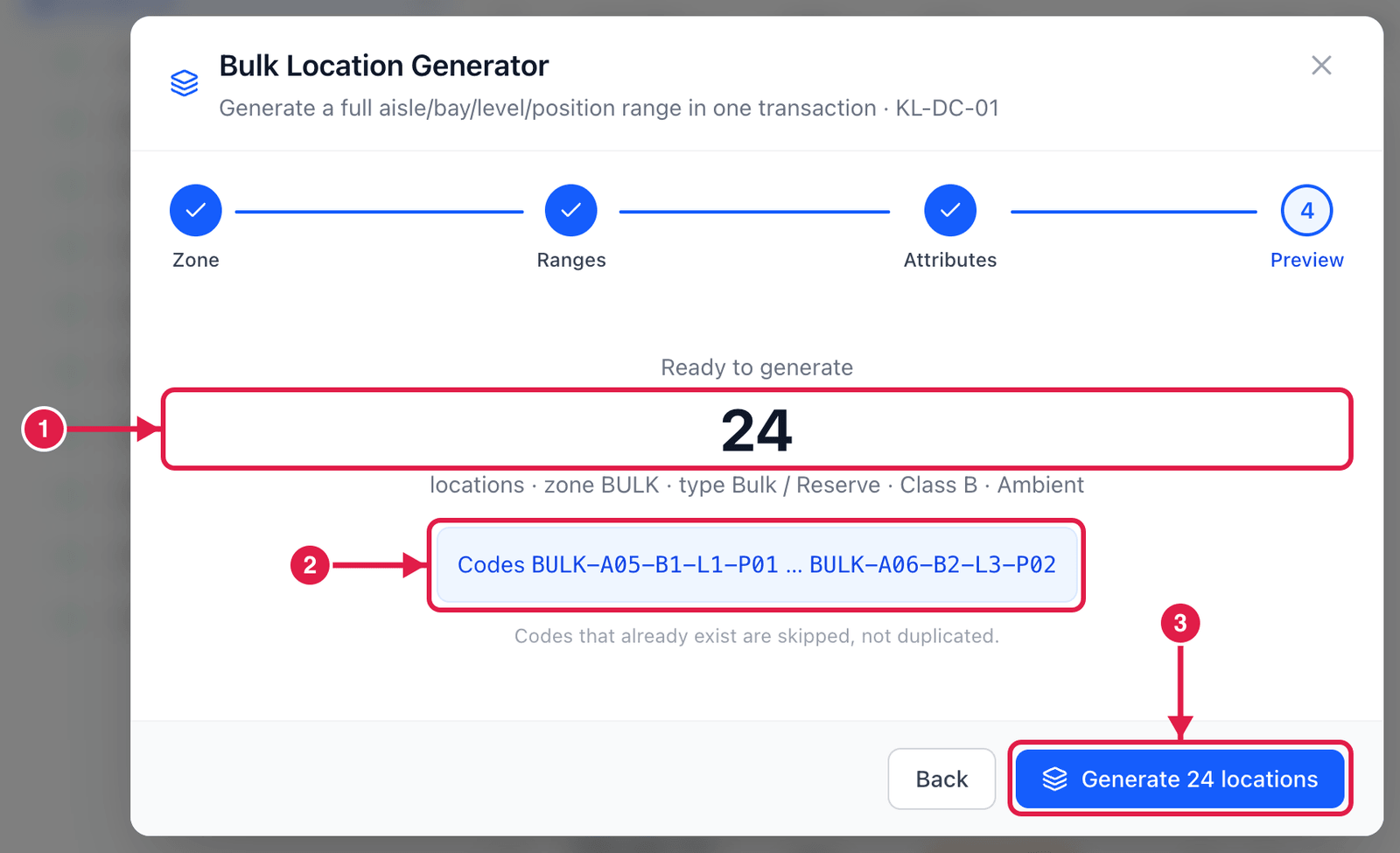
- How many bins will be created.
- The first and last code — check they look right.
- Click Generate n locations. Codes that already exist are skipped, never duplicated.
Create a single bin
Click New Location.
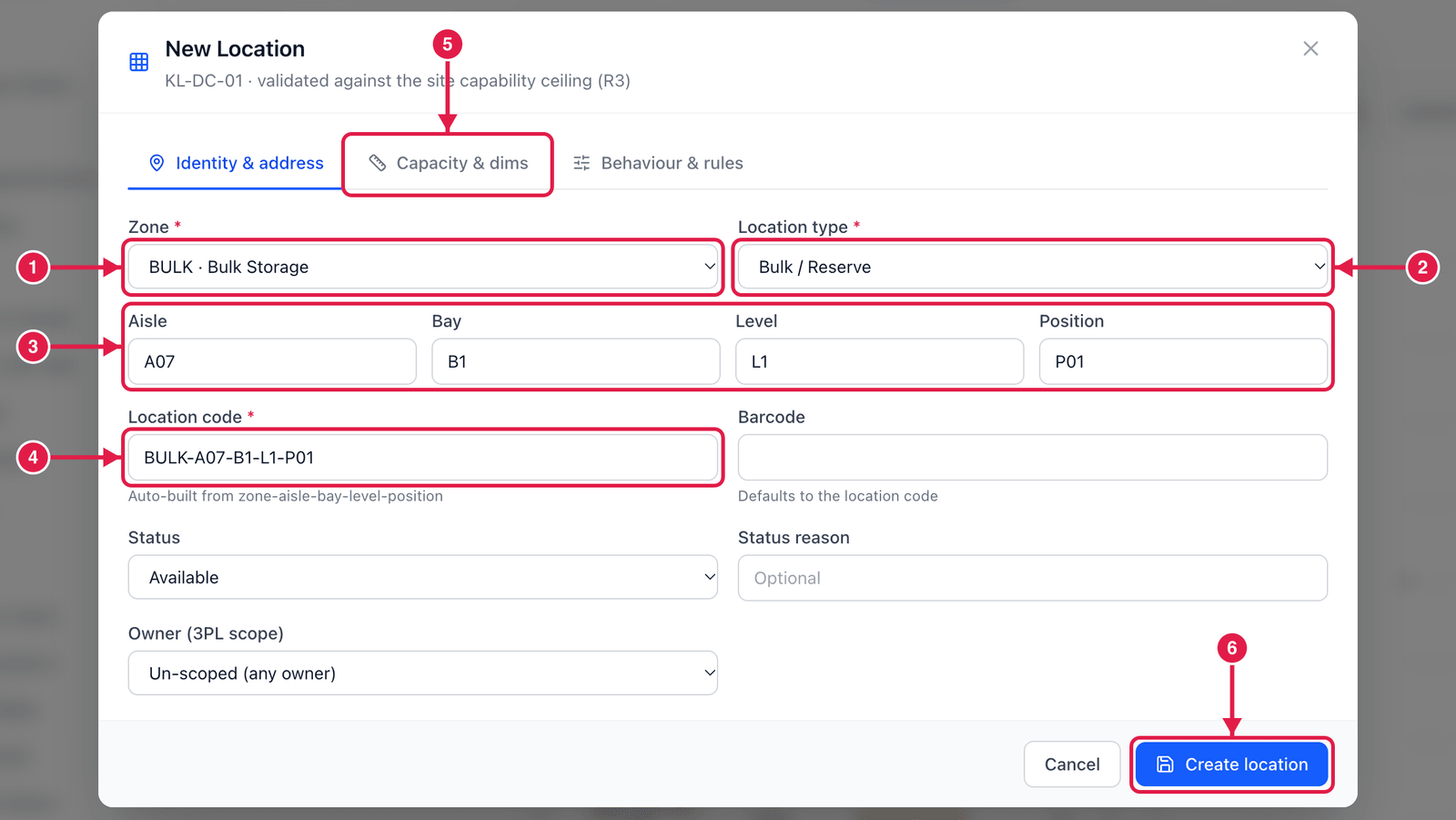
- Zone.
- Location type.
- Aisle, Bay, Level, Position.
- Location code is built for you from the parts above (you can change it).
- Optional: Capacity & dims (size, weight, capacity) and Behaviour & rules (pickable, mixing rules, dedicated item).
- Click Create location.
Print bin labels
Each row has a Print label button. Stick the label on the shelf so operators can scan the bin instead of typing it. See Labels & Documents for printers and label designs.
Good to know
- Status — Available, Blocked, Full, Counting, Quarantine, Damage … Status legend explains each one. A Counting bin is being counted and cannot be picked or moved until the count is posted.
- Dedicated (fixed) bins — a pick face can be dedicated to one SKU in Behaviour & rules; other items are then refused there.
- AI Slotting suggests better bins for fast-moving items — see the AI & Automation chapter.