Reason Codes
Whenever stock changes for an unusual reason — goods are damaged, a count is wrong, a pick is short — the user must choose a reason code. A reason code is more than a label: it decides what happens. It can move the stock to Damaged, ask for a photo or a note, and send the change to a supervisor for approval when the quantity is large.
Where: Master Data → Reason Codes
What a reason code controls
Only codes that are Active, valid in this situation (the context) and allowed for the order's owner appear in the user's pick list.
The list
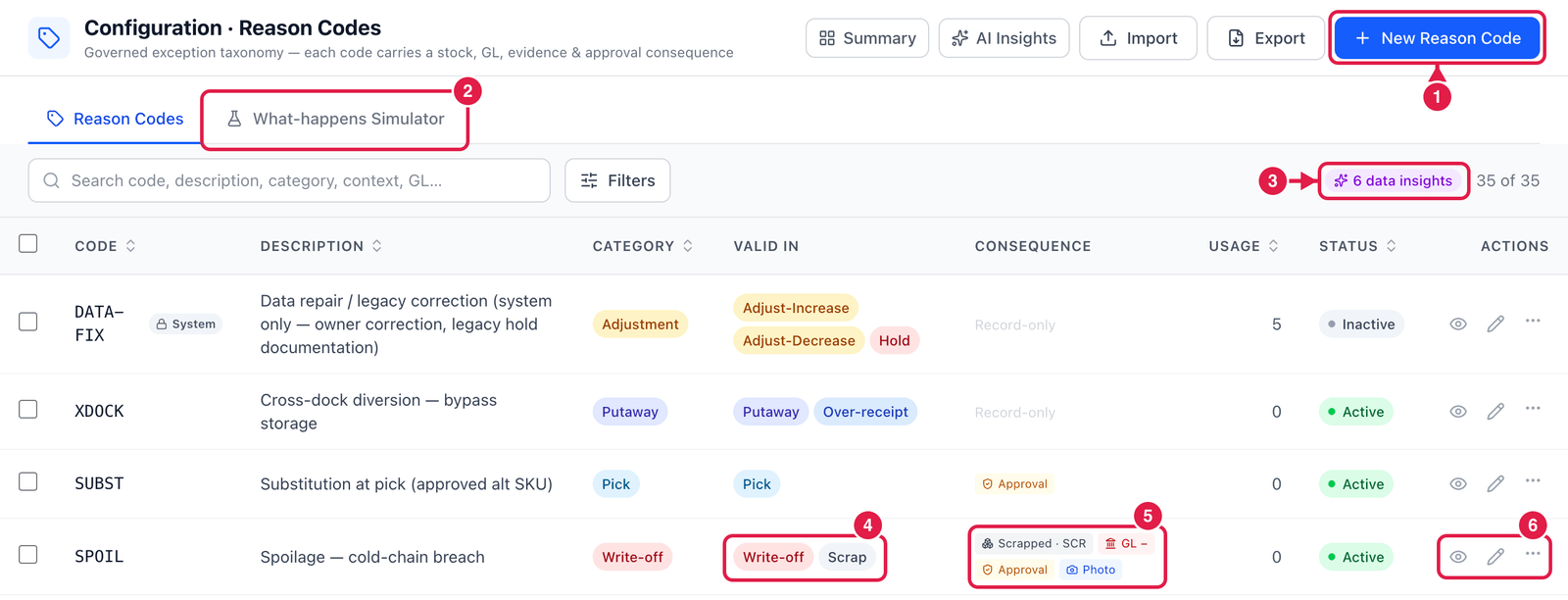
- New Reason Code — add a reason.
- What-happens Simulator — try a code and see exactly what it would do (see below).
- Data insights — suggestions worked out from your own transactions (also under AI Insights): reasons people typed that are not in this list yet (so no rules apply to them), and active codes nobody has used for 90 days or more.
- Valid in — the situations where the code can be chosen, e.g. Write-off and Scrap.
- Consequence — what the code does: the stock status it moves to (Scrapped), finance sign (GL −), Approval and the evidence it needs (Photo). Record-only codes just record the reason.
- View, Edit and ⋯ — Duplicate, Activate / Deactivate and Archive.
Codes marked System are needed by PrismaWMS itself; they cannot be deactivated, archived or deleted.
Add a reason code
Click New Reason Code.
Step 1 — What it is and where it can be used
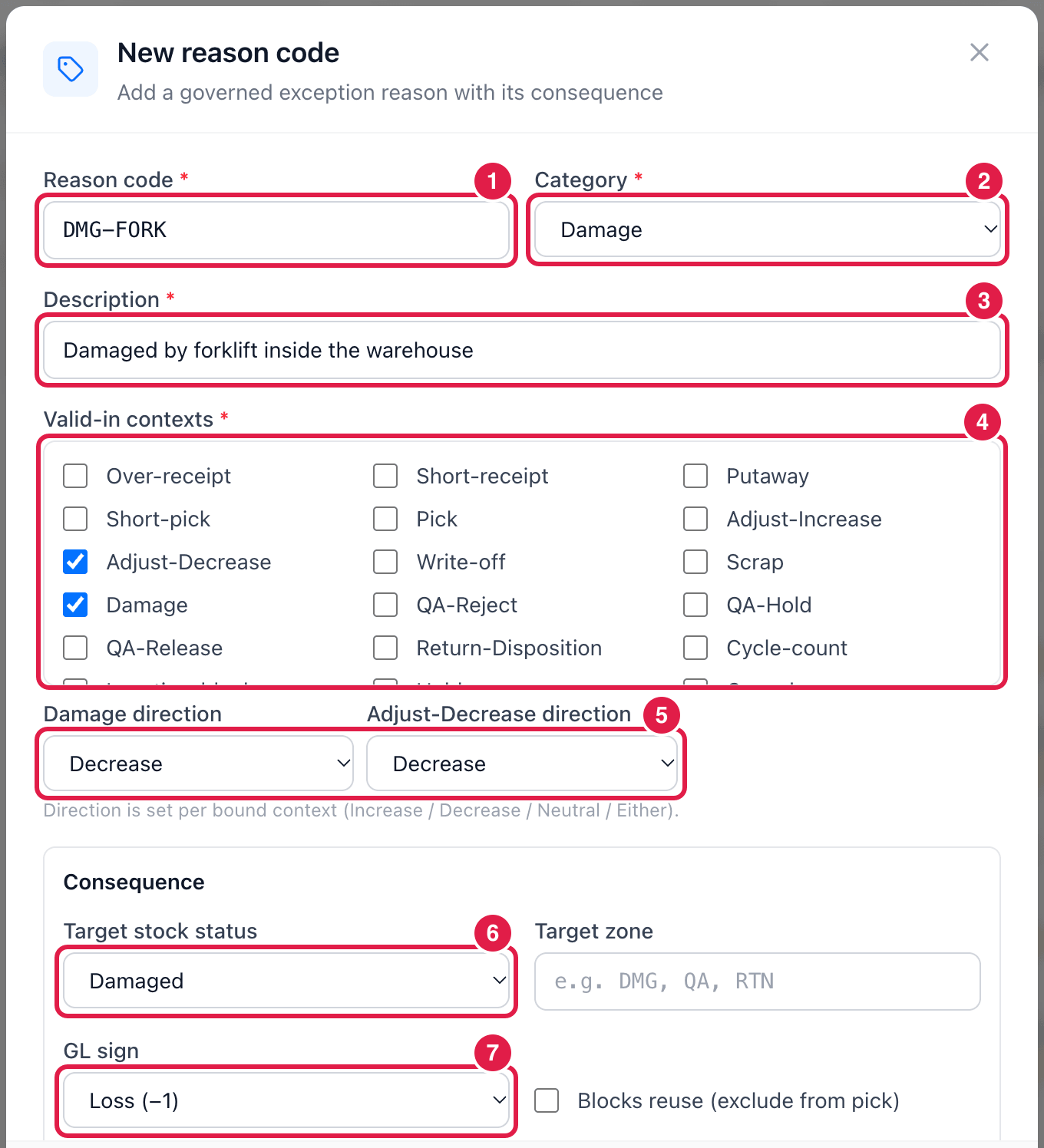
- Reason code — short and clear, e.g.
DMG-FORK. - Category — the family it belongs to: Receipt, Putaway, Pick, Adjustment, Write-off, Scrap, Damage, QA, Return, Cycle-count, Hold/Block or Cancel.
- Description — what the user sees in the list, e.g. Damaged by forklift inside the warehouse. Write it so a new worker understands when to choose it.
- Valid-in contexts — tick every situation where this reason may be chosen (e.g. Adjust-Decrease and Damage). It will not appear anywhere else.
- Direction — for each ticked context: does this reason increase, decrease or not change the quantity? A Decrease reason cannot be used to add stock.
- Target stock status — where the stock goes, e.g. Damaged (no longer available to pick). No move (record-only) keeps the stock where it is.
- GL sign — Loss (−1), Gain (+1) or None. With a sign, enter the GL account your finance team uses (next step).
Step 2 — Evidence and approval
Scroll down.
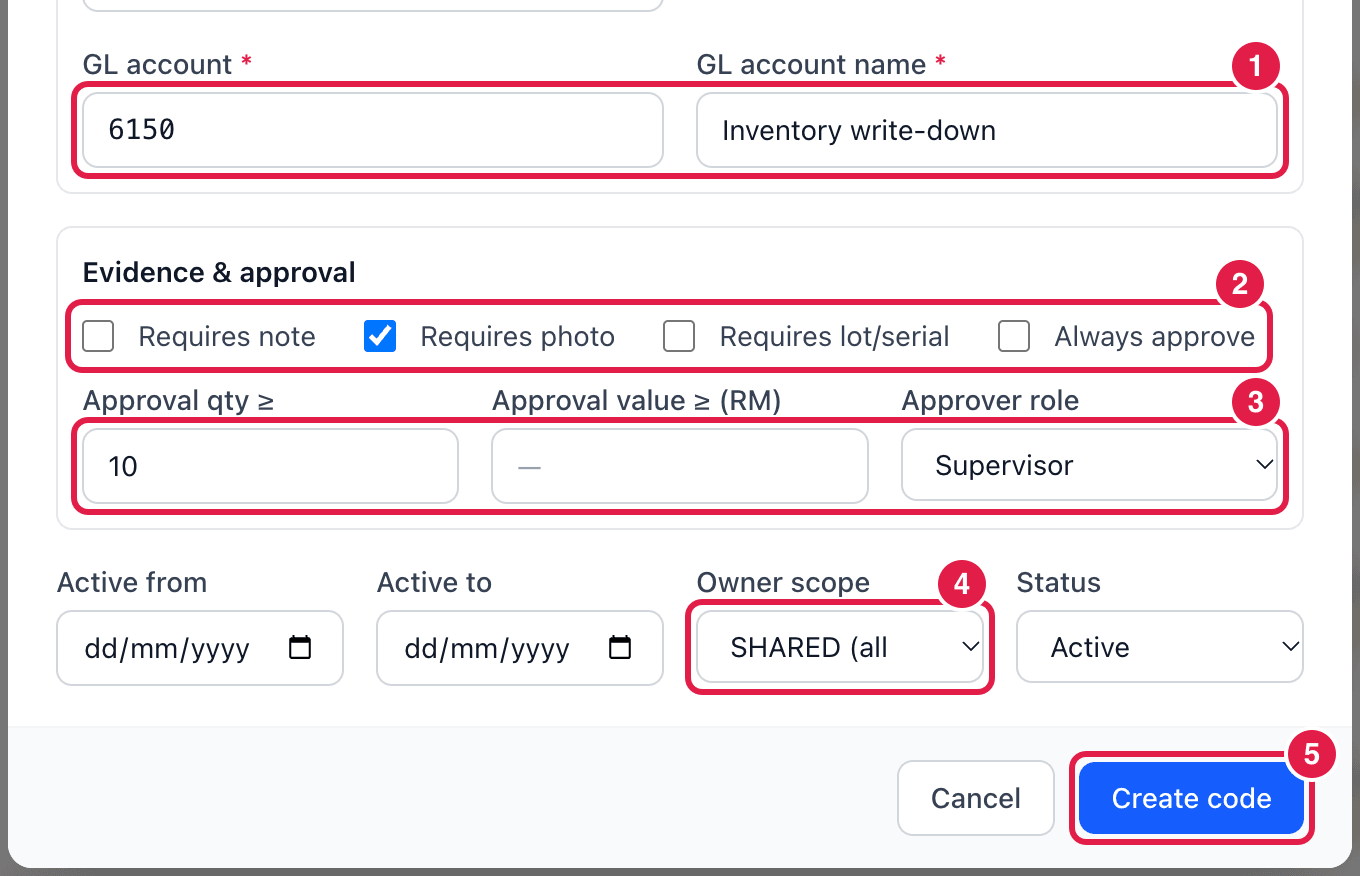
- GL account and GL account name — e.g.
6150Inventory write-down. - Evidence — tick what the user must give: a note, a photo reference, or the lot / serial. Without it, PrismaWMS refuses the posting with a clear message.
- Approval — Always approve, or only when the quantity (here 10 or more) or the value is above a limit. Choose the approver role (Supervisor, Inventory Controller, QA Manager, Finance). The change then waits in Inventory → Approvals until someone with that role approves it.
- Owner scope — Shared for all owners, or one owner only (3PL). Active from / to limits the dates the code can be used.
- Create code — save.
PrismaWMS records the GL account and shows the amount in the simulator, but it does not post journals to a general ledger. Your accounting system remains the place where finance entries are made.
Try it in the simulator
The What-happens Simulator shows what a reason code would do — without changing anything.
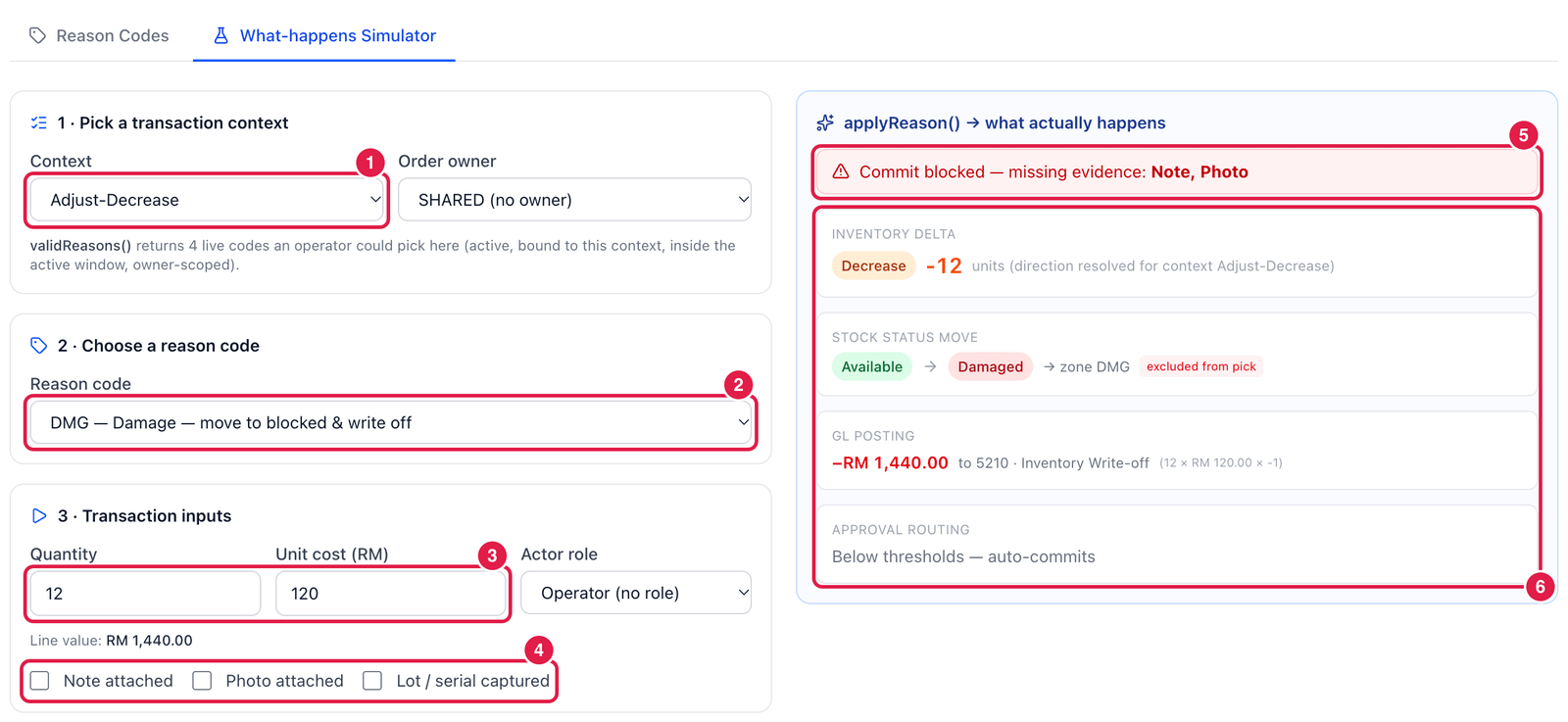
- Context — the situation, e.g. Adjust-Decrease. The list below shows only the codes that are valid there.
- Reason code — the code to test.
- Quantity and Unit cost — the size of the change.
- Evidence — tick what the user would attach.
- Result — here Commit blocked — missing evidence: Note, Photo: the user would have to add a note and a photo first.
- What happens — the quantity change, the stock status move (Available → Damaged, excluded from pick), the finance amount and whether approval is needed.
Run your most-used codes through the simulator before training the warehouse team. It is the quickest way to check that approval limits and evidence rules are what you intended.
Good to know
- Deactivate or Archive a code you no longer want. A code can only be deleted if no transaction has ever used it — past transactions always keep their reason.
- The Usage column counts how often the code has been used on real transactions.
- Reason codes are used across PrismaWMS: adjustments, holds, cycle counts, short picks, returns to vendor, QA release and scrap.