Vehicles & Drivers
This screen is the register of your fleet: every lorry, van or forklift, and every driver — your own and those of hauliers you hire. PrismaWMS watches their expiry dates (road tax, insurance, inspection, driving licence, medical) and will not let an expired vehicle or driver be assigned to a load.
Where: Master Data → Vehicles & Drivers
Why expiry dates matter
When you pick a vehicle or driver on a load (Outbound → Loading), PrismaWMS checks that it is Active, that none of its dates has expired, and that it is not already on another open load. Vehicles and drivers with an expired date are not even offered in the load's pick list. A load without a vehicle or driver is still allowed.
The list
The screen has three tabs: Vehicles, Drivers and Maintenance.
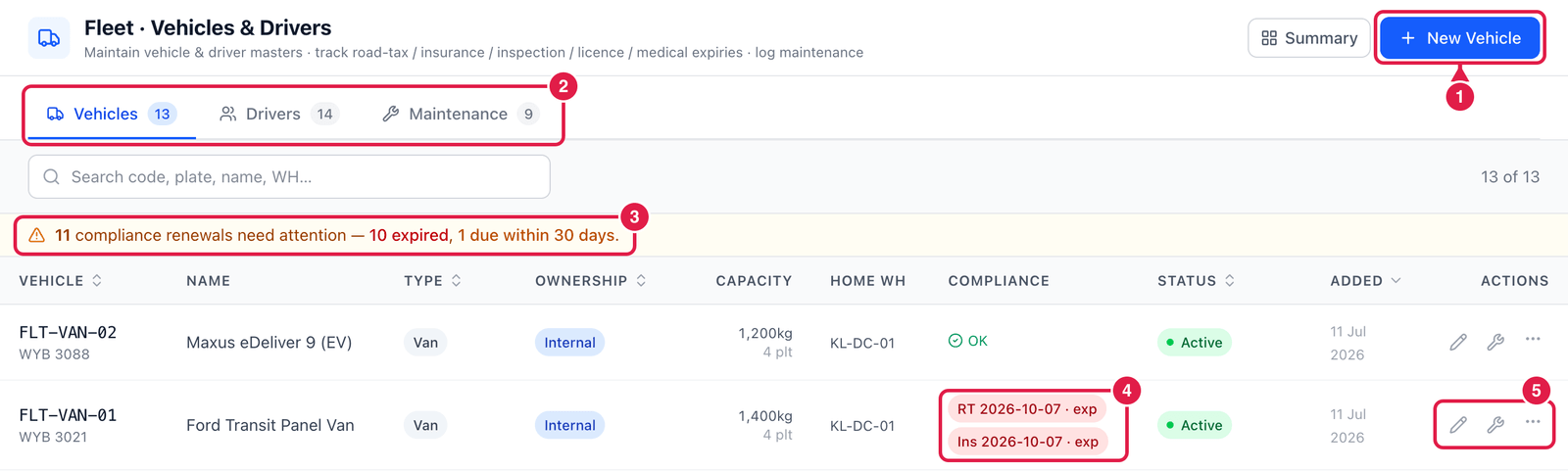
- New Vehicle — register a vehicle. On the Drivers tab this button is New Driver, on the Maintenance tab Log Maintenance.
- Vehicles / Drivers / Maintenance tabs — the number is how many records each has.
- Renewal warning — how many dates have expired or are due within 30 days, counted from today.
- Compliance — the dates that need attention for this vehicle: RT = road tax, Ins = insurance, Insp = inspection; exp means expired. A green OK means all dates are fine.
- Edit, Log maintenance (wrench) and ⋯ — Set Active / In Maintenance / Inactive / Retired and Archive.
Register a vehicle
Click New Vehicle.
Step 1 — Identity and capacity
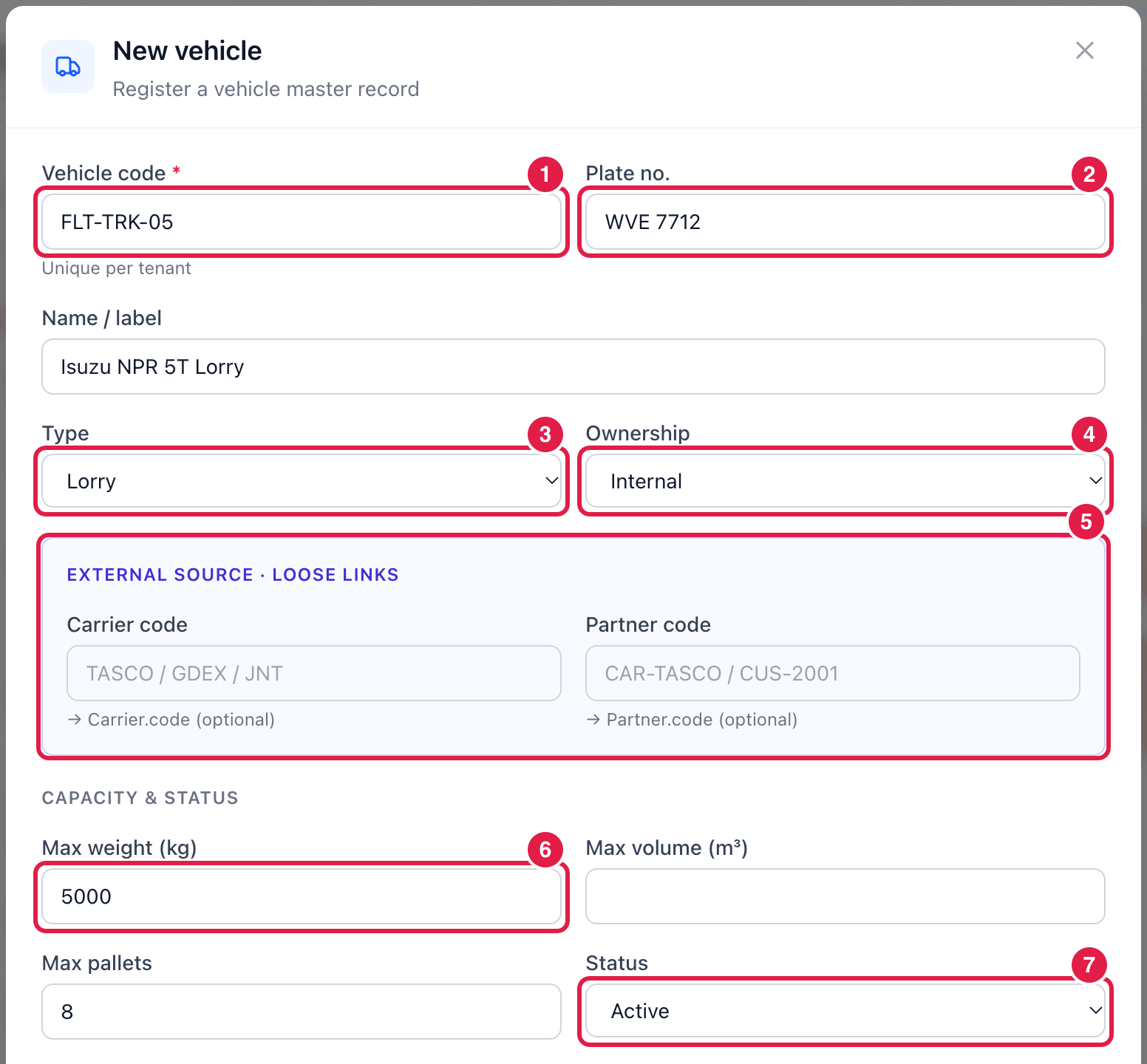
- Vehicle code — your own short code, e.g.
FLT-TRK-05. It must be unique. - Plate no. — the registration number, e.g.
WVE 7712. - Type — Truck, Lorry, Van, Pickup, Motorcycle, Trailer, Reefer, Forklift or Other. Forklifts are not offered for loads.
- Ownership — Internal (your own), 3rd-Party, Carrier, Hired or Customer.
- External source — for a vehicle that belongs to a haulier, the carrier code and partner code it belongs to (both optional).
- Max weight (kg) — also Max volume (m³) and Max pallets: what the vehicle can carry.
- Status — Active, In Maintenance, Inactive or Retired. Only Active vehicles can be put on a load.
Step 2 — Home warehouse and renewals
Scroll down.
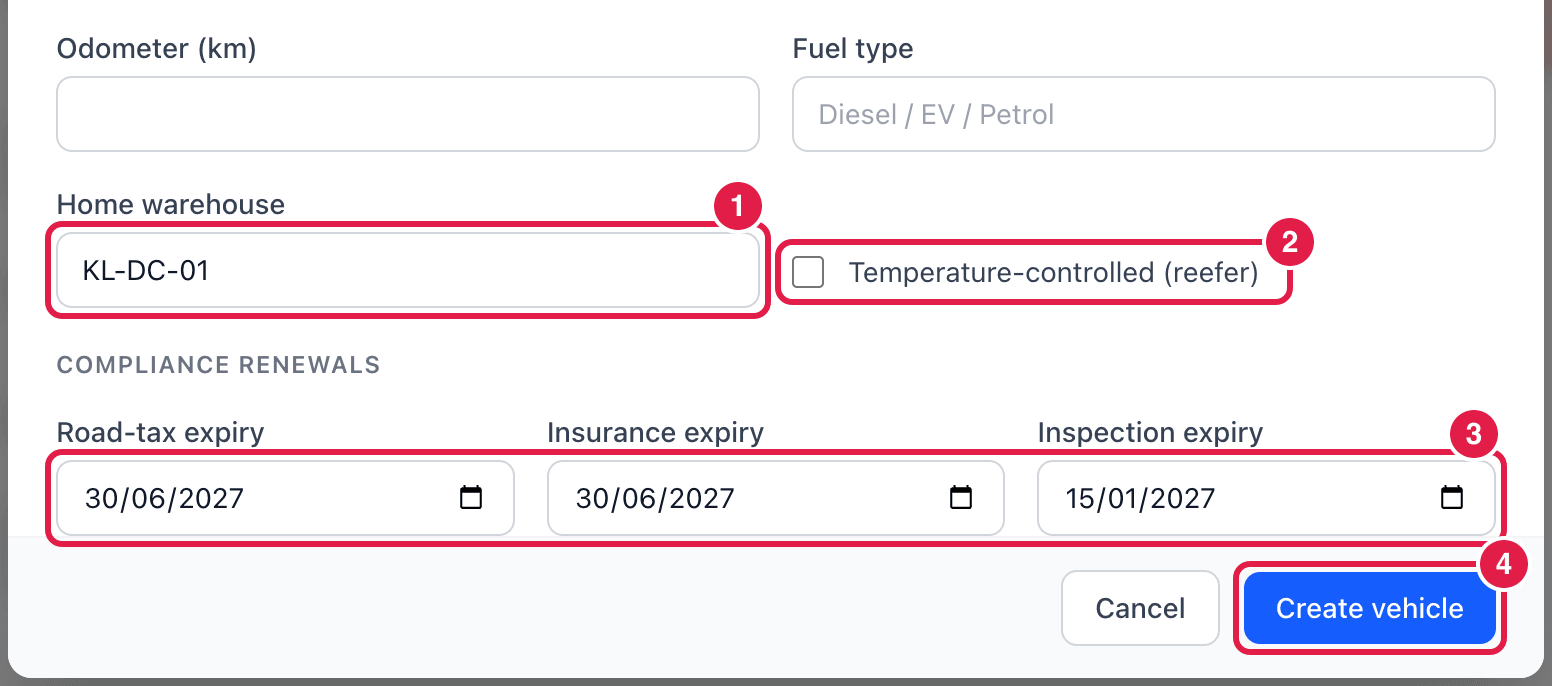
- Home warehouse — where the vehicle is based.
- Temperature-controlled (reefer) — tick for chilled / frozen lorries.
- Road-tax, Insurance and Inspection expiry — the dates on the vehicle's documents. These are the dates PrismaWMS checks.
- Create vehicle — save.
Register a driver
Open the Drivers tab and click New Driver.
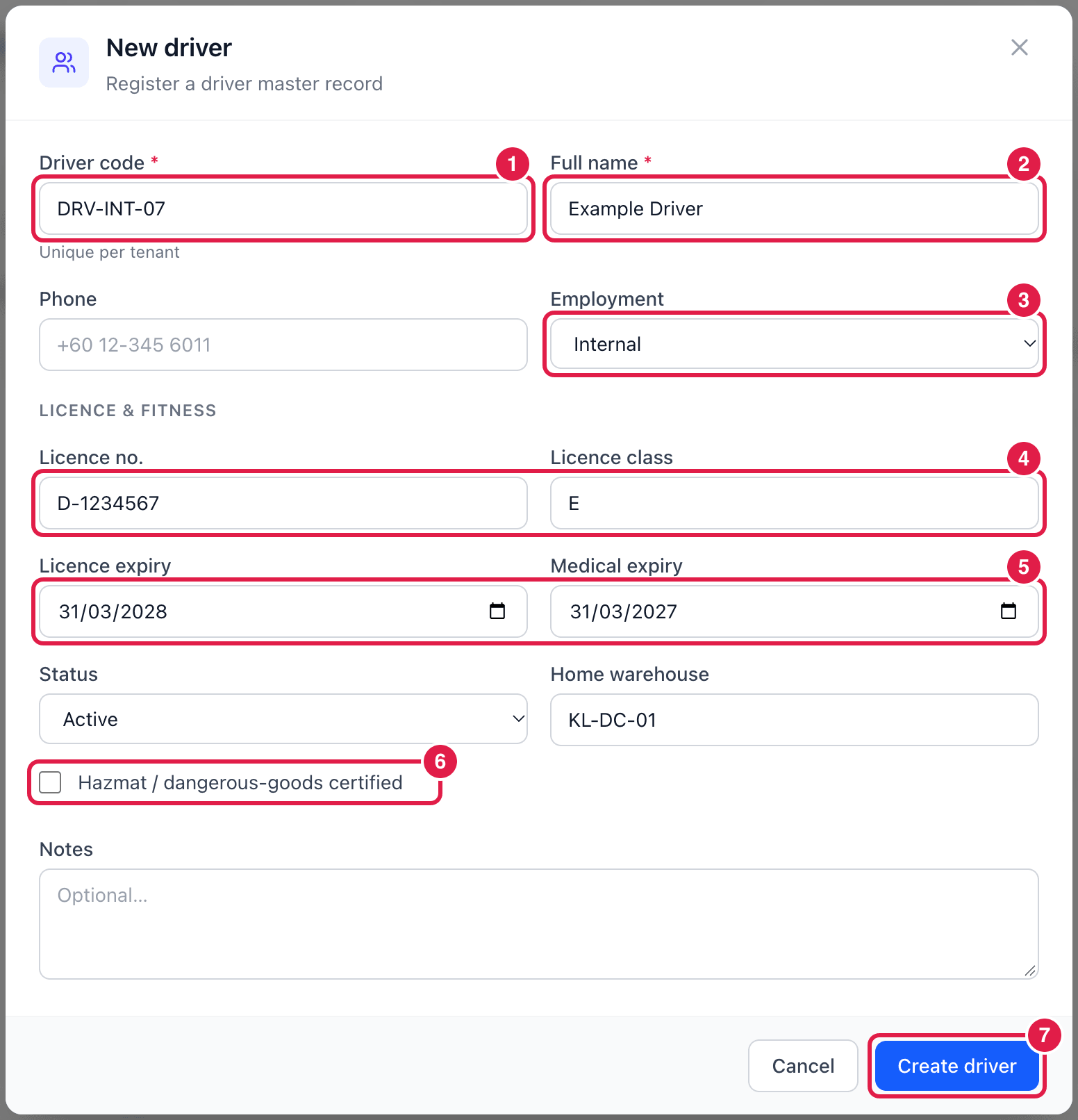
- Driver code — unique, e.g.
DRV-INT-07. - Full name — as on the driving licence. Add the phone number so the warehouse can call the driver.
- Employment — Internal, 3rd-Party, Contractor, Carrier or Agency.
- Licence no. and Licence class.
- Licence expiry and Medical expiry — PrismaWMS checks both before the driver can be put on a load.
- Hazmat / dangerous-goods certified — tick if the driver may carry dangerous goods.
- Create driver — save.
Status can be Active, On Leave, Suspended or Inactive — only Active drivers can be assigned.
Log maintenance
The Maintenance tab is the service history of your vehicles.
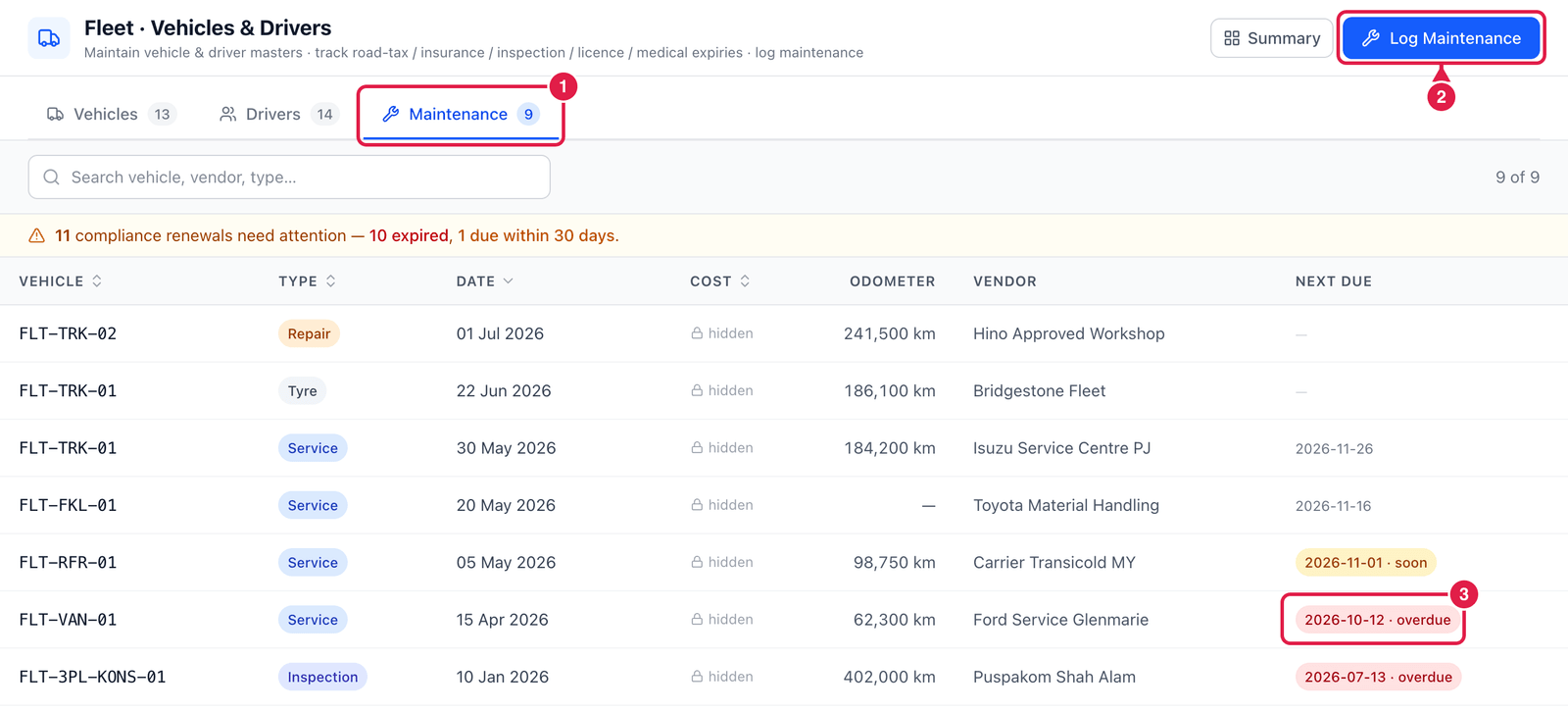
- Maintenance tab.
- Log Maintenance — record a Service, Repair, Inspection, Tyre, Road Tax or Insurance job: date, odometer, workshop, cost and the next due date.
- Next due — turns amber (soon) when the next service is within 30 days and red (overdue) when the date has passed.
Logging a Road Tax or Insurance job keeps the history, but it does not change the vehicle's expiry date. After renewing, open the vehicle with Edit and enter the new expiry date — otherwise the vehicle stays blocked from loads.
Good to know
- Cost shows hidden when your company runs in Stock-only mode (Administration → System Settings → Operations Mode).
- Archive removes a vehicle or driver from the lists without deleting its history.
- Carriers themselves (City-Link, DHL …) are set up in Carriers & Services.