Warehouses
A warehouse is a building or site where you keep stock. Every bin, every document and every unit of stock belongs to one warehouse, so this is the first thing you set up.
Where: Master Data → Warehouses
Before you start
- Decide the warehouse code — short and upper-case, e.g.
KL-DC-02. It appears on every document number. - Know the legal company that runs it, and whether it holds only your own stock (OWN) or stock of clients (3PL).
How a warehouse becomes active
A new warehouse starts as Draft. It can be made Active once it has dock doors and default zones (and, for a 3PL, at least one owner). Until then nothing can be received into it.
The Warehouses list
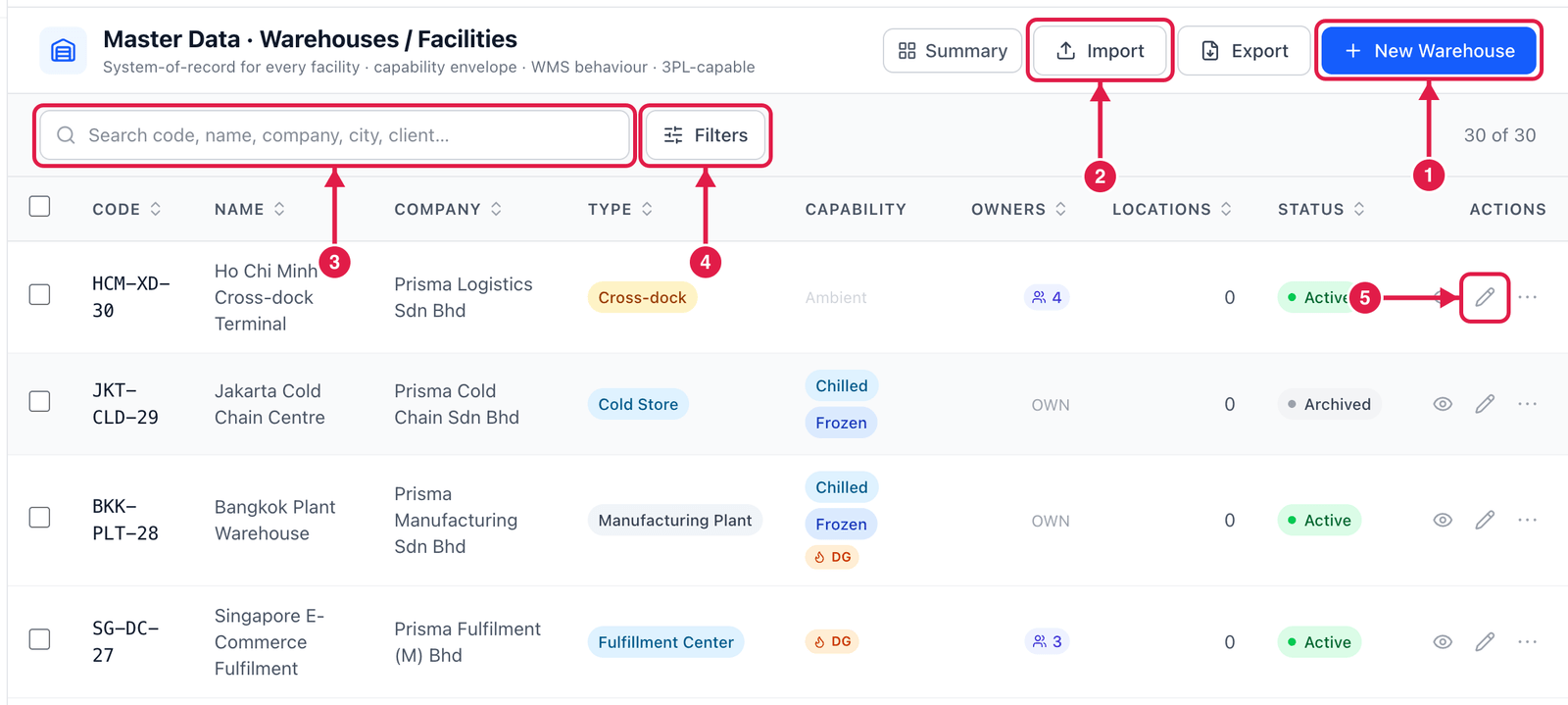
- New Warehouse — create one.
- Import — create many from a CSV file.
- Search by code, name, company, city or client.
- Filters — for example show only Active warehouses.
- Edit (pencil) — change a warehouse. The ⋯ next to it offers Duplicate, Deactivate, Manage owners/clients, Archive and Delete.
Create a warehouse
Step 1 — Fill in the General section
Click New Warehouse. The form opens on the General section.
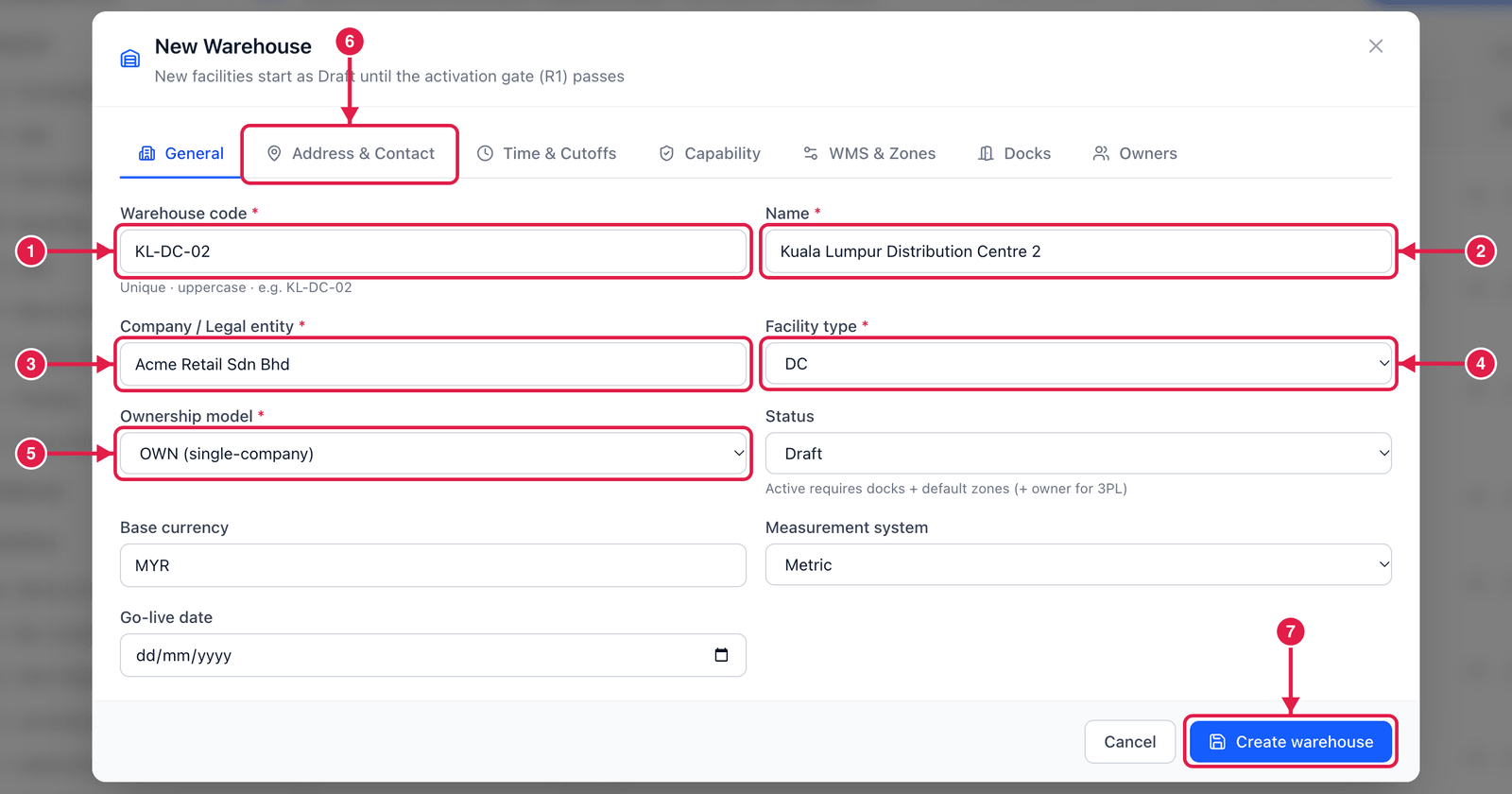
- Warehouse code — unique, upper-case, e.g.
KL-DC-02. - Name — the full name people know it by.
- Company / Legal entity — who operates the site.
- Facility type — DC, fulfilment centre, cold store, cross-dock …
- Ownership model — OWN if it holds only your company's stock, 3PL if it stores goods for clients.
- Then fill Address & Contact (and, if you need them, Time & Cutoffs and Capability).
- Click Create warehouse. The warehouse is saved as Draft.
Step 2 — Add the dock doors
Click Edit on the new warehouse and open the Docks section.
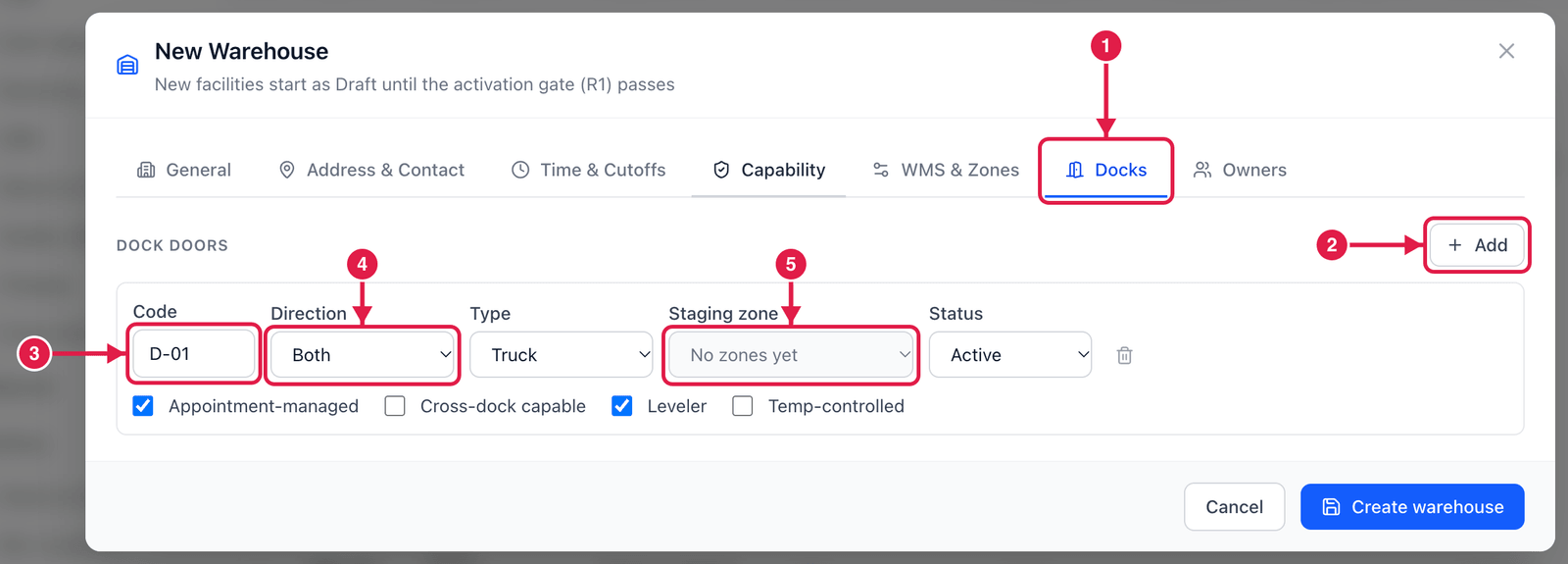
- Click Docks.
- Click + Add for each door.
- Code — e.g.
D-01. - Direction — Inbound, Outbound or Both.
- Staging zone — where goods wait next to this door (you can choose it once zones exist).
Zones are created on the Locations screen after the warehouse exists. Save the warehouse now, create the zones, then come back with Edit to choose them.
Step 3 — Choose the default zones
After creating the zones, Edit the warehouse again and open WMS & Zones.
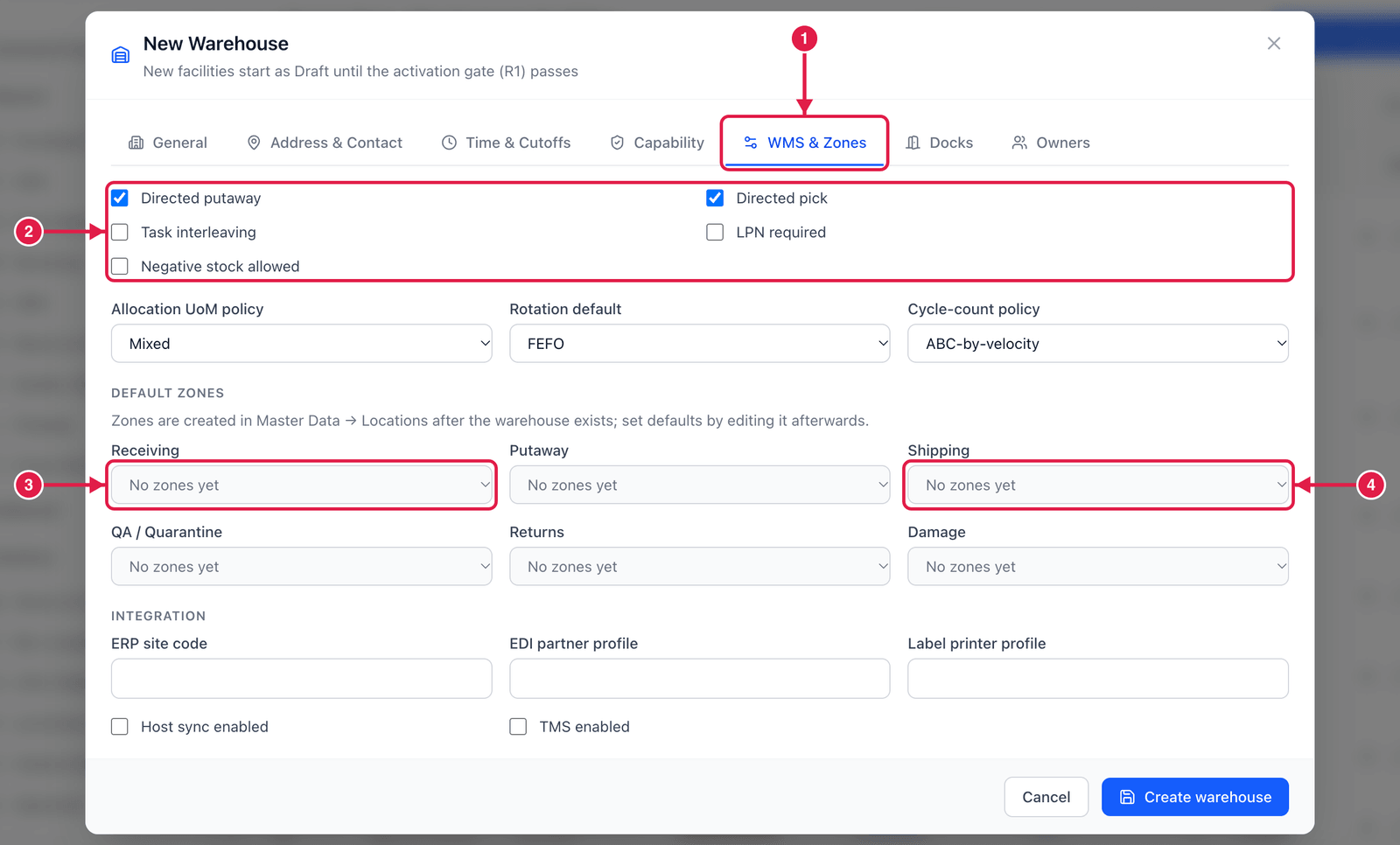
- Click WMS & Zones.
- Behaviour switches — Directed putaway / pick means PrismaWMS tells operators which bin to use; LPN required forces pallet IDs; leave Negative stock allowed off.
- Receiving — the zone where deliveries are booked in.
- Shipping — the zone where outgoing goods are staged. Also choose Putaway, QA / Quarantine, Returns, Damage.
Step 4 — Make it Active
On the General section change Status to Active and save. The warehouse can now receive and ship.
Create many warehouses at once (Import)
Click Import on the Warehouses list.
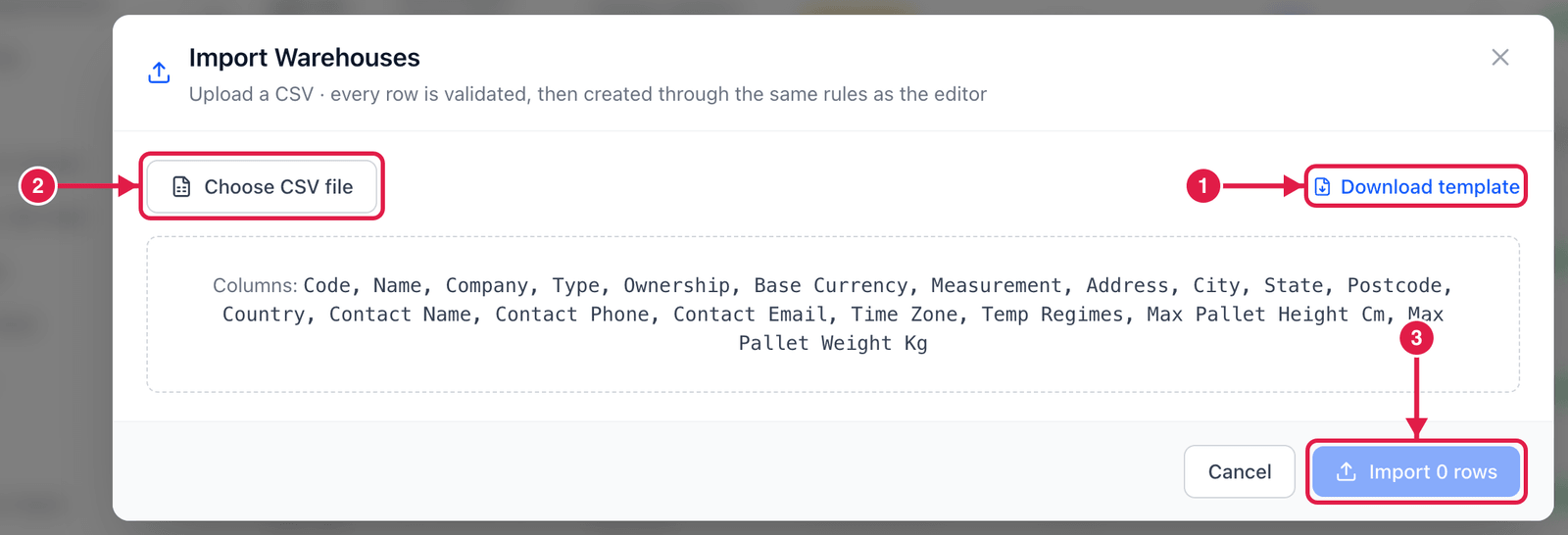
- Click Download template to get a CSV with the right columns.
- Fill it in (one warehouse per row), then click Choose CSV file.
- PrismaWMS checks every row with the same rules as the form. Click Import n rows to create them.
Good to know
- Deactivate stops a warehouse being chosen on new documents, without losing its history. Archive hides it from lists. Delete only works for a warehouse that was never used.
- Manage owners/clients (⋯ menu) lists the owners whose stock may be kept here — needed for a 3PL site.