Loading
A load is one truck leaving from one door. You plan the load (door, vehicle, driver), add the shipments that go on it, then scan every carton as it goes onto the truck — PrismaWMS refuses a carton that belongs on another truck. When everything is on, you close and seal the load and dispatch it: the shipments are shipped, the stock is issued and a manifest is produced.
Where: Outbound → Loading
The life of a load
Is loading used?
Loading is optional by default (Administration → Workflow Designer → Process). Without it, shipments are shipped directly from Shipping & Docs. Use loads when you want carton-by-carton control at the dock.
The loads list

- New load — plan a load.
- Tabs — Open, Closed, Dispatched, Cancelled, All.
- Door — the outbound dock door.
- Vehicle / Driver — the truck and who drives it.
- Loaded — cartons scanned / cartons planned on the load.
- Seal — the seal number put on the truck doors.
- Open load — open the load to scan cartons, close, dispatch or print.
Plan a load
Click New load.
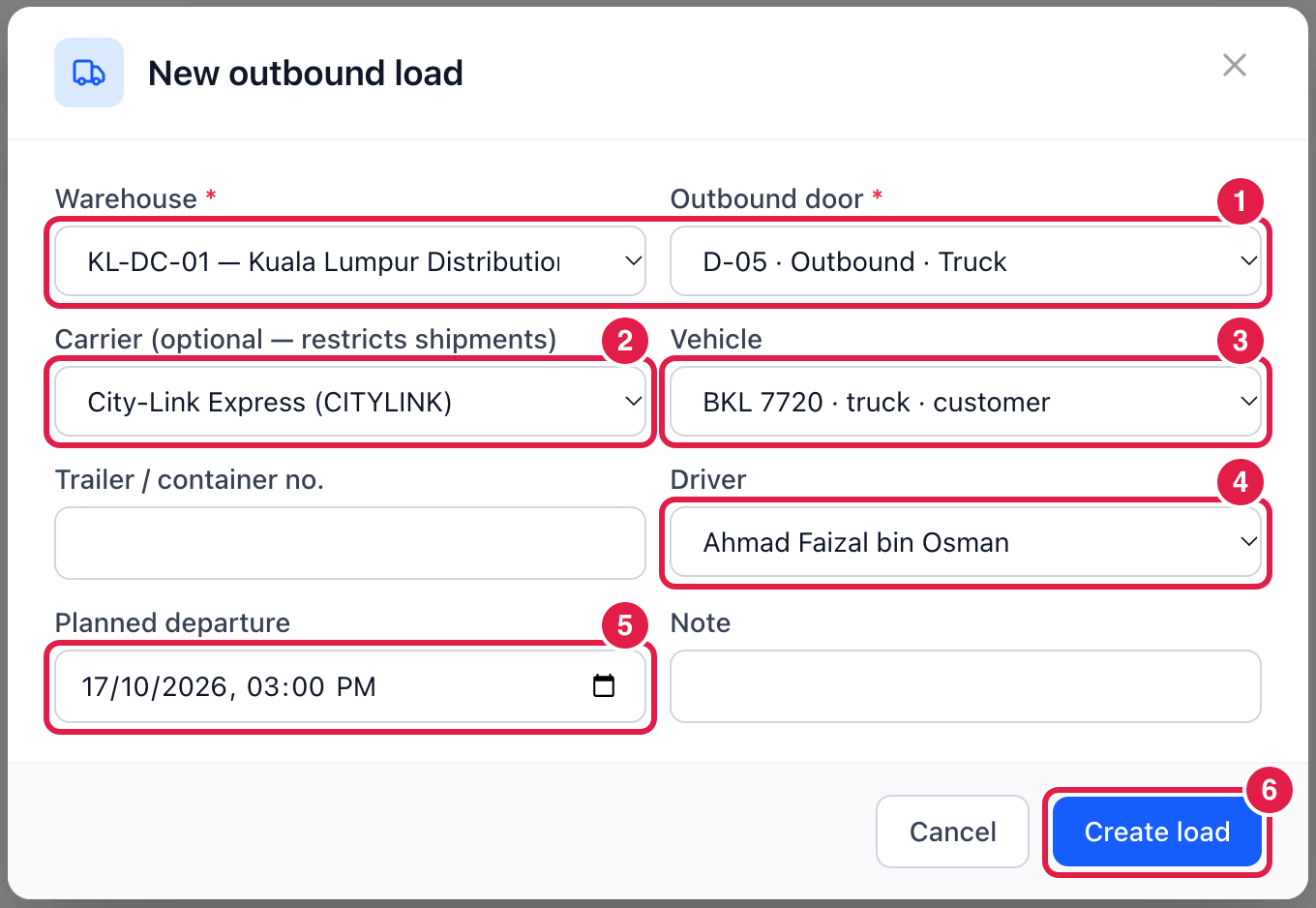
- Warehouse and Outbound door — where the truck is loaded.
- Carrier — optional. When chosen, only that carrier's shipments can be added to the load.
- Vehicle — from Vehicles & Drivers. Only active vehicles whose road tax, insurance and inspection are valid, and that are not on another open load, are offered.
- Driver — the same checks apply (valid licence and medical, not on another open load).
- Planned departure — when the truck should leave. Add the trailer / container number and a note if you like.
- Create load — the load gets its number (
LD-…).
Load, seal and dispatch
Open the load (Open load):
- Add shipments — choose the planned shipments that go on this truck.
- Scan cartons — scan each carton label as it goes on. A carton that is not planned on this load is refused (wrong truck?), and a carton cannot be scanned twice.
- Close — possible only when every carton has been scanned; enter the seal number.
- Dispatch — the shipments are shipped, stock is issued out of the warehouse, and the manifest is closed.
After dispatch, the load shows everything that happened:
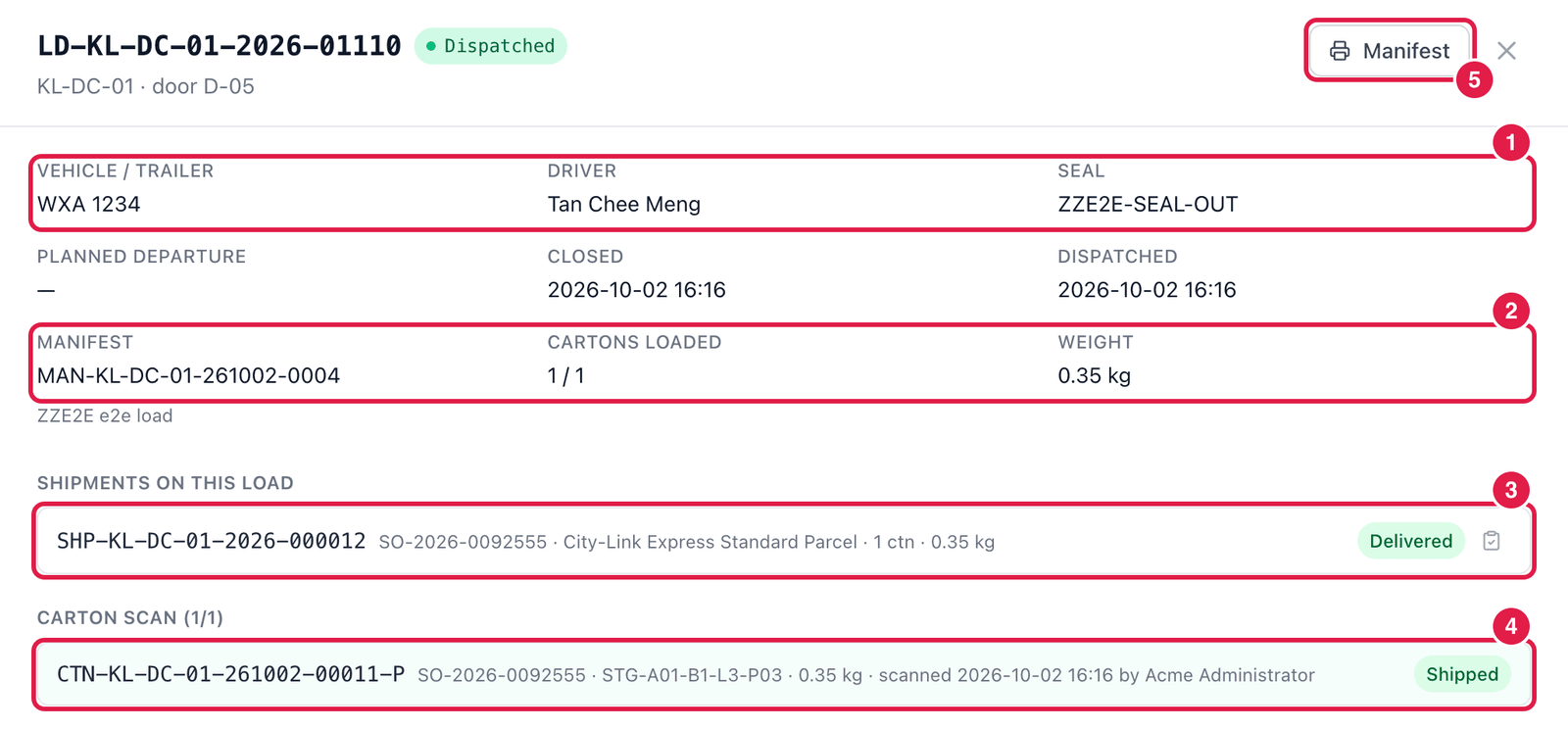
- Vehicle / trailer, driver and seal.
- Manifest, cartons loaded and total weight.
- Shipments on this load — with their delivery status.
- Carton scan — every carton, the lane it came from, and who scanned it when.
- Manifest — print the load manifest for the driver.
Good to know
- Reopen a closed load (with a reason) if something must still be added or removed before dispatch.
- Removing a shipment from a load or unscanning a carton is possible until the load is closed.