Order Pool
The Order Pool is the control tower for outbound: every sales order — typed in, imported from your ERP or SQL Accounting, or received from a marketplace — with its customer, ship date, how much is covered by stock, its wave and shipment, and its status. From here you create new orders, allocate them, put them on hold or cancel them.
Where: Outbound → Order Pool
The life of a sales order
An order for a customer on hold is saved as On Hold automatically. Lines can be edited until the order is allocated — after that, unallocate it first.
The list
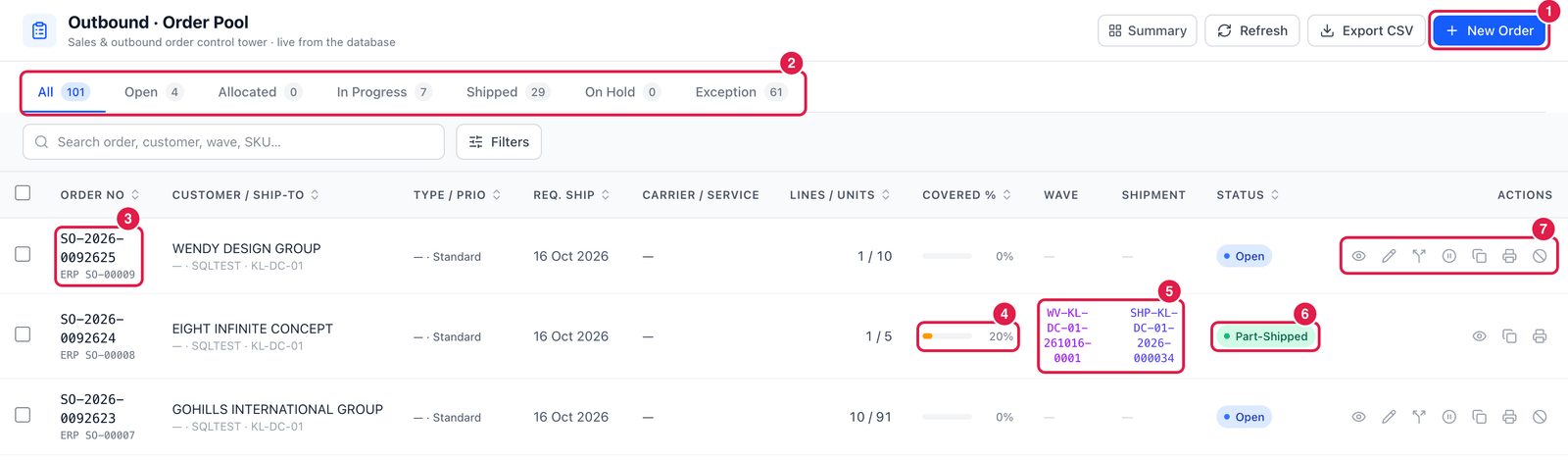
- New Order — create a sales order.
- Status tabs — All, Open, Allocated, In Progress, Shipped, On Hold, Exception. The number is how many orders are in each.
- Order No — with the external reference underneath: ERP SO-00009 means the order came from your ERP (here SQL Accounting); PO … is the customer's own PO number.
- Covered % — how much of the order is already reserved (allocated) from stock.
- Wave and Shipment — the wave and shipment the order is in. Click to open them.
- Status — e.g. Open, Picking, Part-Shipped (some lines shipped, the rest still open).
- Actions of an open order: View, Edit, Allocate, Put on hold, Duplicate, Print sales order and Cancel order. Fewer actions appear as the order moves on.
Create a sales order
Click New Order. The order opens in its own tab.
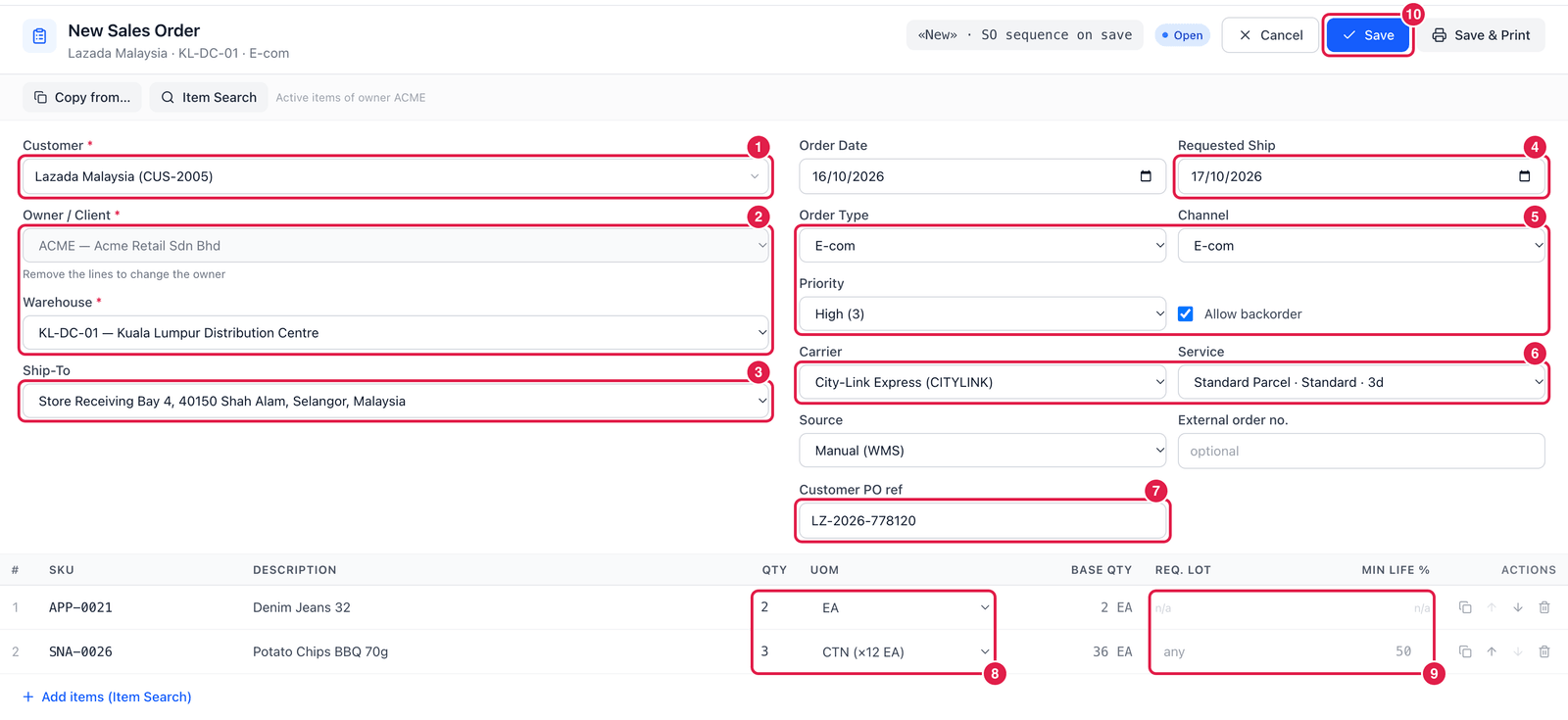
- Customer — type a few letters and choose.
- Owner / Client and Warehouse — whose stock and which warehouse ships it. The owner is locked once lines are added (remove the lines to change it).
- Ship-To — one of the customer's ship-to addresses.
- Requested Ship — when the customer wants it shipped.
- Order Type, Channel and Priority — e.g. E-com, E-com, High. Wave templates and reports use these. Tick Allow backorder if the rest may ship later when stock is short.
- Carrier and Service — e.g. City-Link Express · Standard Parcel · 3d. Can be left empty and chosen at shipping.
- Customer PO ref — the customer's own order number, printed on documents.
- Qty and UOM — how many, in which unit (here 3 cartons = 36 EA, shown under Base Qty). Add lines with Item Search.
- Req. Lot and Min Life % — optional: ask for a specific lot, or for stock with at least this much shelf life left (only for items with a shelf life).
- Save — the order gets its number (
SO-2026-…). Save & Print also prints it.
Copy from…
Copy from… creates a new order with the same customer, owner, warehouse and lines as an existing one — handy for repeat orders.
Good to know
- Orders from SQL Accounting or another ERP arrive automatically (Administration → Integrations) and keep their external order number; it cannot be changed by hand.
- Exception collects orders that are short, backordered or cancelled.
- The Duplicate action copies an order in one click.