Packing
At the Pack Station the picked units of an order are put into cartons. The packer chooses the carton type,
scans each item to check it is the right one, and seals the carton — PrismaWMS gives it a carton number
(CTN-…), works out its weight, and prints the carton label. Packing does not move stock; it records which units
are in which carton, ready for staging and shipping.
Where: Outbound → Packing
From picked units to a sealed carton
Only picked units can be packed. An order on hold cannot be packed until the hold is released.
The pack queue
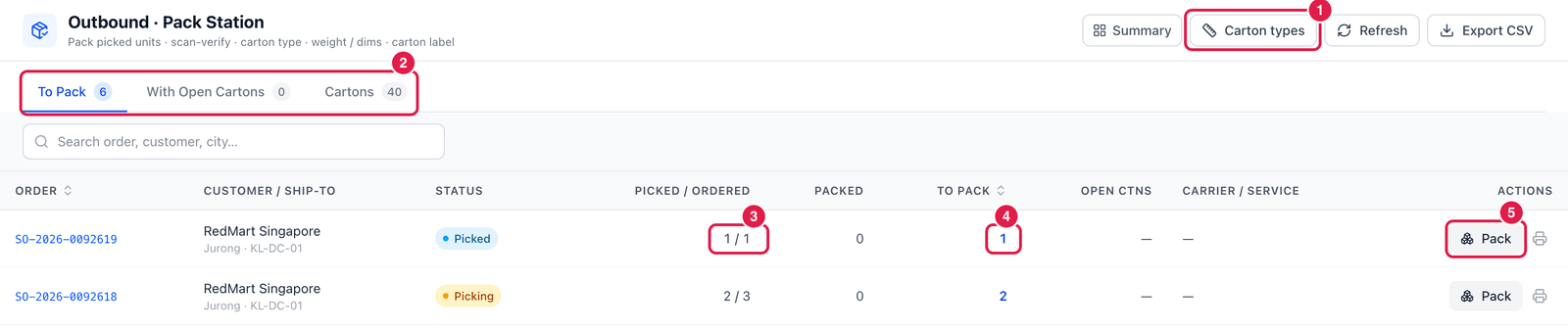
- Carton types — the list of boxes and pallets you pack into (name and inside size). Keep it up to date — the dimensions are used to check carrier limits.
- Tabs — To Pack (orders with picked units not yet packed), With Open Cartons, and Cartons (all cartons).
- Picked / Ordered — how much of the order has been picked.
- To Pack — how many picked units are still not in a carton.
- Pack — open the pack screen for this order. The printer icon prints the packing list.
Pack a carton
Click Pack on an order.
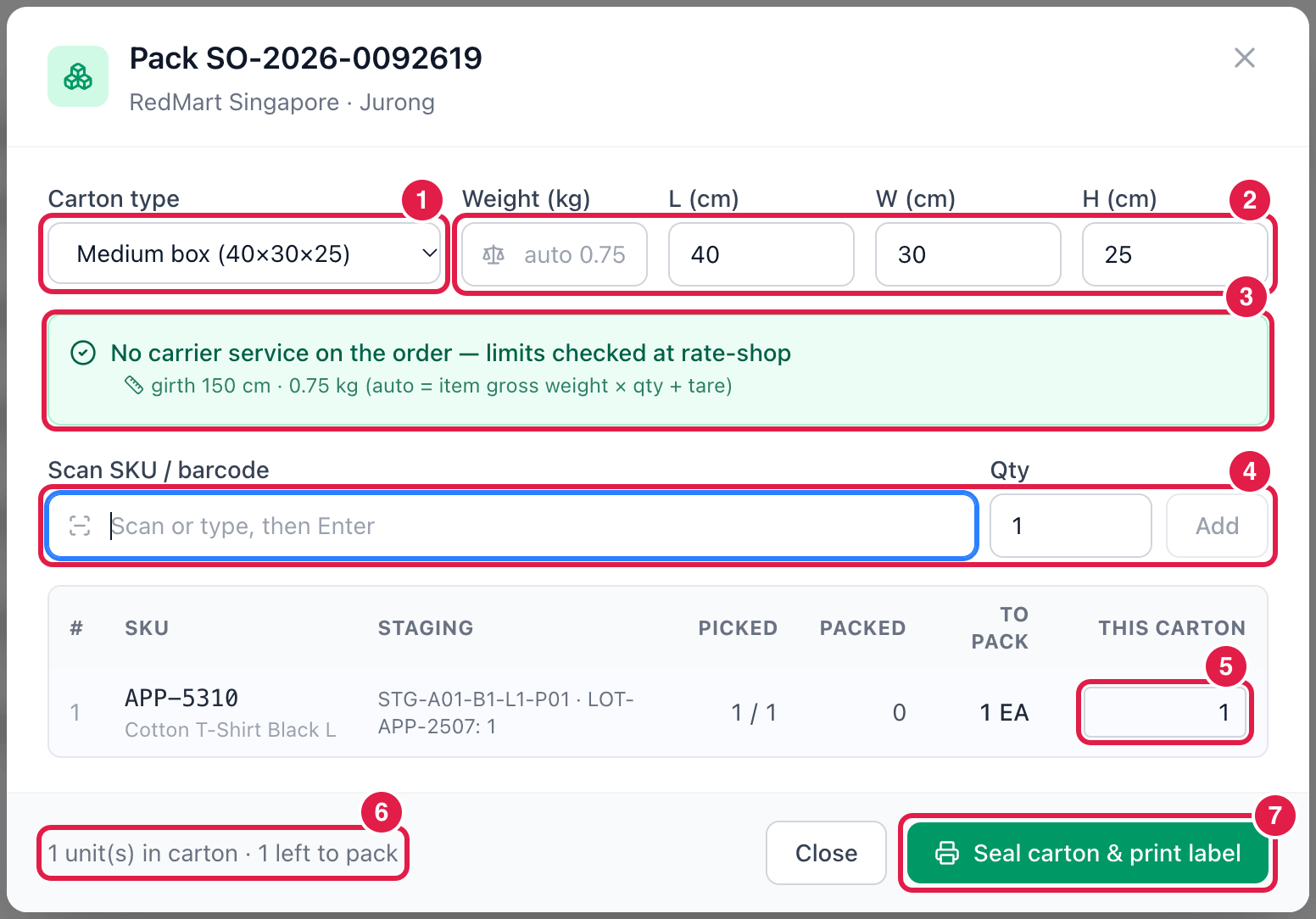
- Carton type — the box you use, e.g. Medium box (40×30×25).
- Weight and dimensions — the size comes from the carton type. Leave Weight on auto to use the items' gross weight × quantity + the empty box, or type the scale reading.
- Carrier check — the girth and weight are checked against the limits of the order's carrier service. If the order has no service yet, the limits are checked later at rate-shop.
- Scan SKU / barcode — scan each item (or type the SKU and a quantity, then Add). An item that is not on the order is refused (Not on this order), and you cannot pack more than was picked (Over-pack blocked).
- This carton — how many of each line go into this carton. You can also type the number directly.
- Summary — units in this carton and units still left to pack.
- Seal carton & print label — the carton is saved with its number and its label is printed. If units are left, pack the next carton.
Several cartons
An order can be packed into as many cartons as you need — seal one, then pack the next. Each carton gets its own number and label, so every box can be scanned at loading.
Good to know
- Unpack (void a carton) — possible while the carton is packed or staged and not yet on a shipment.
- If your process has packing off, this screen is skipped: picked orders can be shipped directly.
- The Cartons tab lists every carton with its order, contents, weight and status (Packed, Staged, Loaded, Shipped).