Staging
Staging brings sealed cartons together on an outbound staging lane near the dock, grouped so the truck can be loaded quickly. PrismaWMS records which lane each carton is on, so at loading time everyone knows where to find it. The units move with the carton to the lane.
Where: Outbound → Staging
Where staging fits
The staging screen
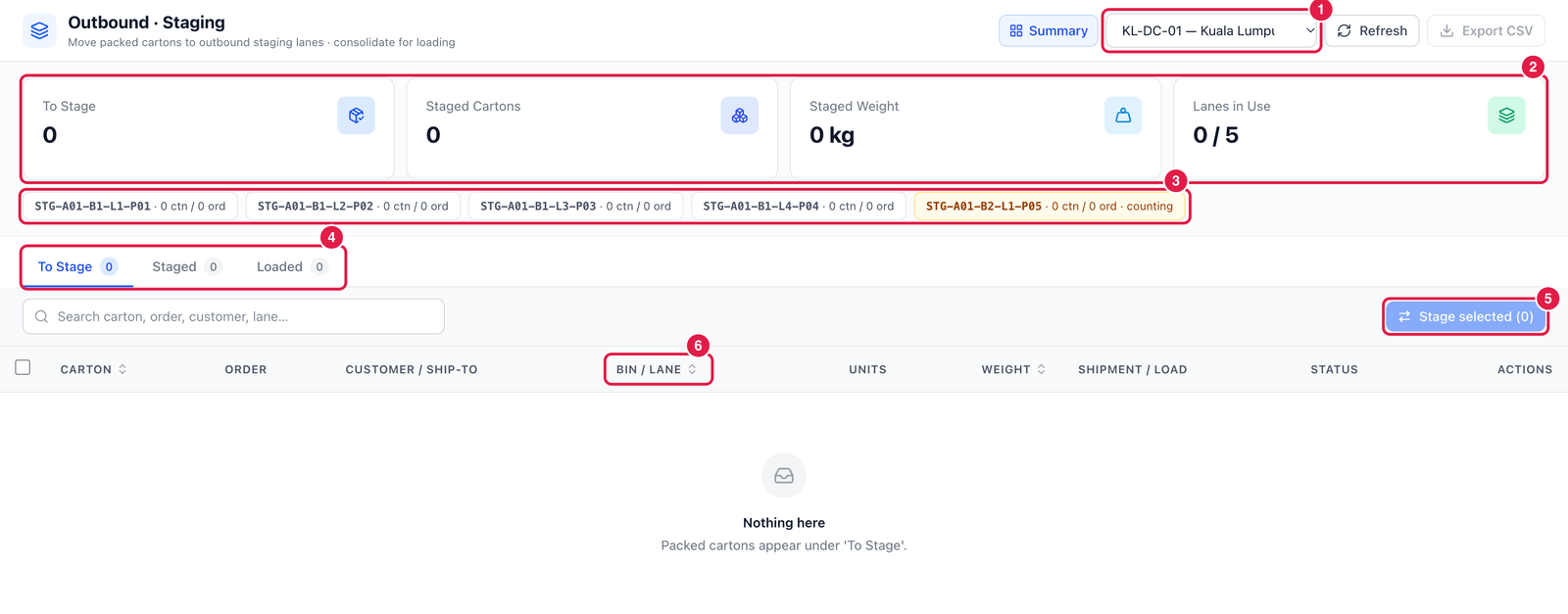
- Warehouse — staging is per warehouse; choose yours.
- Summary — cartons waiting to be staged, cartons already staged, their total weight, and how many lanes are in use.
- Lanes — every outbound staging lane with the cartons and orders on it. A lane marked counting is being counted and should not be used.
- Tabs — To Stage (sealed cartons not yet on a lane), Staged and Loaded.
- Stage selected — tick several cartons and stage them to one lane together.
- Bin / Lane — where each carton is now.
In this picture there are no packed cartons waiting in KL-DC-01 — as soon as a carton is sealed at the Pack Station it appears under To Stage.
Stage cartons
- In To Stage, click Stage to lane on a carton — or tick several cartons and click Stage selected.
- Choose the lane (only outbound staging lanes of the warehouse are offered).
- Confirm. The cartons move to the lane and become Staged; a stage task is recorded for each.
To change lanes later, use Move to another lane on a staged carton.
note
Cartons of different warehouses cannot be staged together — stage them separately. Staging lanes are ordinary locations of type Outbound staging, set up in Locations.