Report Builder
When the ready-made reports are not exactly what you need, build your own. In the Report Builder you choose a dataset (for example Inventory on hand or Outbound orders), add filters and conditions, pick the columns, group and sort, and choose a chart. The preview on the right shows real data while you work. Save it, share it with a role or everyone, and schedule it like any other report.
Where: Reports & Analytics → Report Builder
Building a report
The Report Builder screen first lists your saved reports: name, base dataset, owner, who it is shared with, schedules, runs and last run, with buttons to run, edit, duplicate, schedule, share and delete. Click New report to start one.
The builder
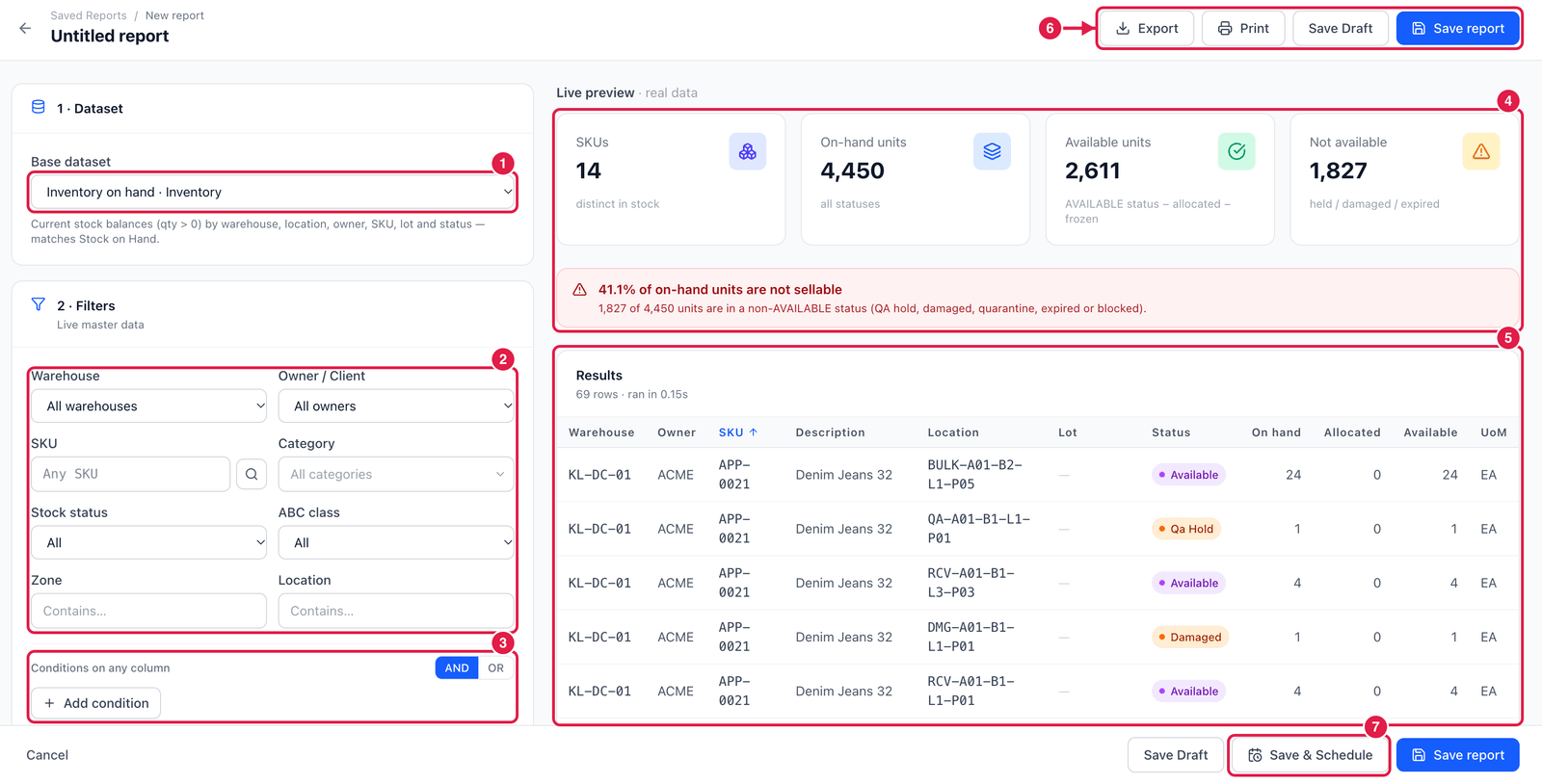
- Base dataset — where the data comes from. The text below explains what the dataset contains.
- Filters — the quick filters of this dataset (warehouse, owner, SKU, category, status, ABC class, zone, location…).
- Conditions on any column — add your own rules (for example Available < 10) and combine them with AND (all must match) or OR (any may match).
- Live preview — the totals, warnings and chart, computed on real data as you change things.
- Results — the rows. Further down the left side are 3 · Columns (which columns, in which order), 4 · Grouping & sort and 5 · Visualize (the chart type).
- Export, Print, Save Draft and Save report at the top.
- Save & Schedule — save and go straight to setting up a schedule.
Share a saved report
Saved reports start as Only me. Use Share in the saved-reports list to share with a role or with Everyone in tenant. People who can see a report can run and export it; only the report's owner can change it or its sharing. Duplicate makes your own copy to adjust.
Open a catalog report and click Open in Builder — you start with its dataset, filters and columns already set, and only change what you need.