Report Catalog
The Report Catalog is a library of ready-made reports: inventory on hand and valuation, stock movements, ABC analysis, aging and expiry, backorders, shipping, cycle count accuracy, productivity per user, 3PL billing and more. Every report runs on live data at the moment you open it. You can filter it, look at the totals and chart, then export it (CSV, Excel, PDF), print it, schedule it to be e-mailed, or open it in the Report Builder to make your own version.
Where: Reports & Analytics → Report Catalog
From catalog to file
The catalog
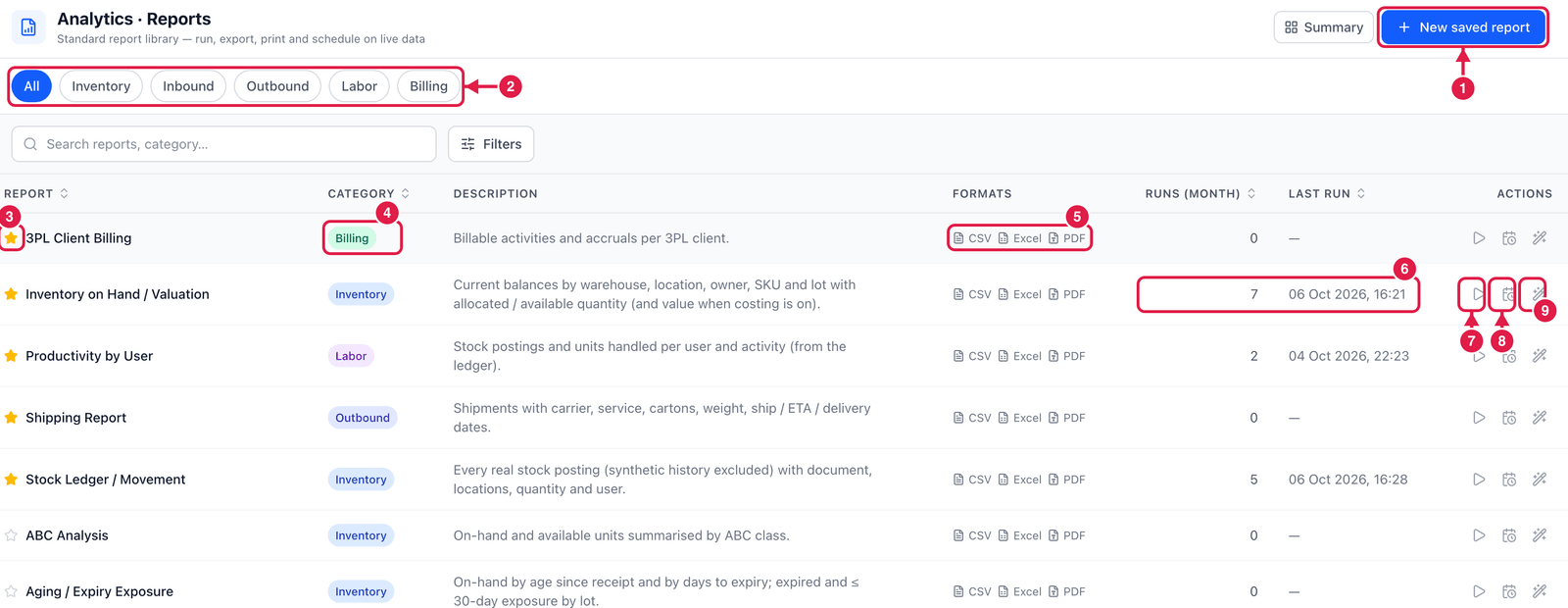
- New saved report — start your own report in the Report Builder.
- Category — show All reports or only Inventory, Inbound, Outbound, Labor or Billing.
- Favourite — click the star to pin a report to the top of the list.
- Category of each report.
- Formats — the report can be exported as CSV, Excel and PDF.
- Runs (month) and Last run — how often it was run this month and when it was last run. These are counted from the actual runs, exports and scheduled deliveries.
- Run report — open it with live data.
- Schedule — have it run and delivered automatically (see Schedules).
- Open in Builder — copy it into the Report Builder to change columns, filters or the chart.
Run a report
Click Run report. Example: Inventory on Hand / Valuation.
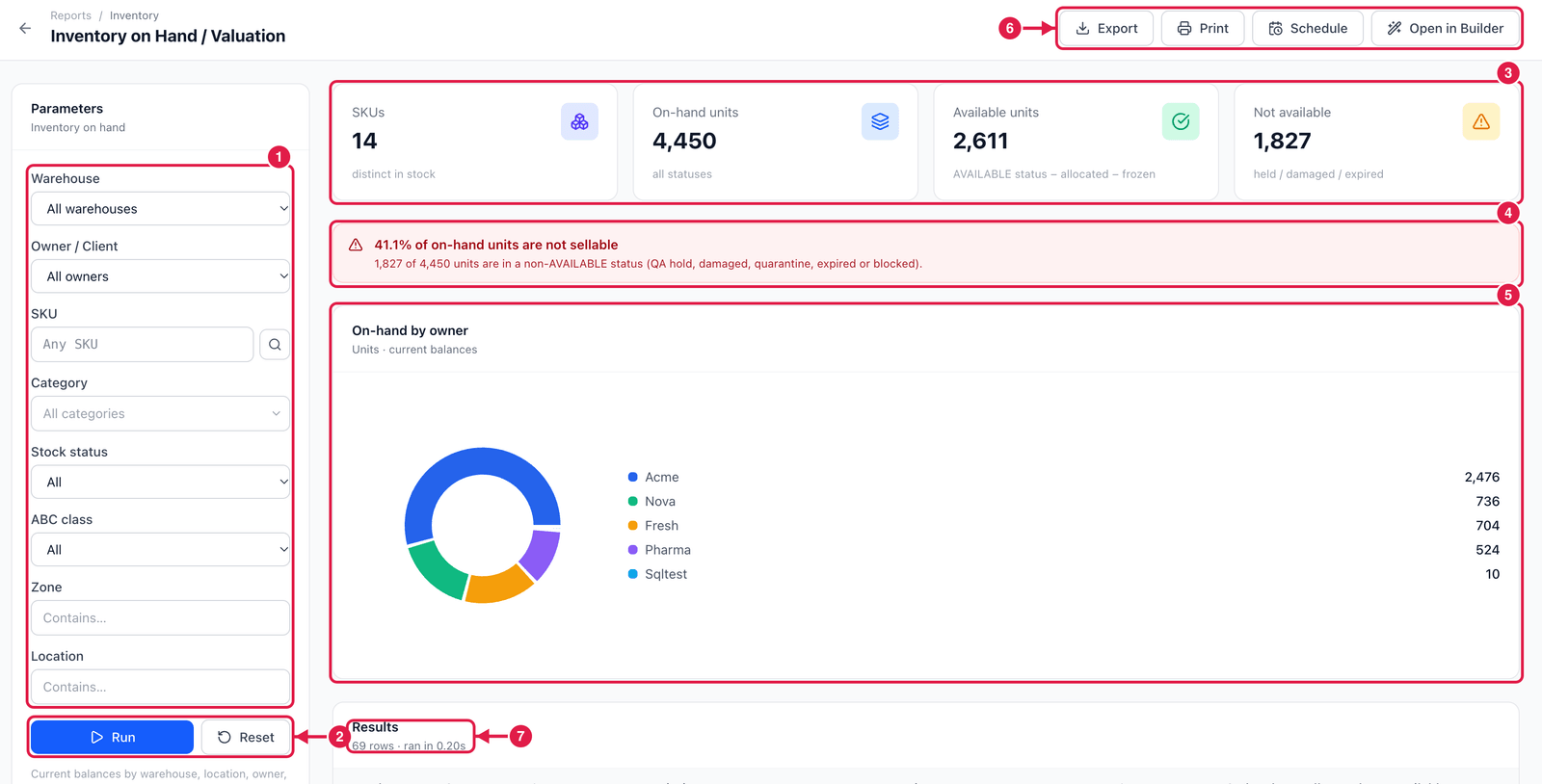
- Parameters — narrow the report: warehouse, owner, SKU, category, stock status, ABC class, zone, location (each report has its own parameters).
- Run applies the parameters; Reset clears them.
- Totals — the key figures, e.g. SKUs, on-hand units, available units and units not available.
- Warning — the report points out something that needs attention, here that 41 % of the units on hand are not sellable (QA hold, damaged, quarantine, expired or blocked).
- Chart — e.g. units on hand per owner.
- Export, Print, Schedule and Open in Builder.
- Results — the rows behind the totals, with how many rows and how long the report took.
Reports read the same live data as the screens. Inventory on Hand matches Stock on Hand; Stock Ledger / Movement matches the Stock Ledger. If a number in a report looks wrong, the screen will show the same — so check the underlying documents.