Schedules
A schedule runs a report for you at a fixed time — every morning, every Monday, on the 1st of the month — and delivers the file (CSV, Excel or PDF) to a list of e-mail addresses. Every run is kept in the Delivery History, so you can download the file again, see when a delivery failed, and retry it.
Where: Reports & Analytics → Schedules
How a schedule runs
The schedules
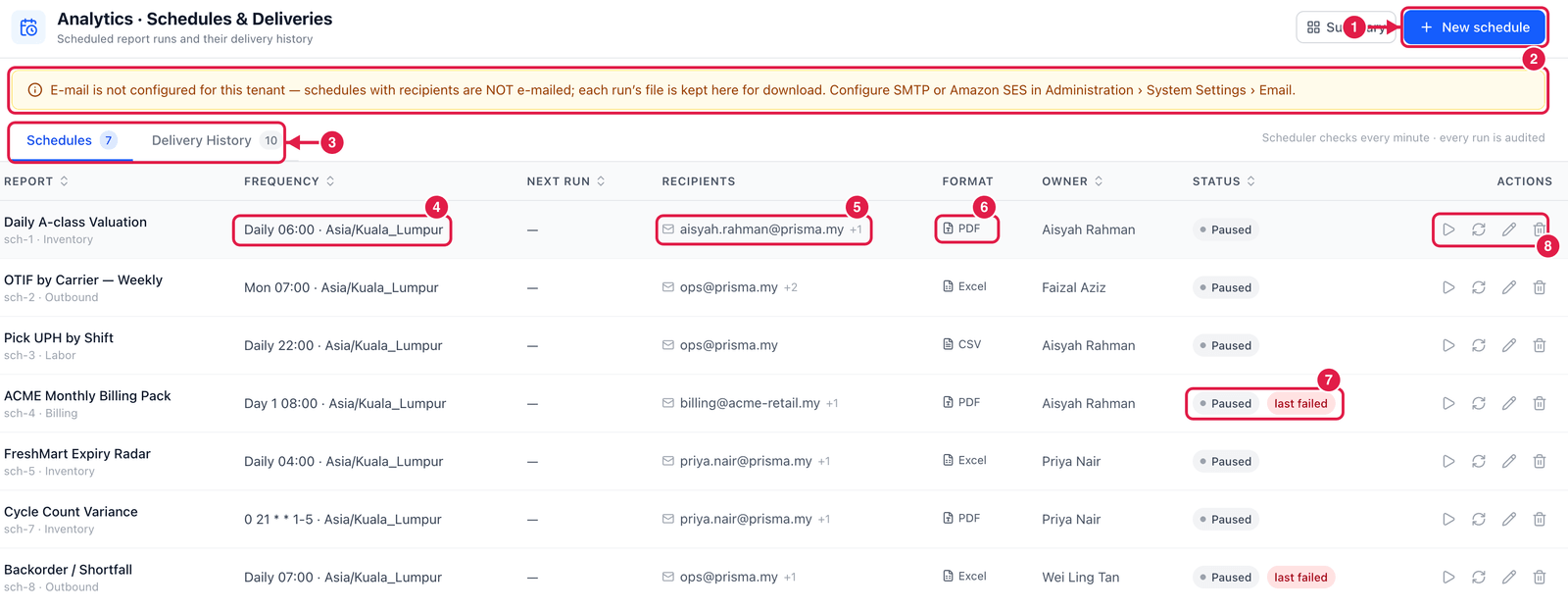
- New schedule — schedule a catalog report or a saved report.
- E-mail warning — shown when e-mail is not configured for your company. Schedules still run, but the files are only kept here for download. An administrator sets up e-mail under Administration → System Settings → Email (SMTP or Amazon SES).
- Tabs — Schedules and Delivery History (every run, with its file and result).
- Frequency — e.g. Daily 06:00, Mon 07:00, Day 1 08:00, or a custom cron rule like
0 21 * * 1-5(21:00 on weekdays), always with the time zone. - Recipients — who receives the e-mail (+1 means one more address).
- Format — PDF, Excel or CSV.
- Status — Active or Paused; last failed warns that the last delivery did not succeed.
- Actions — Run now, Pause / Resume, Edit and Delete.
Create a schedule
Click New schedule and fill in:
- Report — a catalog report or one of your saved reports, and its filters.
- Cadence — Daily, Weekly (choose the day), Monthly (choose the day of the month), Hourly, or a Custom cron rule — plus the time and time zone.
- Format — CSV, Excel or PDF.
- Recipients — one or more e-mail addresses.
- Active — untick to save it paused.
In Delivery History, Download gets the file of any run, and Retry runs a failed delivery again.
Test before you rely on it
After creating a schedule, click Run now and check the result in Delivery History — and in the recipients' mailbox — before the first real run.