Kitting & Assembly
Kitting puts several items together into one new item — a gift set, a promo bundle, a display box. The recipe is a BOM (bill of materials): one kit = 1 T-shirt + 1 mug + 1 box. A kit work order (KWO) says how many kits to build. PrismaWMS reserves the components, you move them to a kit bench, build the kits, and the finished kits are put into stock — usually on a new LPN. Components are taken out of stock and kits are added, all through the stock engine. De-kit does the opposite.
Where: VAS & Production → Kitting & Assembly
A kit work order from start to finish
The kit work orders
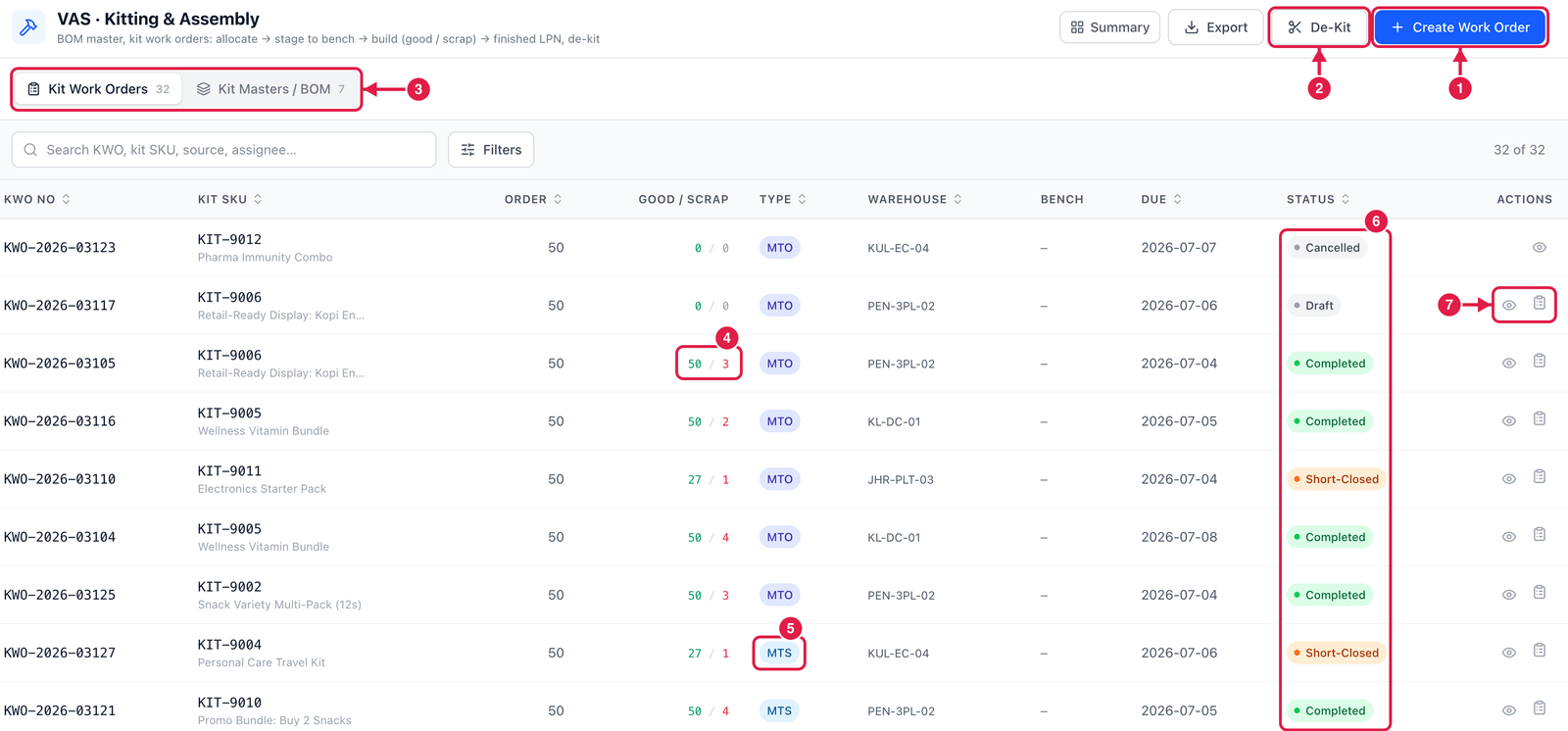
- Create Work Order — plan a new kit build.
- De-Kit — break finished kits back into their components.
- Tabs — Kit Work Orders and Kit Masters / BOM (the recipes: components per kit, scrap %, labour minutes; each BOM has versions and must be active to be used).
- Good / Scrap — kits built good, and units scrapped during the build.
- Type — MTS (make-to-stock: build for the shelf) or MTO (make-to-order: build for a specific order).
- Status — Draft, Released, Components staged, Partially built, Completed, Short-Closed or Cancelled.
- Actions — View the order, and the More menu for the next step (release, stage, build, short-close, cancel, print kit label).
Create a kit work order
Click Create Work Order.
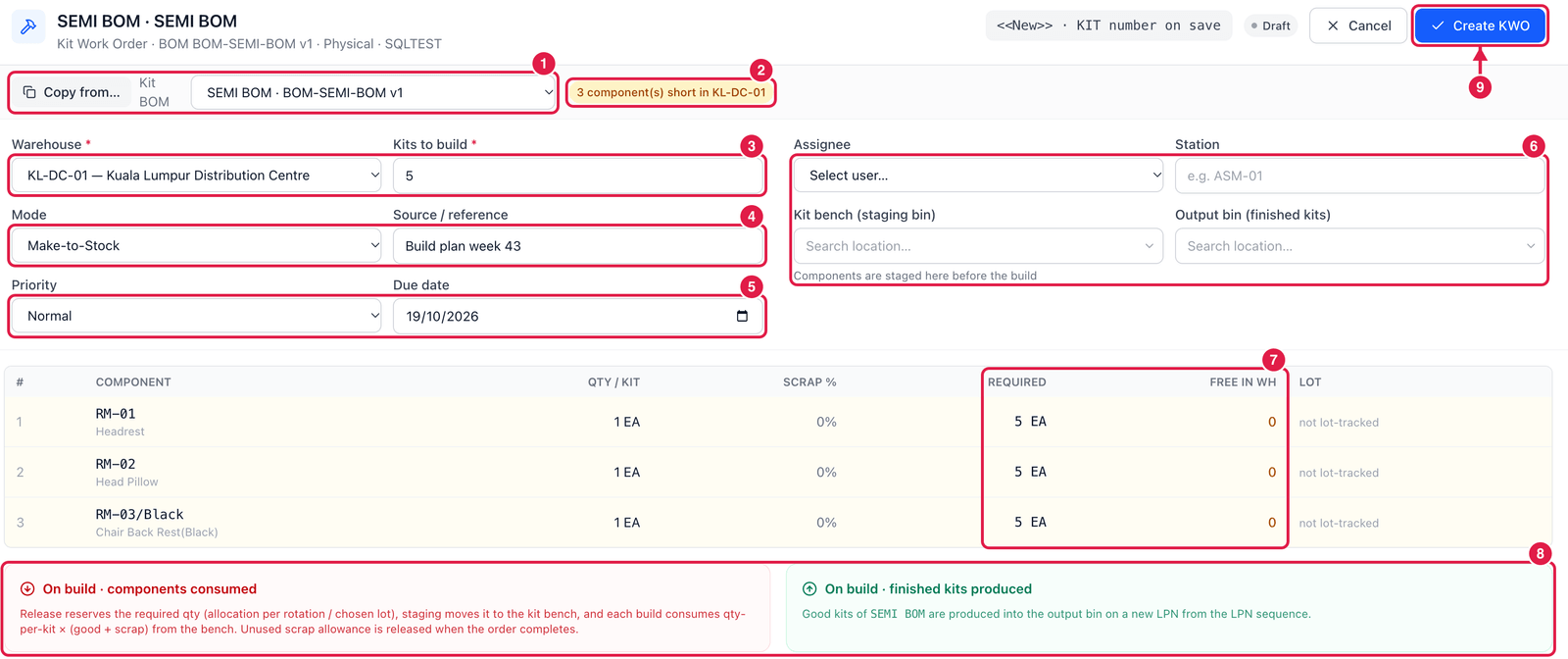
- Kit BOM — choose an active BOM. The components are filled in automatically. Copy from… copies an earlier order.
- Shortage warning — appears when the warehouse does not have enough free components. You may still create the order: release will reserve what is available.
- Warehouse and Kits to build.
- Mode (Make-to-Stock / Make-to-Order) and Source / reference, e.g. Build plan week 43.
- Priority and Due date.
- Assignee, Station, Kit bench (where components are staged before the build) and Output bin (where finished kits go) — all optional now.
- Required and Free in WH — per component: how many are needed (kits × quantity per kit, plus scrap %), and how many are free in this warehouse.
- On build — a reminder of what will happen: components consumed, finished kits produced.
- Create KWO — the order is saved as a Draft with its
KIT-…number. Nothing is reserved yet.
Release, stage and build
Open the order and use the More menu:
- Release — reserves the components (by the item's rotation, or the lot you chose). If something is short, you see it and can reallocate later.
- Stage — choose the kit bench; the reserved components are moved there. Staging is optional: you can also build straight after release.
- Build — enter how many kits came out good and how many units were scrapped, the finished lot (optional) and whether the kits get a new LPN from the LPN sequence or stay loose. Choose QA pass → Available or Quality hold → QA Hold stock if the kits must be inspected first. You can build in several steps; the order is Partially built until good + scrap reaches the order quantity.
- Completed — leftover reservations are released and unused components on the bench go back to their bin.
- Print kit label — for kits on an LPN.
Short-close ends an order early (with a reason): the rest of the reservation is released. Cancel is possible until the first kit is built; staged components go back to their bin.
De-kit
Click De-Kit, choose the finished kit stock (bin or LPN), the quantity and a reason. The kits are taken out of stock and each component goes back in, following the BOM in reverse. It is recorded as a work order with source DE-KIT.
Before releasing a big order, look at Free in WH on the form. If a component is short, receive or transfer it first — or build what you can now and short-close the rest.