Production Orders
A production order makes a finished good (FG) from components, following its active BOM — for example 3 gaming chairs from headrests, arm rests, wheel bases and so on. The order reserves the materials, issues them to the production line, and when you report production the materials are consumed and the finished goods are received into stock. Materials can be consumed automatically (backflush) or as actually issued (manual issue).
Where: VAS & Production → Production Orders
A production order from start to finish
An order can be cancelled while nothing has been issued to the line or consumed yet; after that it is closed instead (early close = short-close, with a reason).
The production orders
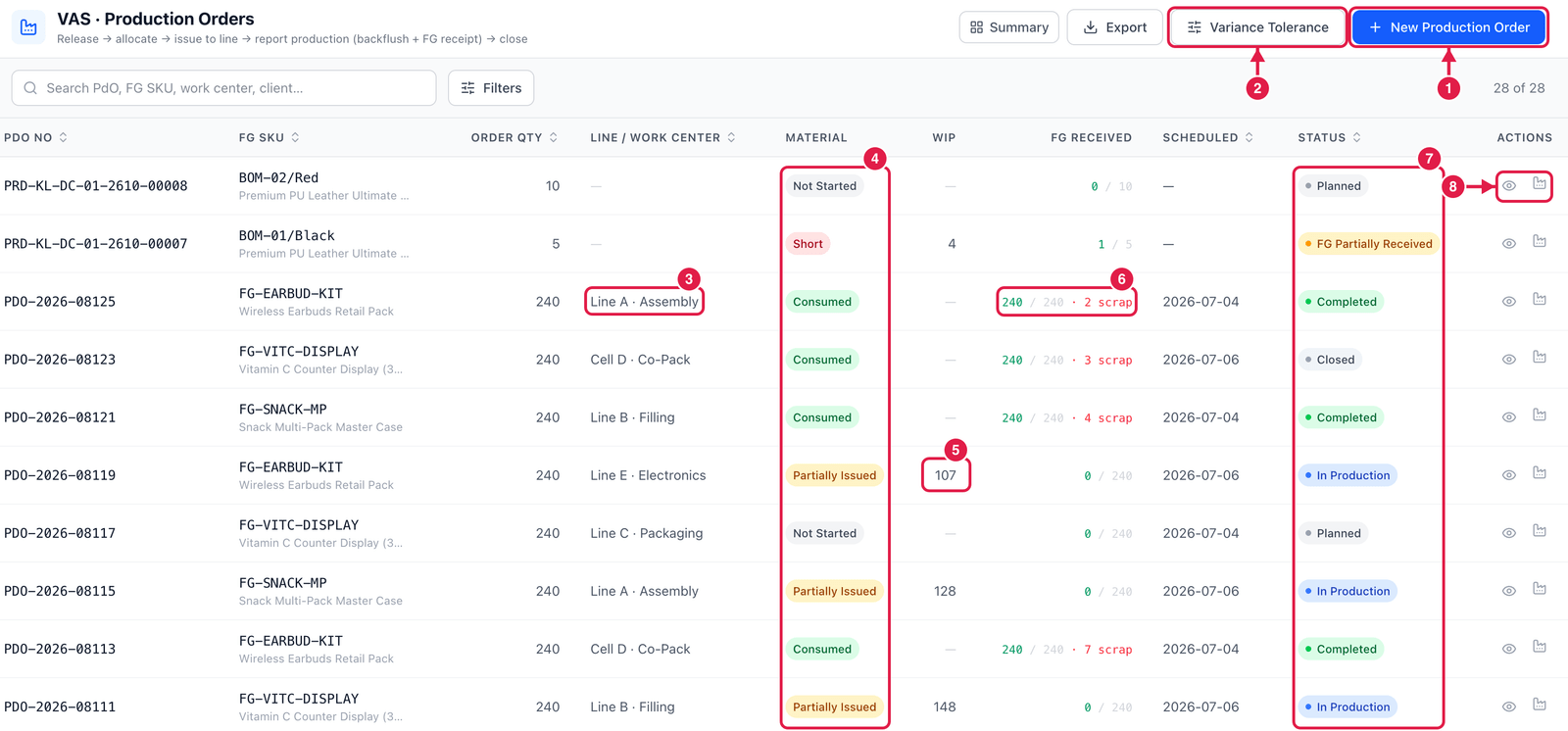
- New Production Order — plan a new production run.
- Variance Tolerance — how far (in %) actual material use may differ from the BOM before the line is flagged.
- Line / work center — where it is produced, e.g. Line A · Assembly.
- Material — the material status: Not Started, Staging, Partially Issued, Fully Issued, Consumed or Short (not enough stock to reserve).
- WIP — units of material at the line, not yet consumed.
- FG received — finished goods received / ordered, and how many were scrapped.
- Status — Planned, Released, Material Short, Material Staged, In Production, FG Partially Received, Completed, On Hold or Closed.
- Actions — View the order, and the Actions menu for the next step.
Create a production order
Click New Production Order.
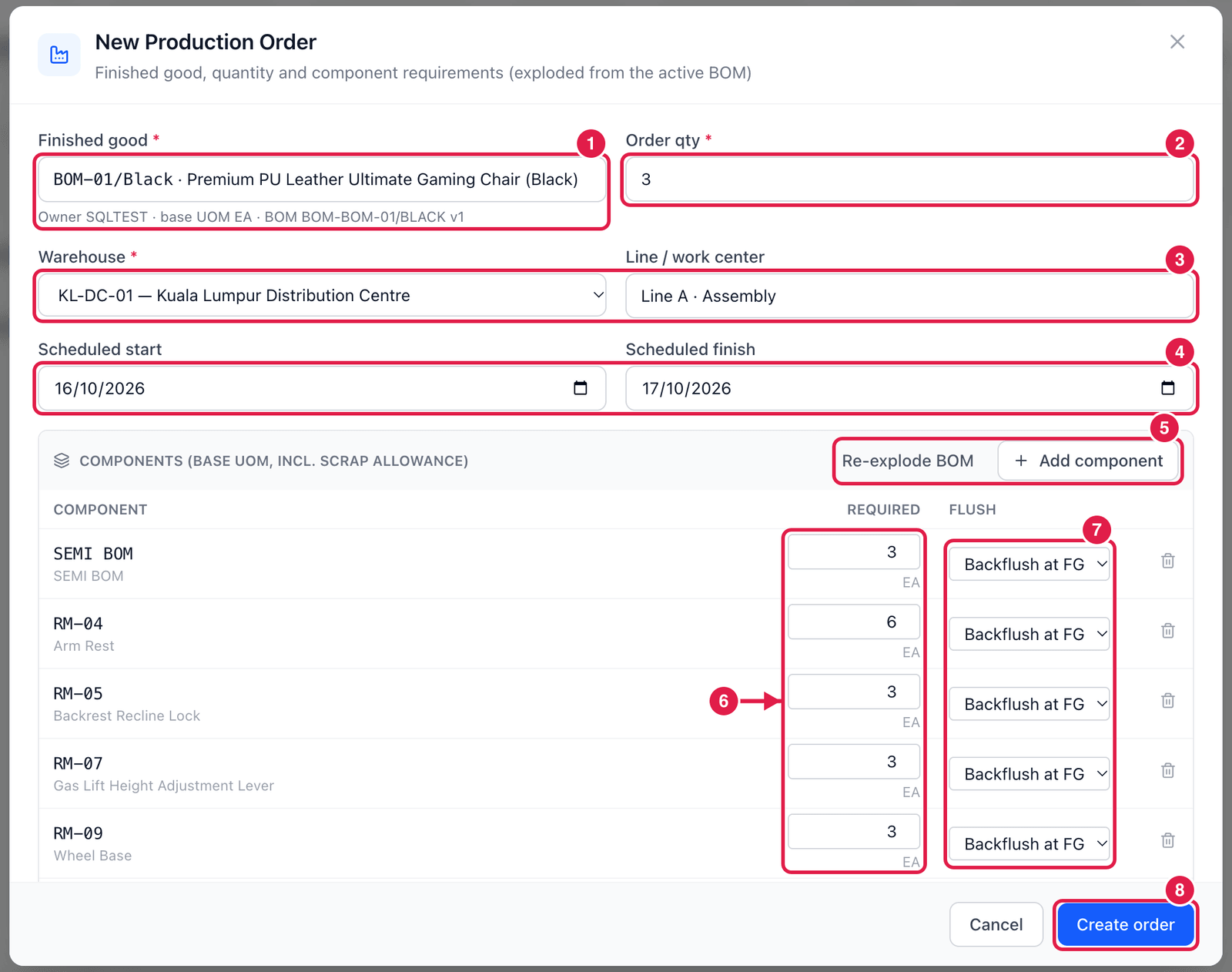
- Finished good — choose the item to make. Below it you see its owner, base UOM and the active BOM used.
- Order qty — how many to make.
- Warehouse and Line / work center.
- Scheduled start and Scheduled finish.
- Re-explode BOM — puts the components back exactly as the BOM says (undoing your changes); they are also recalculated automatically when you change the order qty. Add component adds an extra material.
- Required — the quantity of each component, in base UOM, including the BOM's scrap allowance. You may change it for this order.
- Flush — how the component is consumed:
- Backflush at FG — consumed automatically when you report production (standard qty × units made);
- Manual issue — you enter the quantity actually used when you report.
- Create order — the order is saved as Planned with its number. Nothing is reserved yet.
Run the order
Open the order and use the Actions menu:
- Release (allocate) — reserves the components. If some are short the status is Material Short; use Allocate shortfall later when stock arrives.
- Issue to line — moves the reserved materials to a line-side bin.
- Start production.
- Report production — enter good and scrap quantities, the output bin, the FG lot (if the item is lot-tracked) and an LPN (existing or new). A serial-controlled finished good needs one serial number per good unit. For manual issue components enter the actual quantity used. Materials are consumed and finished goods received — you can report in several steps.
- Close order — releases every open reservation. Leftover material at the line goes back to the bin it came from (or a bin you choose).
Put on hold pauses an order (no stock effect) until Resume. Print FG label prints labels for the finished goods.
After reporting, the order's Backflush table compares actual use with the BOM. Lines beyond the variance tolerance are highlighted — a sign of waste, a wrong BOM or a counting error.