Returns / RMA
When a customer sends goods back — wrong item, damaged, warranty, recall — you open a return (RMA, return merchandise authorization). The RMA says what is coming back and why. The goods are received into QA hold (not sellable yet), inspected and graded, and then every unit gets a disposition: back on the shelf, to repair or the vendor, to quarantine, or scrapped. Only units that were really received are put into stock.
Where: VAS & Production → Returns / RMA
A return from start to finish
The returns list
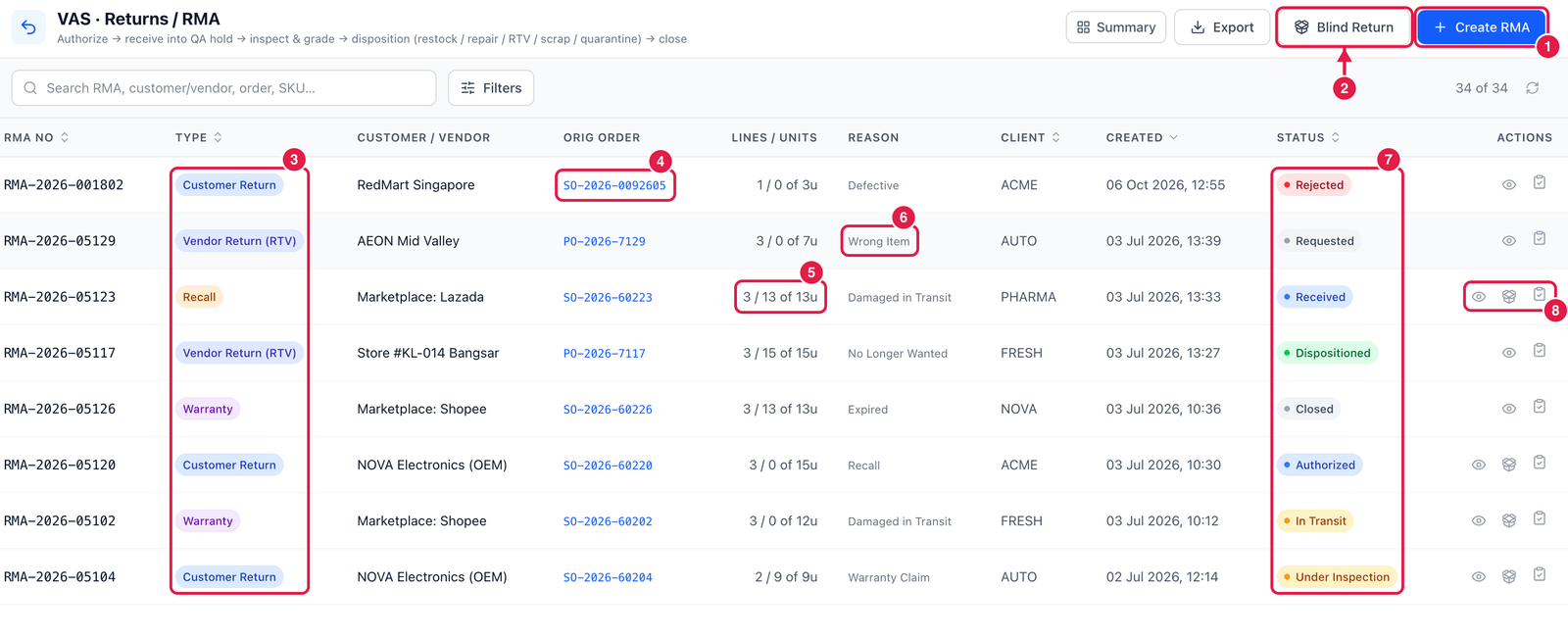
- Create RMA — register a return that is expected.
- Blind Return — goods arrived without any announcement: opens the same form with Blind already ticked, so you can receive them straight away.
- Type — Customer Return, Vendor Return (RTV), Warranty or Recall.
- Original order — the sales (or purchase) order the goods came from. Click to open it.
- Lines / Units — number of lines, and units received of units expected (e.g. 13 of 13u).
- Reason — the main reason, e.g. Defective, Wrong Item, Damaged in Transit, No Longer Wanted, Warranty Claim, Expired, Recall.
- Status — Requested, Authorized, In Transit, Received, Under Inspection, Dispositioned, Closed or Rejected.
- Actions — View, Receive, and the More menu (authorize, mark in transit, inspect / grade, close, reject, print voucher).
Create a return
Click Create RMA. The easiest way is to start from the shipped order.
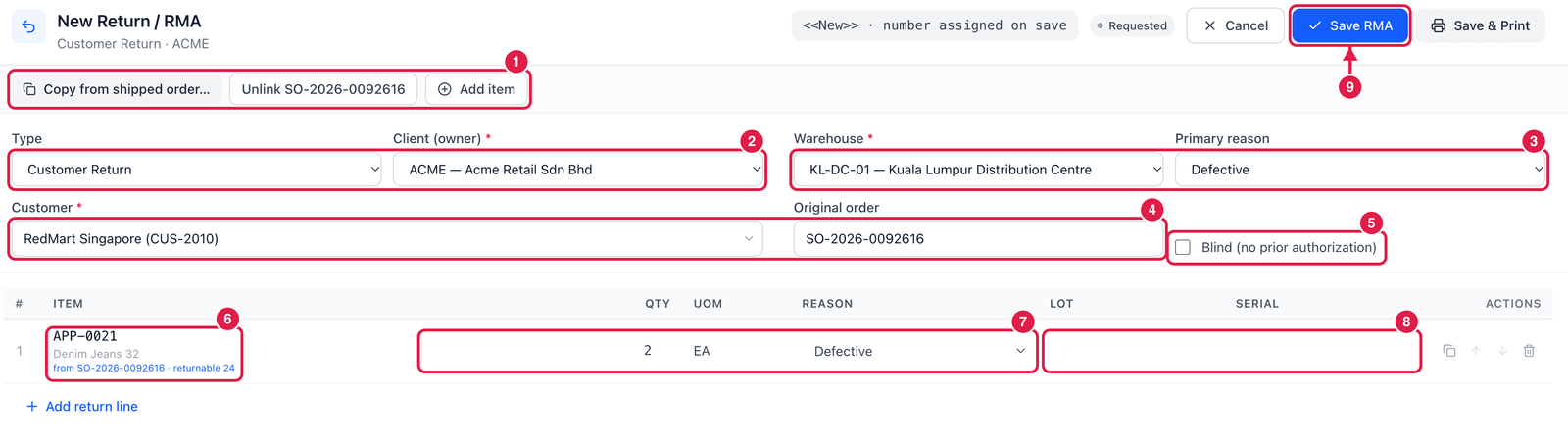
- Copy from shipped order… — pick a shipped sales order and tick the lines that come back. Client, warehouse, customer and the original order are filled in for you. Unlink removes the link again; Add item adds a line by hand.
- Type and Client (owner).
- Warehouse (where the goods will arrive) and Primary reason.
- Customer and Original order.
- Blind (no prior authorization) — tick it when the goods are already here and no approval step is needed.
- Item — a copied line shows the order it came from and how many units are still returnable.
- Qty, UOM and the line Reason — here 2 jeans, Defective.
- Lot and Serial — for lot- or serial-tracked items.
- Save RMA — the return is saved as Requested and gets its number.
Receive, inspect and decide
- Authorize — approve the return (the customer may now send it). Mark in transit when it is on its way.
- Receive — choose the returns bin (the warehouse's returns bin is the default) and enter what arrived, with lot, expiry and serials. The units go into stock in status QA Hold.
- Inspect / grade — give each line a grade and notes, or reject it.
- Disposition — decide, per line and quantity, what happens:
- Restock — released to Available in a storage bin, ready to sell again;
- Repair or RTV (return to vendor) — set to Blocked; an RTV is then shipped to the vendor;
- Hold / quarantine — moved to a QA bin in status Quarantine;
- Scrap — written off. Scrapping needs approval first (see Approvals).
- Close RMA — possible when every received unit has a disposition, no scrap is still waiting for approval, and RTV units have been shipped to the vendor. If some expected units never arrived, enter a short-close reason.
Why receive into QA hold?
Returned goods may be damaged or incomplete. Keeping them in QA Hold until inspection makes sure nobody picks a broken item for the next customer.