VAS Work Orders
Value-added services (VAS) are extra jobs you do for a client on their goods: labeling, price-ticketing, bundling, gift-wrap, repacking, shrink-wrap, inspection, serialization and more. A VAS work order says which service, on which item, how many units, at which station. The work is done, checked by QA, and — if billable — charged to the client at the rate on their rate card. VAS work orders do not move stock: the goods stay in their bins; only consumables such as labels or film are recorded on the order.
Where: VAS & Production → VAS Work Orders
A VAS work order from start to finish
The work orders
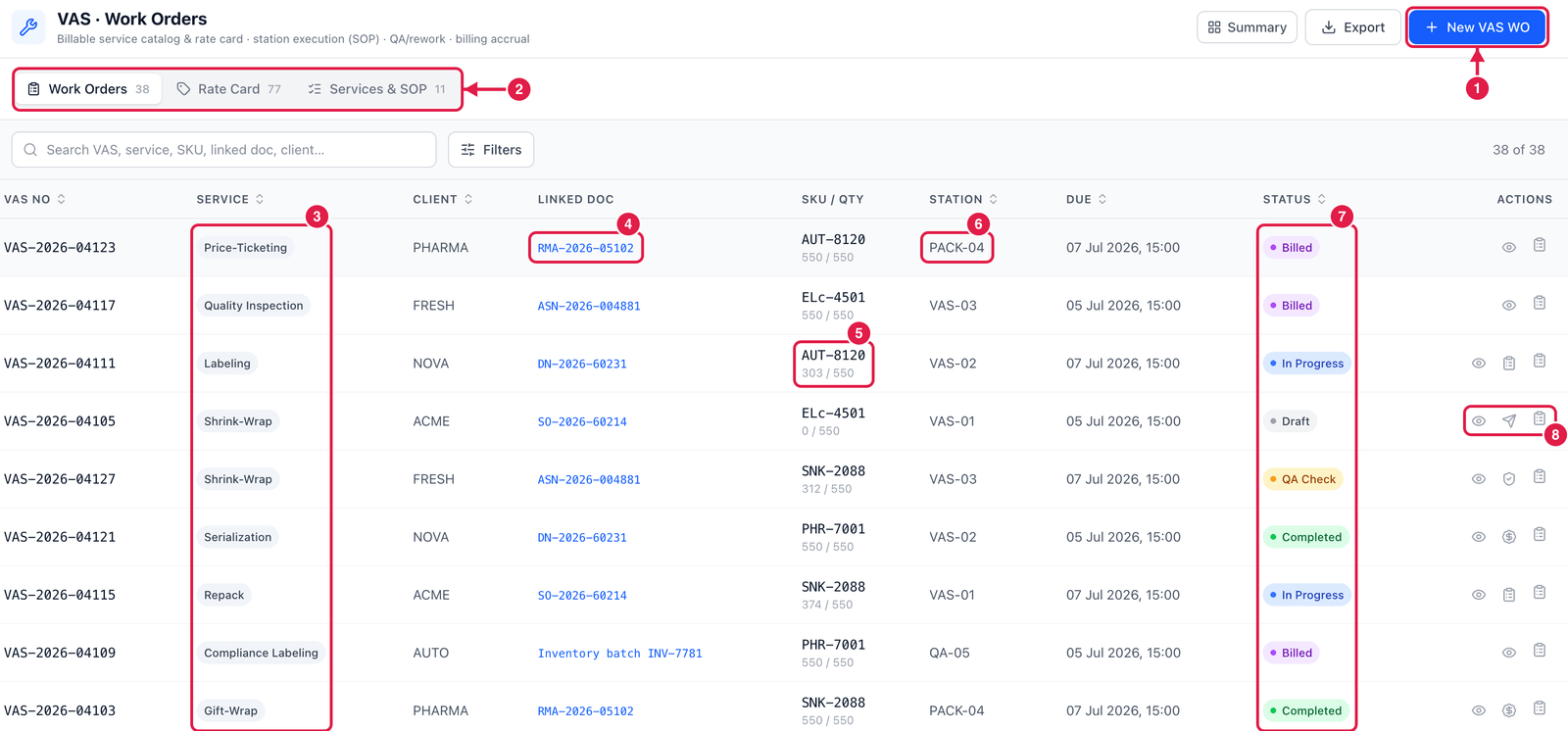
- New VAS WO — create a work order.
- Tabs — Work Orders, Rate Card (the VAS prices from each client's active billing rate card, read-only) and Services & SOP (each service's standard steps and standard minutes per unit — you can edit these).
- Service — e.g. Price-Ticketing, Quality Inspection, Labeling, Shrink-Wrap, Serialization, Repack, Compliance Labeling, Gift-Wrap.
- Linked doc — the document the job belongs to: a sales order, shipment, ASN, purchase order, receipt or GRN.
- SKU / Qty — the item and the progress: units done / units ordered (303 / 550).
- Station — the VAS station where the work is done.
- Status — Draft, Released, In Progress, QA Check, Rework, Completed, Billed or Cancelled.
- Actions — View, the next step for that status (for example Release on a draft) and the menu.
Create a VAS work order
Click New VAS WO.
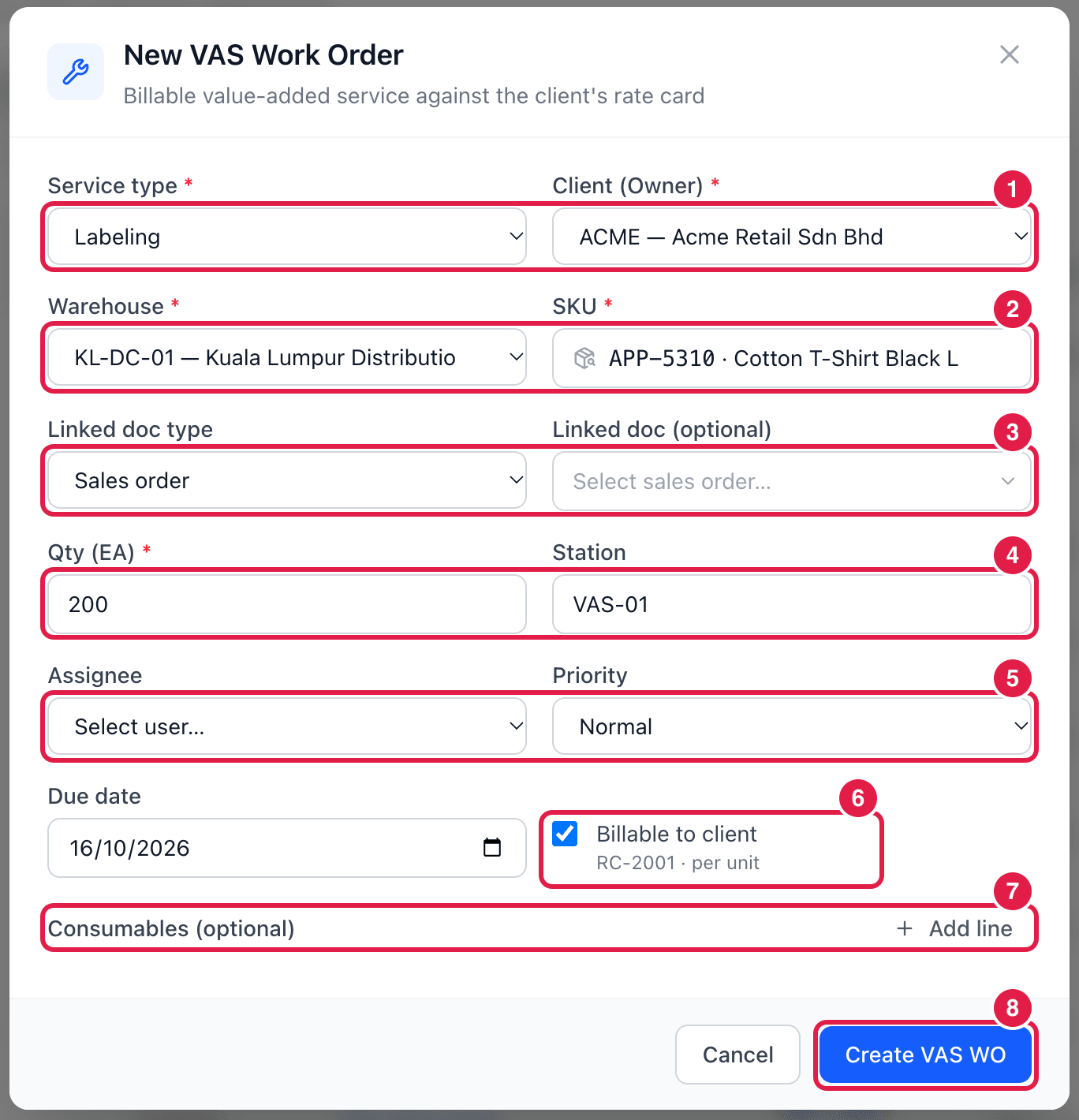
- Service type and Client (owner).
- Warehouse and SKU — the item to be serviced.
- Linked doc type and Linked doc (optional) — e.g. the sales order the labels are for.
- Qty and Station.
- Assignee and Priority (plus a Due date).
- Billable to client — shows the rate found on the client's rate card (here RC-2001 · per unit). If the client's rate card has no rate for this service, the order cannot be created as billable: untick it (the work is then done free of charge) or add the rate to the rate card first.
- Consumables — optional materials used, e.g. labels or film (they are recorded, not taken from stock).
- Create VAS WO — saved as Draft. The service's SOP steps and the rate are copied onto the order.
Do the work, check it, bill it
- Release, then Start at the station.
- Submit for QA — enter the quantity completed, the labour minutes and the consumables used.
- QA enters how many units were inspected and how many passed:
- Pass — the order is Completed; the pass rate and the billable amount are calculated;
- Fail — choose a reason and write a note; the order goes to Rework and is started again.
- Bill — for billable orders: the charge is posted to the client's billing (see 3PL Billing under Administration). An order can be billed only once.
Cancel needs a reason and is possible while the order is Draft, Released, In Progress or Rework.
Before you sell a service, add it to the client's rate card. Then every work order picks up the right price automatically and nothing is forgotten on the invoice.