Yard & Dock
The Yard & Dock screen is the control room for your gate, yard and dock doors. It shows the dock schedule (which truck is booked at which door, at what time), the status of every door, the trailers waiting in the yard, and every yard visit of the day. Here the gate team checks a truck in, sends it to a door or a yard slot, and the dock team starts and completes the unloading. The appointments themselves are booked under Dock Appointments.
Where: VAS & Production → Yard & Dock
A truck's visit
The dock schedule
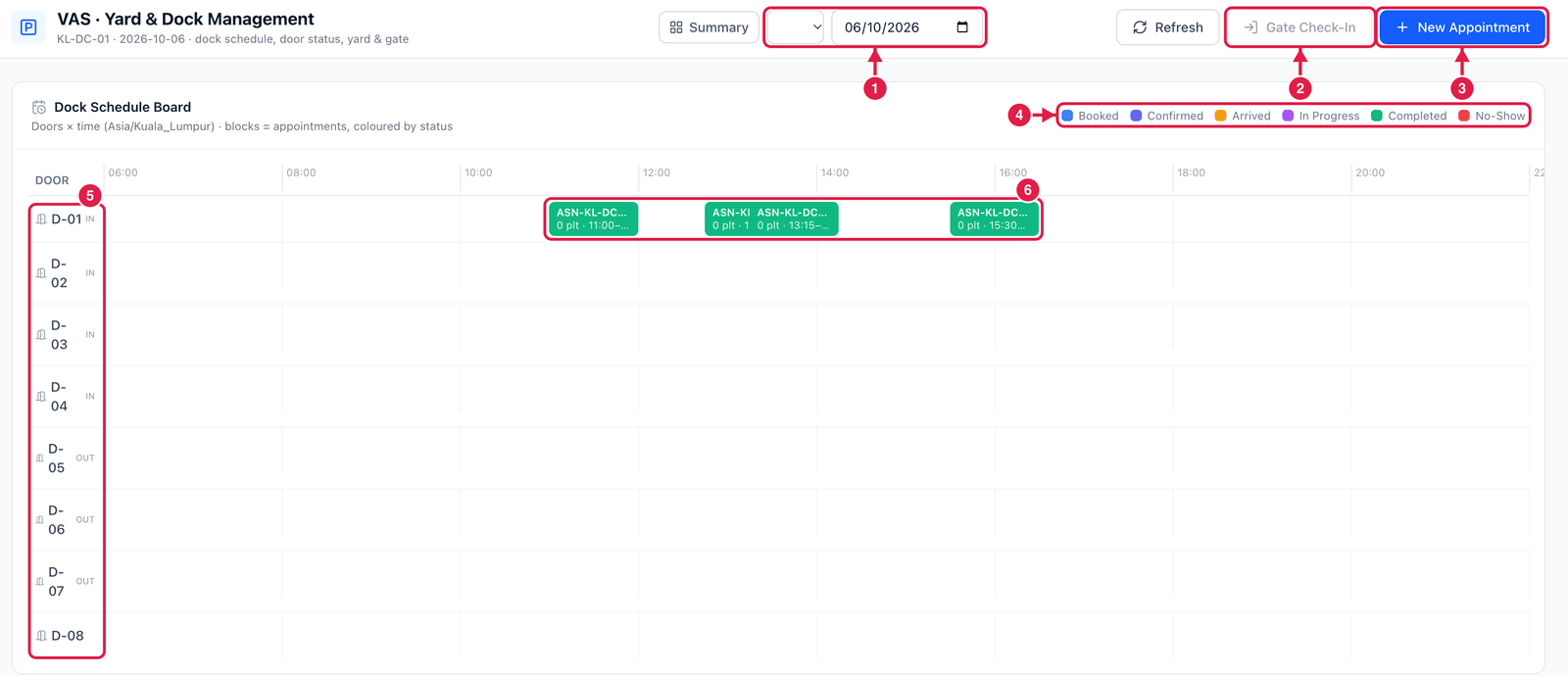
- Warehouse and date — the day you want to see (today by default).
- Gate Check-In — check in a truck that has an appointment.
- New Appointment — book a door for a truck.
- Colours — each appointment block is coloured by its status: Booked, Confirmed, Arrived, In Progress, Completed or No-Show.
- Doors — every dock door of the warehouse, with its direction (IN, OUT or both).
- Appointment blocks — placed at their door and time. Each shows the ASN, the number of pallets and the time window.
Doors, yard and visits
Scroll down for the rest of the board.
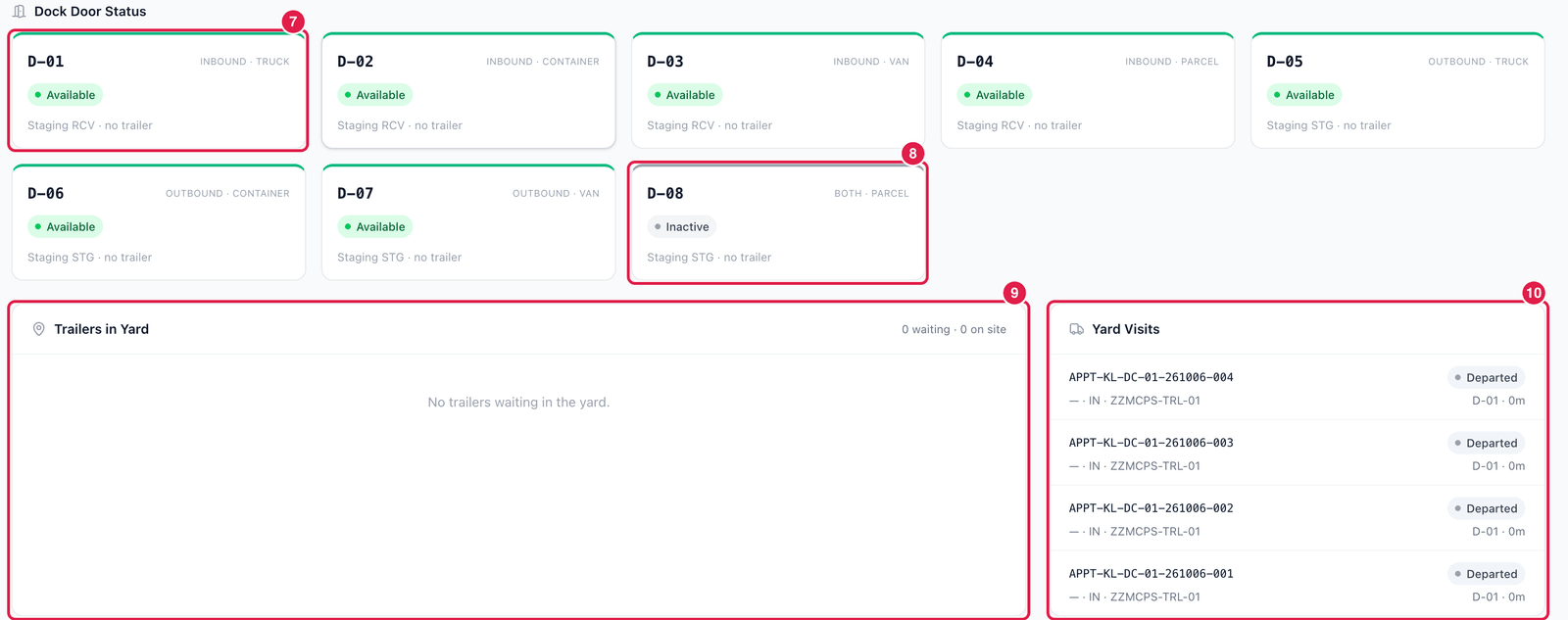
- Dock door card — the door, its direction and vehicle type (e.g. Inbound · Truck), its status — Available, Reserved (a booked truck is due soon), Occupied, Unloading or Inactive — the staging area it serves, and which trailer is at it.
- Inactive door — a door that is switched off cannot be booked or used. An inbound door cannot be booked for an outbound truck, and the other way round (doors marked both take either).
- Trailers in Yard — trucks that are checked in and waiting in a yard slot; the header counts how many are waiting and how many are on site.
- Yard Visits — every visit of the day with its trailer, door, time on site (dwell) and status, up to Departed.
Check a truck in and out
- Gate Check-In — choose the appointment, enter the trailer and driver, the seal number, and tick Seal verified and Safety checked. Send the truck to a yard slot or straight to a door. For a reefer you can record the temperature. The appointment becomes Arrived.
- Assign door / Move door / Back to yard — move the visit between a yard slot and a door. PrismaWMS refuses a door that is already occupied and a yard slot that is already taken.
- Start unloading (or Start loading for an outbound truck) — the appointment shows In Progress.
- Complete — the visit is Completed. Receiving the goods themselves is done in Receiving.
- Check out — enter the outgoing seal and load state. A truck that is still unloading cannot check out. If it leaves before unloading was completed, you must give a reason.
Keep the board honest
Mark trucks that never arrive as No-Show (in Dock Appointments). The door is then free again, and the ASN goes back to waiting for a new booking.